




File Explorer single click: open files with one deliberate press
File Explorer can use single-click opening through Folder Options. That changes how items are opened in Explorer; it does not make every application use the same interaction.
Read moreFile Explorer item check boxes help select files without relying only on modifier keys. The selection squares are different from cloud-sync status icons and do not change stored file contents.
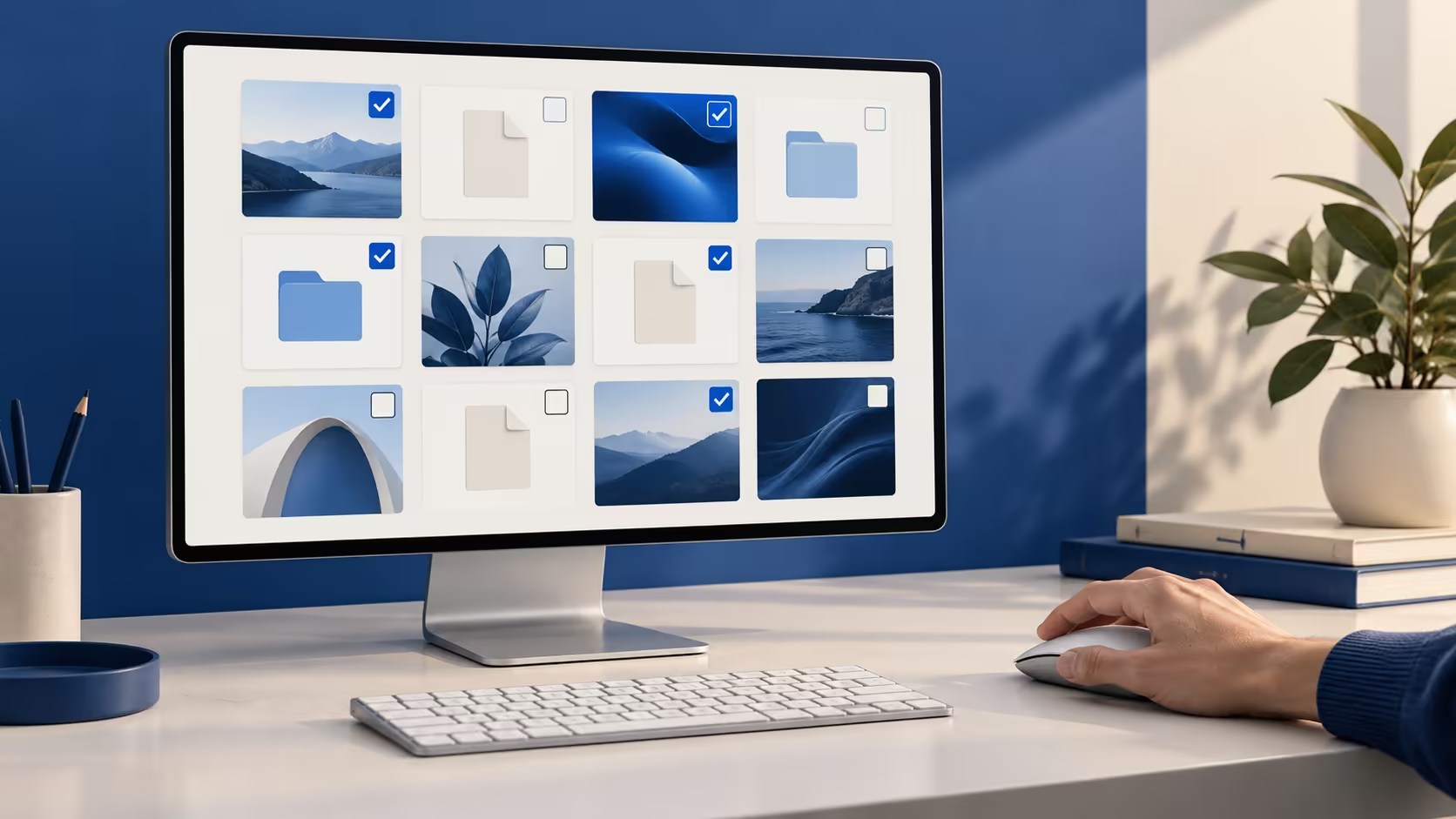
Small squares beside files can make a large selection easier to see, but they are often confused with cloud status badges. File Explorer check boxes are item-selection controls. Decide which icon you are looking at before changing settings or assuming that a file has been copied somewhere else.
In Windows 11 File Explorer, open View, choose Show and toggle Item check boxes. Use the squares to select or deselect items, then review the selected group before acting. This R0 setting does not remove cloud-sync status badges. The catalogue listed a Marvo MS003 wired mouse at R59 on 12 October 2026, but showing selection squares does not require new hardware.
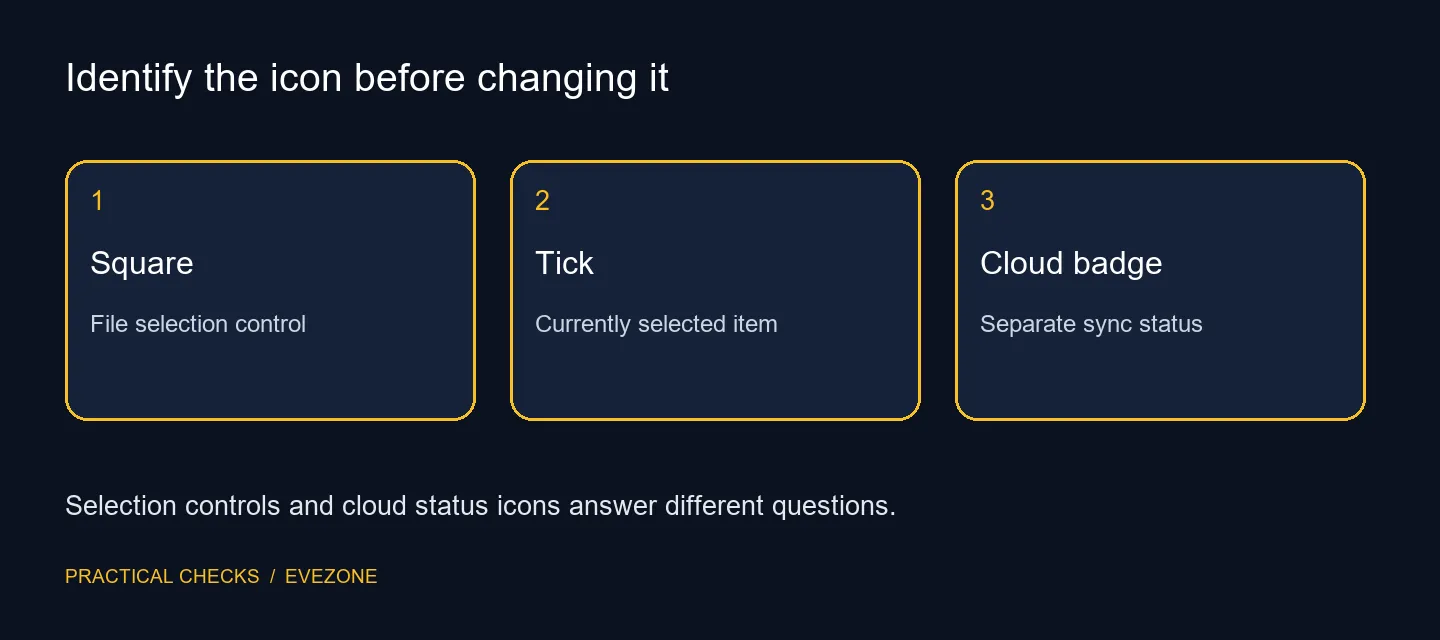
A selection square tells you whether an item is part of the current group you have chosen. A cloud or sync badge describes a different state associated with a storage service. Turning the selection feature off is therefore not a reliable way to change those badges. Look at where the symbol appears and how it reacts when you select another file.
Try the setting in a folder with a few harmless test documents. Toggle a square and observe the highlighted item, then select another. This establishes the visual behaviour without using a destructive command. Do not test by deleting real work merely to see whether the right files were selected.
Visible squares can help when selecting several scattered items and checking the group before a copy operation. Keyboard modifier selection remains useful for people familiar with it, but the goal is the same: establish the intended group before choosing an action. A folder with similar names deserves an extra review regardless of the selection method.
Use a view that makes the distinguishing details readable. If filenames or dates are important, make sure the relevant information is visible before selecting. A checkbox can make the selection explicit, but it cannot tell whether two similarly named documents contain the same work. Keep that decision separate from the convenience of the control.
After selecting the intended files, pause and review the highlighted group. If an item was added by mistake, deselect it before opening a context menu. Practise with copy and paste into a test folder if the selection method is unfamiliar. Keeping originals in place makes the first trial easier to undo.
Compare mouse options around comfort and reliable buttons only if the physical pointing device is part of the problem. Review mouse accessories for a specific desk need rather than treating this display option as a hardware fault. If the squares remain unwanted, return to the same View and Show menu and toggle them off. Confirm that selection now looks the way you expect while leaving cloud-status questions for the relevant storage service.
In File Explorer, open View, then Show and choose Item check boxes. Menu wording can vary by Windows version.
They offer a visible control for selecting items. The checkbox option changes selection behaviour, not the contents of the files.
No. Cloud-sync status icons are separate from item selection check boxes. Identify which icon you are seeing first.
Yes. Use the selection squares on the items you want, then check the selected group before performing an action.
No. The setting costs R0. A Marvo MS003 wired mouse was R59 on 12 October, but a replacement is not needed to show check boxes.
Use a folder with disposable test files, select and deselect a few items, and avoid delete or move commands while learning the control.
Make file selection visible Try item check boxes with disposable files and review the selected group before copying, moving or deleting anything.
In File Explorer, open View, then Show and choose Item check boxes. Menu wording can vary by Windows version.
They offer a visible control for selecting items. The checkbox option changes selection behaviour, not the contents of the files.
No. Cloud-sync status icons are separate from item selection check boxes. Identify which icon you are seeing first.
Yes. Use the selection squares on the items you want, then check the selected group before performing an action.
No. The setting costs R0. A Marvo MS003 wired mouse was R59 on 12 October, but a replacement is not needed to show check boxes.
Use a folder with disposable test files, select and deselect a few items, and avoid delete or move commands while learning the control.
File Explorer can use single-click opening through Folder Options. That changes how items are opened in Explorer; it does not make every application use the same interaction.
Read more
Update WhatsApp through Google Play on Android and back up your chat history first. Check the official app listing and available update rather than downloading an unverified APK.
Read more
Gemini not working can mean an account restriction, unavailable app support or a browser problem. Identify the failing surface and exact message before treating every error as an outage.
Read more
Keyboard repeat delay controls the pause before a held key starts repeating. Adjust that pause separately from repeat rate, then test normal typing before considering a replacement keyboard.
Read more
Windows can assign a short power-button press to an available power action. Check the plugged-in and battery choices separately, then test after saving your work.
Read more
Windows lets supported laptops assign an action when the lid closes. Review battery and plugged-in behaviour, and use a deliberate power state before putting the laptop in a bag.
Read more
Steam content servers unreachable needs a download-path check, not an immediate reinstall of every game. Restart the client, inspect download settings and compare another connection when practical. Clearing the download cache is separate from deleting installed games.

Keychron G6 HE has built-in and swappable battery versions with different weights. The product brief lists 42g and 46g respectively, each with a 3g tolerance. Choose by grip and battery preference before treating one headline weight as universal.

Corsair HS80 v2 MAX supports 2.4GHz wireless and Bluetooth. Its maximum battery figures use RGB-off conditions and differ by connection. Check microphone routing, comfort and the exact device support before assuming every wireless mode behaves alike.

Windows taskbar notification badges can be shown or hidden in Taskbar behaviours. This changes the small app indicators, not the underlying messages. Choose a calmer desktop while keeping a deliberate routine for checking important conversations and app updates.

Windows transparency effects can be switched off to make supported backgrounds more opaque. Use Accessibility, Visual effects or the colour settings, then compare a menu against your wallpaper. This R0 preference changes appearance; it is not a promised.

Windows title bar window shake can minimise other open windows when you shake the active window by its title bar. Inspect the Multitasking setting and switch it off if that gesture interrupts your work. The preference costs R0 and does not require new hardware.

Windows Print Screen opens Snipping Tool when its keyboard preference is enabled. Change the option under Accessibility, Keyboard to choose another workflow. Test whether you need a clipboard image or a saved file.

Windows desktop icons missing may be a visibility setting. Right-click the desktop, choose View and inspect Show desktop icons. If only system icons are absent, use Desktop icon settings. Check the Desktop folder before assuming files were deleted.

RTX 5090 should be enough for Palworld at 1080p when the rest of the PC is balanced. Use this SA-focused guide to weigh settings, monitor refresh, CPU balance, and upgrade room without relying on unsupported FPS claims.

student laptop guide for Gqeberha gamers should be shortlisted around the job it must do. South African buyers should compare CPU, GPU, RAM, and screen quality, warranty path, and upgrade room before treating any pick as best.

A second-hand GPU on a R5,000 SA budget can save money but adds condition risk. Check warranty, temperatures, fan noise, ports, seller proof, power draw, and return options first.

gaming monitor delivery and pickup in Gqeberha should be shortlisted around the job it must do. South African buyers should compare panel type, resolution, refresh rate, and ports, warranty path, and upgrade room before treating any pick as best.