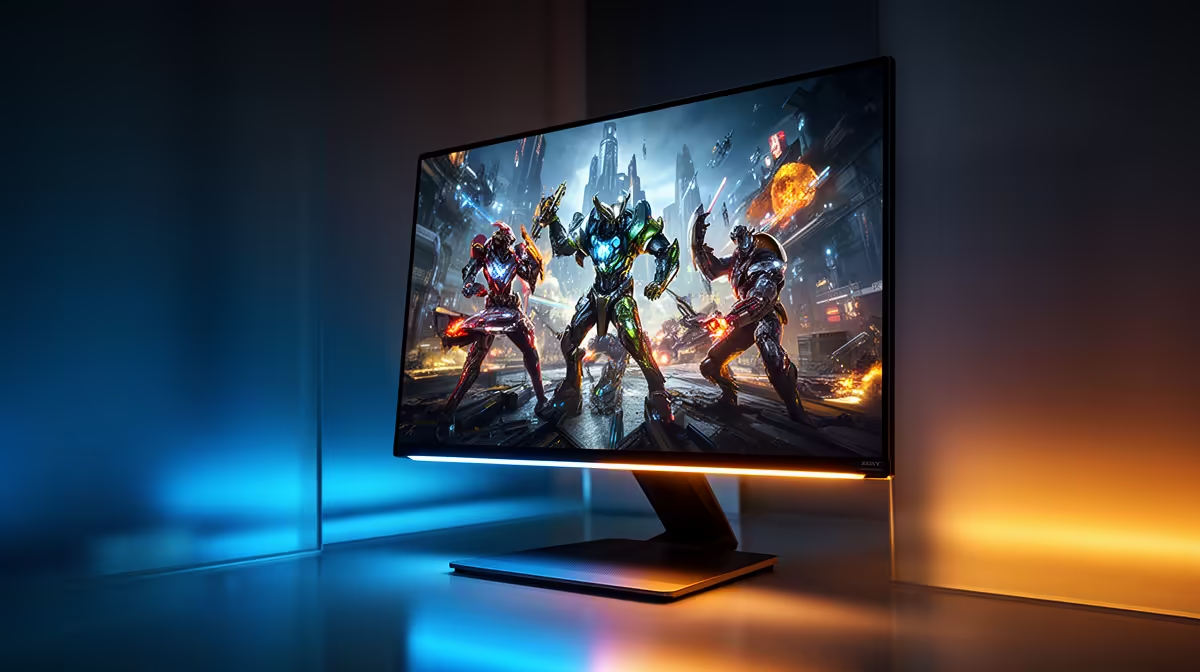
OLED Brightness Reality: What ABL Means for Your Games
Quick Answer
Automatic Brightness Limiting, usually shortened to ABL, reduces OLED light output when a large bright area fills the screen. It helps keep panel power and temperature inside the monitor's design.
That is why a small HDR explosion can look intense while a full white loading screen or document appears dimmer. Peak brightness measured in a small test window does not describe every scene.
Check full-screen brightness, small-highlight brightness and how the monitor shifts between them. The smoothness of that change can matter more than the highest number.
Step 1: Understand Average Picture Level
Average picture level describes how much of the image is bright. A dark game with a few bright effects has a low average level. A snowfield, white menu or document has a high one.
OLED can drive small highlights harder because fewer pixels demand peak output at once. As the bright area grows, the power-management system reduces luminance.
The exact curve varies by panel, picture mode and firmware. One OLED review cannot stand in for another model.
Step 2: Separate Peak From Sustained Brightness
A peak figure may come from a small window held for a short period. Sustained full-screen output measures another part of the experience.
For HDR games, small highlights help sparks, lights and reflections stand out against deep black. For desktop work, a stable full-white window matters more.
Read both measurements and the test-window size. A bare nit figure without that context is weak buying information.
Step 3: Notice ABL in Games
Dark games with local highlights can play to OLED's strength. A bright outdoor scene, ice level or white user interface can trigger more limiting.
If brightness shifts as you open a menu or turn towards the sky, ABL or another static-brightness protection may be involved. Dynamic tone mapping can also change the picture, so isolate one setting at a time.
Some players never notice the change in motion. Others find a pulsing desktop distracting. Test the content you use.
Step 4: Understand Desktop Behaviour
Large white documents and web pages expose full-screen limits. The panel may look bright enough in a controlled room and struggle near a window.
Some monitors offer a more uniform brightness mode that lowers the peak to keep desktop output stable. That can be the better work setting even though the specification looks less exciting.
Save separate SDR work and HDR game profiles when the monitor supports them. Do not run HDR desktop mode merely because the badge exists.
Step 5: Check Protection Settings
OLED monitors may expose peak-brightness, logo dimming, screen move and static-brightness controls. Options and safe ranges differ.
Avoid disabling safeguards through a service menu. Extra brightness can add heat and wear outside the intended configuration.
Use documented modes and keep firmware current through the official route. A firmware update can alter dimming behaviour, so read release notes before applying it.
Step 6: Compare Mini-LED
Mini-LED LCD monitors can sustain brighter large areas because a separate backlight supplies the light. They can suit bright rooms and white desktop work.
The backlight uses zones rather than per-pixel control. Bright objects can create halos against black, and the algorithm may dim small highlights to suppress blooming.
OLED wins local black control. Mini-LED can win broad brightness. The room and content decide which weakness is easier to live with.
Step 7: Control the Room First
A blind, changed desk angle or darker wall behind the screen can improve perceived contrast. Direct sunlight on any monitor is hard to overcome.
Check the coating. A glossy OLED can preserve image clarity but mirror a window; a matte coating spreads reflections across a larger area.
Set brightness for the actual daytime and evening conditions. Maximum output all night wastes comfort and panel life.
Step 8: Shop With the Right Measurements
Browse current monitor choices, compare popular PC displays, and inspect OLED monitor options.
For each candidate, record full-screen SDR brightness, HDR highlight output, colour accuracy, coating and whether a uniform-brightness mode exists.
Watch a reviewer's brightness transition test. Two monitors with similar peaks can feel different when one changes abruptly.
Step 9: Tune HDR Without Chasing Maximum
Run the operating system's HDR calibration where appropriate and follow the game's instructions. Set the monitor's supported peak rather than an invented number.
Avoid lifting black level until OLED black becomes grey. Check shadow detail with a known pattern.
Use tone mapping that matches the game's HDR output and your preference. A brighter-looking mode can clip highlight detail.
Step 10: Decide From Your Content
Choose OLED when dark games, films and fast motion dominate and you can control room light. ABL becomes a manageable characteristic rather than a surprise.
Choose mini-LED or bright IPS when white desktop windows, sports and daylight use dominate. You trade per-pixel black for stronger broad luminance.
If your use is mixed, test both through a bright browser page and a dark HDR scene. The switch between those two is the real decision.
FAQ
What does ABL do?
It limits OLED output as bright image area grows, managing power and heat within the display design.
Why is a small highlight brighter?
The panel can direct more output to a small group of pixels than to a full field of bright pixels.
Does ABL affect games?
Yes, especially bright broad scenes and menus. How visible it is depends on the monitor and content.
Can you adjust it?
Some documented picture modes change peak and uniformity behaviour. Do not bypass safety controls through service menus.
Does mini-LED have the same issue?
It uses another backlight and limiting behaviour. It can sustain brighter large areas but introduces zone blooming and control trade-offs.
Compare full-screen and highlight brightness in your actual room, then choose the OLED mode or panel type whose transitions stay out of your way.