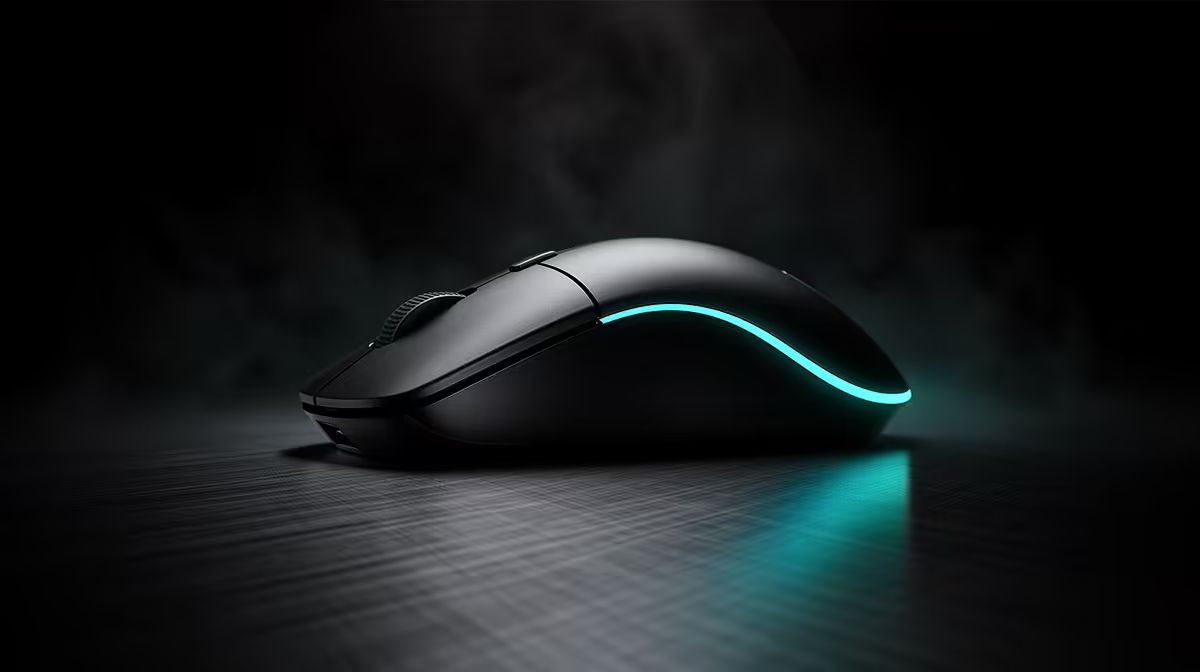
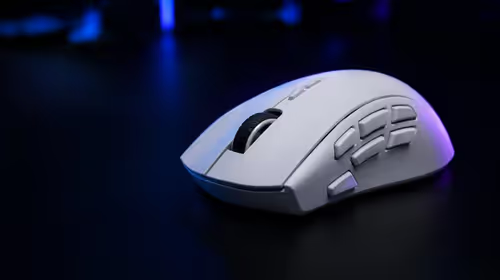
Wireless stutter often begins around the receiver, where a metal PC, busy port and nearby radios crowd a tiny signal. Fix wireless mouse interference by improving dongle position and proving the radio path before condemning the mouse.
Quick Answer
Wireless mouse stutter can come from radio interference, poor receiver placement, low battery, firmware, a busy USB path, frame-time spikes or a failing sensor. Start by moving the 2.4GHz receiver close to the mouse with the supplied extension, away from the rear of the PC and a cluster of USB 3 devices. Then test another supported port, charge the mouse and compare by cable. Change Wi-Fi channels only after a scan shows a real conflict. A stutter that follows the mouse across computers and modes points towards hardware or firmware.
Prove the cursor is stuttering
Open an offline game or plain desktop test and move the mouse in a steady circle. Keep a frame-time graph visible in the game.
If the cursor skips on the desktop too, the game server is outside the case. If only the game stutters while mouse reports stay clean, inspect CPU, GPU and shader work.
Record whether clicks fail, motion skips or both. A failing switch and radio dropout need different fixes.
Charge and reset the baseline
Charge the mouse through its supported cable and update firmware from the manufacturer. Set 1000Hz, default motion settings and a moderate DPI.
Disable macros and close duplicate mouse utilities. Save the profile onboard where supported.
Restart the PC and test before changing radio channels. One clean baseline keeps the diagnosis readable.
Move the receiver
Use the supplied receiver extension or dock to place the dongle on the desk near the mouse. Keep it clear of the metal PC chassis.
Do not put several receivers against one another in a rear USB cluster. Separate the mouse and headset dongles with supported ports or extensions.
A USB 3 cable or device can emit noise around 2.4GHz in some layouts. Move high-traffic storage and the receiver apart, then repeat the circle test.
Test the USB path
Connect the receiver to another direct motherboard or laptop port. Avoid a power-limited hub for the baseline.
Remove other non-essential USB devices one at a time. A faulty hub, cable or controller can flood the bus or interrupt power.
Do not disable USB security or random device services. Use current chipset and system drivers from the PC maker.
Compare by cable
Use wired mode when the mouse supports data over its cable. Some charging cables provide power only, so check the manual.
A clean cable result with receiver stutter points towards radio, receiver or wireless firmware. Stutter in both modes points towards the mouse, USB host or PC frame time.
Test the mouse on another supported computer. Keep DPI and polling the same.
Scan the 2.4GHz environment
Both gaming receivers and 2.4GHz Wi-Fi share radio space. Use a reputable analyser to see strong nearby Wi-Fi channels at the desk.
Move high-throughput Wi-Fi clients to clean 5GHz or 6GHz where compatible. Keep smart-home devices on a planned 2.4GHz channel.
Change the router channel only through legal regional settings and after recording the current one. Retest every household device.
Check nearby wireless accessories
Turn off one headset, controller or Bluetooth device and repeat. Do not switch off medical, security or work equipment without identifying it.
If one receiver pair creates the fault, separate their positions. A wireless headset can be clean alone and conflict when its dongle sits against the mouse receiver.
Keep the PC's Wi-Fi and Bluetooth antennas connected. Removing them can create another weak link.
Inspect polling and frame time
High polling adds CPU and USB work. Step from 8000Hz or 4000Hz down to 1000Hz and watch the frame-time graph during fast movement.
A CPU-limited title can appear to have mouse stutter when input processing and frames spike together. Keep the stable rate for that game.
Motion sync and smoothing should be tested after the connection is clean. They cannot repair lost radio reports.
Know when hardware support fits
The receiver can fail, the battery can become unstable or the sensor can develop a fault. Gather the cable, wireless and second-PC results.
Contact support with model, serial, firmware, port, receiver distance and a short recording. Do not open a mouse under warranty before the service route is clear.
Replace only after the fault follows the device. A new mouse cannot fix a CPU frame-time spike or overloaded hub.
Choose a replacement by the whole wireless design
Look for measured receiver latency, stable polling, extension hardware, wired fallback, battery reporting and firmware support.
Browse wireless gaming mouse deals for current connection and sensor details. Compare the mouse best sellers by shape and complete ownership fit.
FAQ
Can USB 3 interfere with a mouse receiver?
Some devices and layouts can add 2.4GHz noise. Separate the receiver from high-traffic USB 3 hardware and test.
Should you change the Wi-Fi channel?
Only after a room scan and receiver-placement test show a likely conflict. Use supported regional settings.
When is the mouse faulty?
When stutter follows it across clean ports, cable or receiver modes and another computer after supported firmware checks.
Move the receiver onto the desk, test a direct USB port and cable mode, then change radio settings only when the stutter follows that evidence.