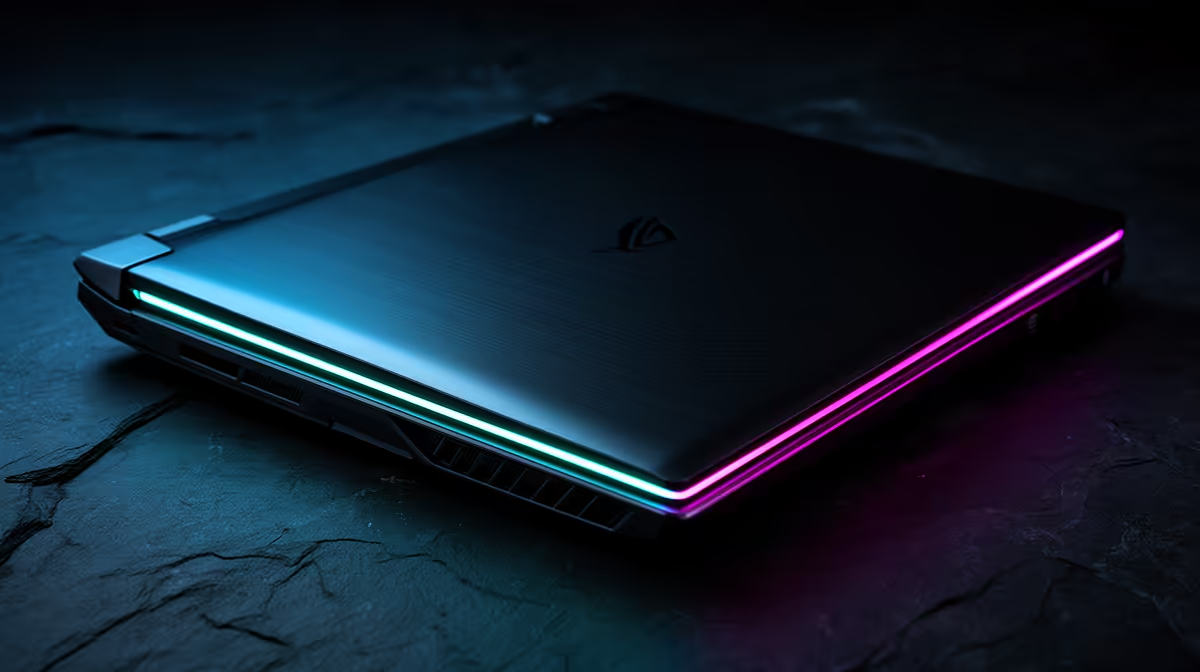
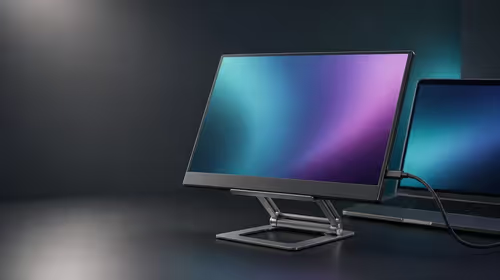
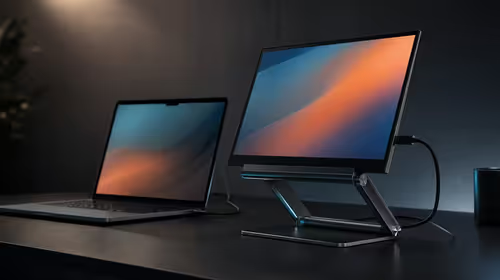
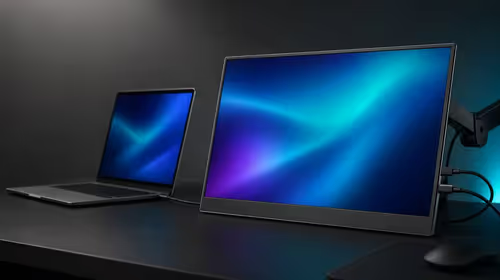
A closed gaming laptop can run an external monitor, keyboard and mouse like a compact desktop. Windows makes the lid action easy to change. Cooling needs more thought because some laptops draw air through the keyboard deck or use the open display to keep exhaust clear. Confirm the chassis is designed for closed operation before a long gaming load.
Quick Answer
Connect the original high-power adapter, external display and input devices. In Windows Power Options, change When I close the lid to Do nothing for Plugged in. Put the laptop on a stable stand that leaves every intake and exhaust open. Run a warm game test with the lid open and closed, then compare temperatures, clocks and fan noise.
Evetech's laptop best-seller page helps you inspect chassis and port layouts. The gaming laptop offers are useful when selecting a model whose external-display and cooling design suits permanent desk use.
Check the Cooling Layout First
Look underneath, along the sides, behind the hinge and across the keyboard. Bottom intakes need open space. Rear exhaust can blow towards the lower display edge, and some designs take supplementary air through the keys.
Read the model manual for operating-position guidance. A vertical stand may block side vents or put a liquid-metal cooling system in a position the maker did not test. Use a horizontal or angled stand when the documentation is silent.
Do not place another monitor directly against the laptop exhaust. Hot air needs a clear route away from both devices.
Change the Lid Action on Mains
Open Control Panel, Power Options, Choose what closing the lid does. Set Plugged in to Do nothing. Keep the battery action at Sleep or another safe choice unless you have a defined portable workflow.
Windows editions and vendor tools can present related settings elsewhere. Test the change by closing the lid with no unsaved work. Confirm the external display remains active and the laptop responds to the external keyboard.
Do not disable every sleep safeguard. The lid rule should serve a connected desk setup, while inactivity timers still protect a machine left running.
Set the External Display as Primary
Open Windows Display settings, identify the monitor and choose it as the main display. Select the native resolution, correct refresh rate and scaling. Use Extend first while arranging the setup, then choose Show only on the external display if that is your goal.
Confirm which laptop port carries the required bandwidth and GPU route. A dock may handle office displays while a high-refresh gaming monitor works better through a direct HDMI or DisplayPort connection.
Set the monitor input and enable its low-latency or adaptive-sync features where appropriate. Keep HDR as a separate calibration task.
Make Wake and Login Practical
Pair the keyboard and mouse before closing the lid. A wired or receiver-based device can be easier for firmware prompts than Bluetooth, which may connect only after Windows loads.
Test wake from sleep. USB wake support depends on the port, hub, Windows settings and firmware. If it is unreliable, use the laptop's power button in a stand that leaves it reachable.
Windows Hello face sign-in will lose sight of you with the lid closed. Set up a fingerprint reader, PIN or external compatible camera.
Compare Open and Closed Temperatures
Run the same demanding scene for at least fifteen minutes with the lid open. Record CPU and GPU power, temperatures, clocks and frame time. Let the machine cool, close it and repeat with the same room conditions.
A small change with stable clocks can be acceptable within the maker's limits. A sharp rise, falling clocks or fans surging means the closed position hurts cooling. Keep the lid open or change the stand.
The display panel can also absorb exhaust heat. If the hinge area becomes unusually hot, stop the test and follow the manufacturer's operating guidance.
Keep Power and Cables Under Control
Use the supplied gaming adapter for full performance. USB-C power may support office work while falling short of the laptop's combined CPU and GPU demand.
Route cables without pulling on ports when the stand moves. Give the power brick ventilation. A dock should have enough power and display bandwidth for every attached device, though the gaming adapter may still need its own connection.
Shut down before putting the laptop into a sleeve. A lid setting of Do nothing makes accidental closed-bag operation more likely if sleep fails.
FAQ
How do I stop sleep when the lid closes?
In Windows Power Options, change the plugged-in lid action to Do nothing, then test the external display and controls.
Does closed-lid use make every laptop hotter?
No. The effect depends on intake and exhaust design. Compare a controlled warm test for your exact model.
Can I use clamshell mode on battery?
Windows can allow it, but keep a safer battery lid action unless you need the mode and can prevent closed-bag operation.
Set the plugged-in lid action, keep every vent open and prove the closed setup with an open-versus-closed temperature and clock comparison.