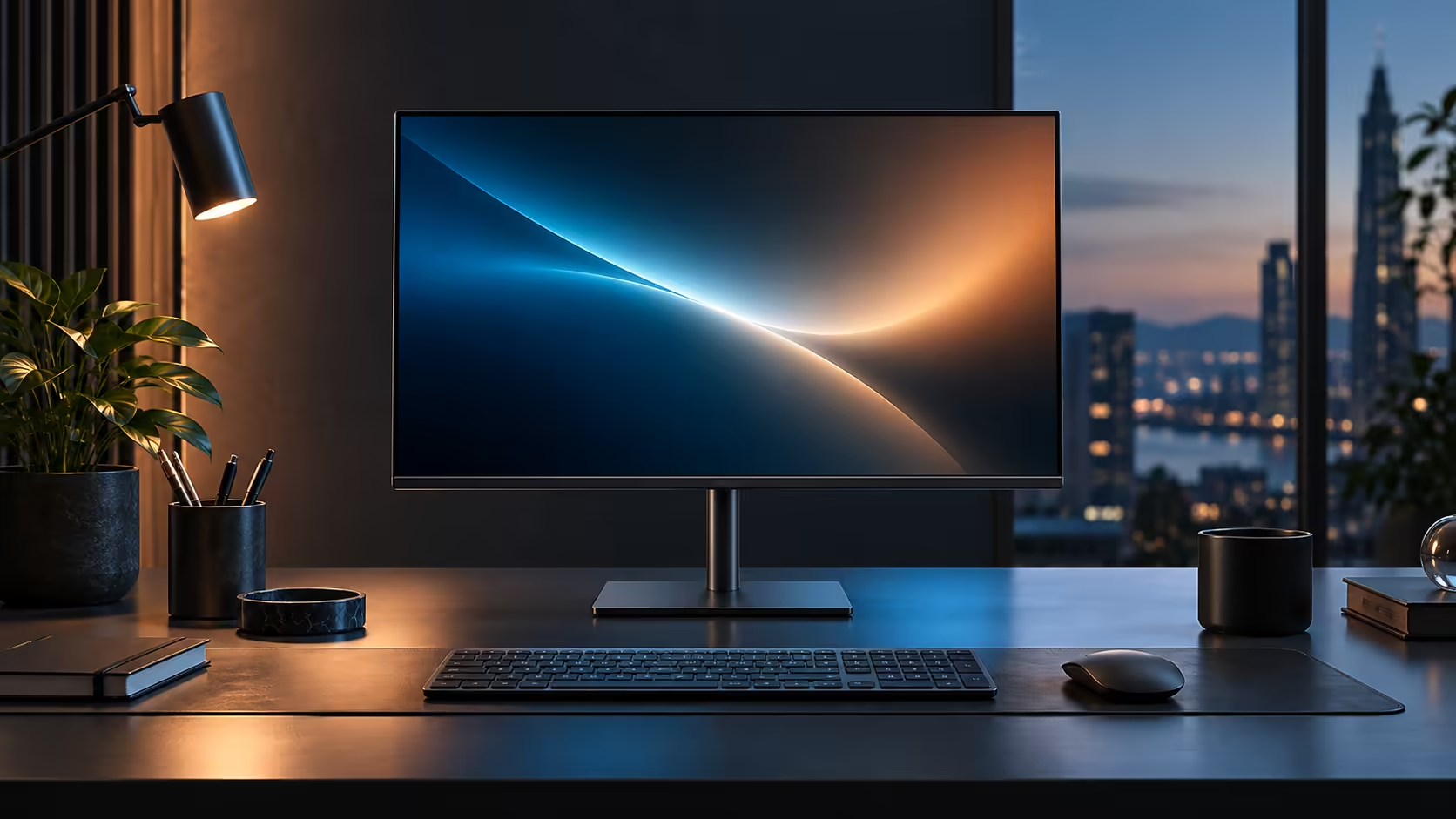
A dropped video call is rarely the call's fault. It is usually the Wi-Fi signal fighting for bandwidth with everyone else on the same fibre line, and the fix is often sitting on the desk already. The Dell Pro 24 Plus P2425DE's RJ45 Ethernet port at R6,099 puts a laptop on a wired connection without a separate dongle taking up a USB port.
Quick Answer
Plug the network cable into the monitor's RJ45 port, then join the laptop with the single USB-C lead. Windows treats the screen as a network adaptor once that cable is connected, so a wired line reaches the laptop without a USB dongle in the way. Evetech lists the Dell doing this at R6,099.
🖧 Why the port lives on the monitor, not the laptop
Most business laptops sold today have no Ethernet socket at all, which is exactly the gap this port fills.
Thin laptop designs dropped the RJ45 port years ago in favour of USB-C and Wi-Fi only, which is fine until Wi-Fi is the weak link in a household with several people streaming, video calling and downloading over the same fibre connection at once. Building the RJ45 socket into the monitor instead of requiring a separate USB dongle means the wired connection arrives automatically with the same cable that already carries video, data and charging.
🔧 Setting it up so Windows actually uses it
The cable going in is only half the job; Windows has to pick the wired connection over Wi-Fi.
Plug the network cable from your router into the monitor's RJ45 socket, then connect the single USB-C lead to the laptop as usual. Open Settings, then Network & internet, and check that Ethernet shows as Connected. Windows normally prioritises a wired connection automatically once it is active, but if calls still feel unstable, turning Wi-Fi off entirely from the same Network & internet screen forces every byte down the cable and rules out the wireless radio as a variable.
📶 What a wired connection actually fixes
Not every network problem is solved by a cable, so it helps to know what this specifically improves.
A wired Ethernet link removes Wi-Fi interference, distance from the router, and contention with other devices on the same wireless band, all of which cause the intermittent stutters and dropped calls that are hardest to diagnose over Wi-Fi. It does nothing for the speed of the fibre line itself; if the household package is genuinely saturated by everyone's combined usage, a wired connection to one laptop still shares that same upstream bandwidth. Where it helps most is a shared home working space where several people are on video calls through the day and the router sits two or three rooms away from the desk. Compare the wider wired networking range and network cables if you need a longer run to the router than the standard lead in the box.
📏 Planning the cable run before you commit to the desk position
A wired connection only helps if the cable physically reaches, so this is worth thinking through before the desk gets settled into a corner.
Measure the distance from the router to where the desk sits, including any detours around doorways or skirting boards rather than a straight line, since that straight-line distance is almost always shorter than the real route a cable needs to follow. A standard network cable in a box is often only a metre or two, which suits a router and desk in the same room but falls short across a hallway or between floors. Buying a longer cable rated for the distance up front avoids a mid-project trip back to the shop once the desk is already arranged around a cable that turned out too short, and browsing the office monitor range alongside the cable purchase means the whole one-cable desk arrives and gets wired up in a single sitting.
Frequently Asked Questions
Does the monitor's Ethernet port need a driver installed?
Usually not on current Windows builds, which detect it as a standard network adaptor automatically once the USB-C cable is connected.
Will a wired connection fix a slow fibre line?
No. It removes Wi-Fi as a variable but cannot increase the speed of the underlying internet package itself.
Can I use Wi-Fi and the monitor's Ethernet port at the same time?
Windows will usually prefer the wired connection automatically, though you can disable Wi-Fi entirely from Network settings if you want to force all traffic onto the cable.
Is the RJ45 port fast enough for large file transfers?
For typical home and small office use it comfortably handles standard broadband and local network speeds well beyond what most fibre packages deliver.
Does using the monitor's Ethernet port take up one of its downstream USB ports?
No. The RJ45 socket is a dedicated port separate from the downstream USB ports, so connecting it does not reduce how many other peripherals you can plug in.
Ready to stop video calls competing with the rest of the house for Wi-Fi?
Run a network cable into the monitor and let it carry the wired connection alongside the picture.