




Build a Hollow Knight-Ready Gaming PC for R40,000
Hollow Knight R40,000 PC build planning starts with balanced parts. For SA gamers, compare CPU and GPU fit, RAM needs, SSD space, PSU headroom and cooling before buying.
Read moreStreamers should choose a clean Windows install that gives them a reliable software base before adding recording, chat and security tools in South Africa. Microsoft 365 options are listed at R39, R159 and R199, and genuine licensing, antivirus and backups carry more value than grey-market software.

A streamer should choose a clean Windows install when driver clutter, unstable capture software or years of conflicting utilities make troubleshooting harder than rebuilding. The process removes applications and settings, so the streamer needs verified backups, licence records and official installation media before touching the production PC. Schedule the work away from a promised broadcast.
Export OBS scenes, profiles and plug-in lists. Record camera, microphone, audio-routing and encoder settings with screenshots. Copy overlays, alerts, fonts and local recordings to approved independent storage, then open samples from that backup. Store account recovery codes separately. Download Windows and device drivers through official sources, and confirm that capture hardware supports the intended version. The verified facts contain no standalone Windows licence SKU.
Install the operating system, chipset and graphics drivers before adding OBS and one required device at a time. Test camera, audio, display, network and sleep after each stage. Avoid reinstalling every old utility from habit. Protect the new account with current security controls, apply updates and create a restore point after the stable core is complete. Run a private full-length broadcast with game, overlays and local recording active. Keep the old system backup untouched until the test stream passes. Document the final driver versions beside the restored OBS profile before scheduling the next public stream.
Rebuilding a streaming PC? > Ask Evetech about compatible hardware after documenting the current Windows version, devices and encoder workload.
Yes, a streamer needs clean Windows so the software layer starts stable before streaming tools are added.
Genuine licensing matters because stream sessions should not be interrupted by avoidable activation problems.
Install only the tools needed for streaming, security and backup so the setup stays manageable.
A lower upfront licence cost is not worth much if the Windows source is uncertain.
Pick the Microsoft 365 plan, if needed, around the listed R39, R159 or R199 user and family options.
Backup basics are important for a streamer because settings and working files should not rely on one install only.
Hollow Knight R40,000 PC build planning starts with balanced parts. For SA gamers, compare CPU and GPU fit, RAM needs, SSD space, PSU headroom and cooling before buying.
Read more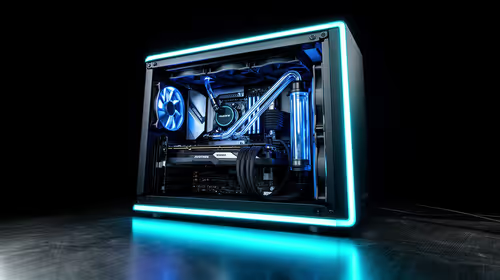
iRacing R80,000 builds should target smooth sim racing, not vanity specs. This recommended build for iRacing at R80 000 SA buyer's guide should weigh CPU strength, GPU headroom, triples or VR plans, cooling, and reliable peripherals.
Read more
A podcast recording setup is worth buying for a small SA online store when clear product audio will support listings, clips or customer explainers.
Read more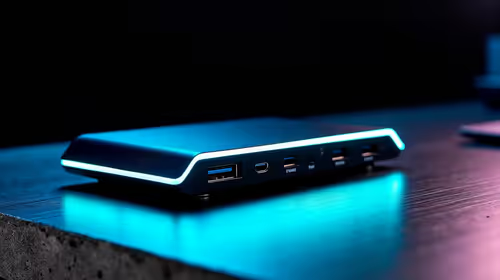
A USB-C dock is a practical first setup buy when one laptop must feed desk accessories cleanly. Start with Promate EZHUB-7 at R270 or TransHub-Lite at R305, while VersaHub-MST at R1,500 and Minisforum TB4-01 at R2,600 suit more demanding desks.
Read more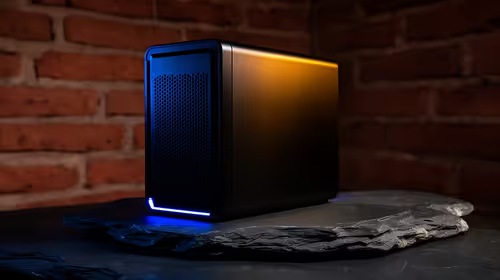
In a face-brick house in SA, a fanless mini PC setup should be planned around the room, cabling, and network spot where the machine will actually be used. The Minisforum NAB6 Lite is R4,150, while UM750L and AI-X1-255 sit around R4,600 for heavier work.
Read more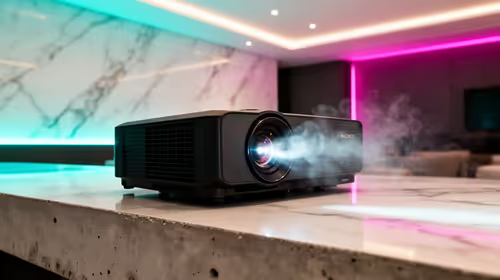
A townhouse short-throw setup works best when the projector can create a large picture from a close wall position without taking over the lounge. The Yaber T1 Pro Full HD HDR10 at R2,900, ViewSonic M1X portable LED at R5,996, and ViewSonic PA502X XGA short-throw at R7,493 suit different room setups.
Read more
Firefox private browsing separates a temporary session from normal browsing history. It does not make you anonymous online, and files or bookmarks you deliberately save can remain after the last private window closes.
Where bryanston gamers buy a webcam that's needs careful context before choosing parts. Use this guide to compare options, trade-offs, platform fit, and upgrade timing for a South African gaming PC without relying on live stock, price, or benchmark promises.

RTX 5080 build low FPS after a GPU driver update needs a careful rollback path. Check drivers, firmware, cables, USB ports, overlays, and recent settings before replacing hardware in an SA gaming setup.
Cheapest 180Hz 1440p build for cinematic story games in SA helps SA readers plan hardware, settings, compatibility, and upgrade trade-offs. Check GPU, CPU, RAM, storage, monitor, and stability needs without risky performance claims.
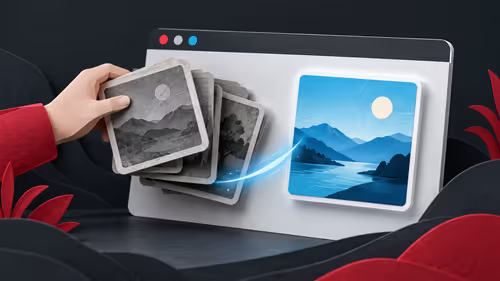
Firefox can clear temporary page files without clearing cookies. Select the cached-files option carefully, then reload the affected page before changing unrelated browser settings.
Firefox PDF viewer opens documents in the browser and provides annotation and form tools. Check the PDF action, work on a saved copy and reopen the final file to confirm the information you entered survived before submitting an application or assignment.
Learn how to share WiFi password on iPhone using nearby Apple devices. Keep Wi-Fi and Bluetooth on, check contacts and the connected phone, then use Share Password; separate this process from sharing a mobile-data hotspot or changing a router password.
Firefox screenshot offers a selected region, visible-page capture and full-page capture. Choose the smallest useful area, copy or download the result, and inspect the saved image before sharing account details or assuming every part of a page was captured.
Firefox private browsing separates a temporary session from normal browsing history. It does not make you anonymous online, and files or bookmarks you deliberately save can remain after the last private window closes.

Firefox export bookmarks creates an HTML file for transfer to another browser or computer. A Firefox bookmark backup and a continuing Sync connection serve different purposes, so choose the format before changing your current collection.

Firefox pin tabs keeps frequently used pages compact at the left of the tab strip. Pinning organises an open page; a bookmark serves a different purpose, and neither should be mistaken for saving unfinished work inside a website.

Firefox task manager opens the about:processes view for estimated CPU and memory use. Inspect the busy process, protect unsaved work and retest one change at a time; the combined Extensions row is not a per-extension verdict.