A keyboard with a built-in screen has more that can go wrong than a plain one, and the day it lands on your desk is the best day to find out. Running the AULA L99 through a proper delivery-day test takes about half an hour, and it means any fault is picked up at the very start of the L99 warranty period, while the order is fresh and the claim is simple to explain.
Quick Answer
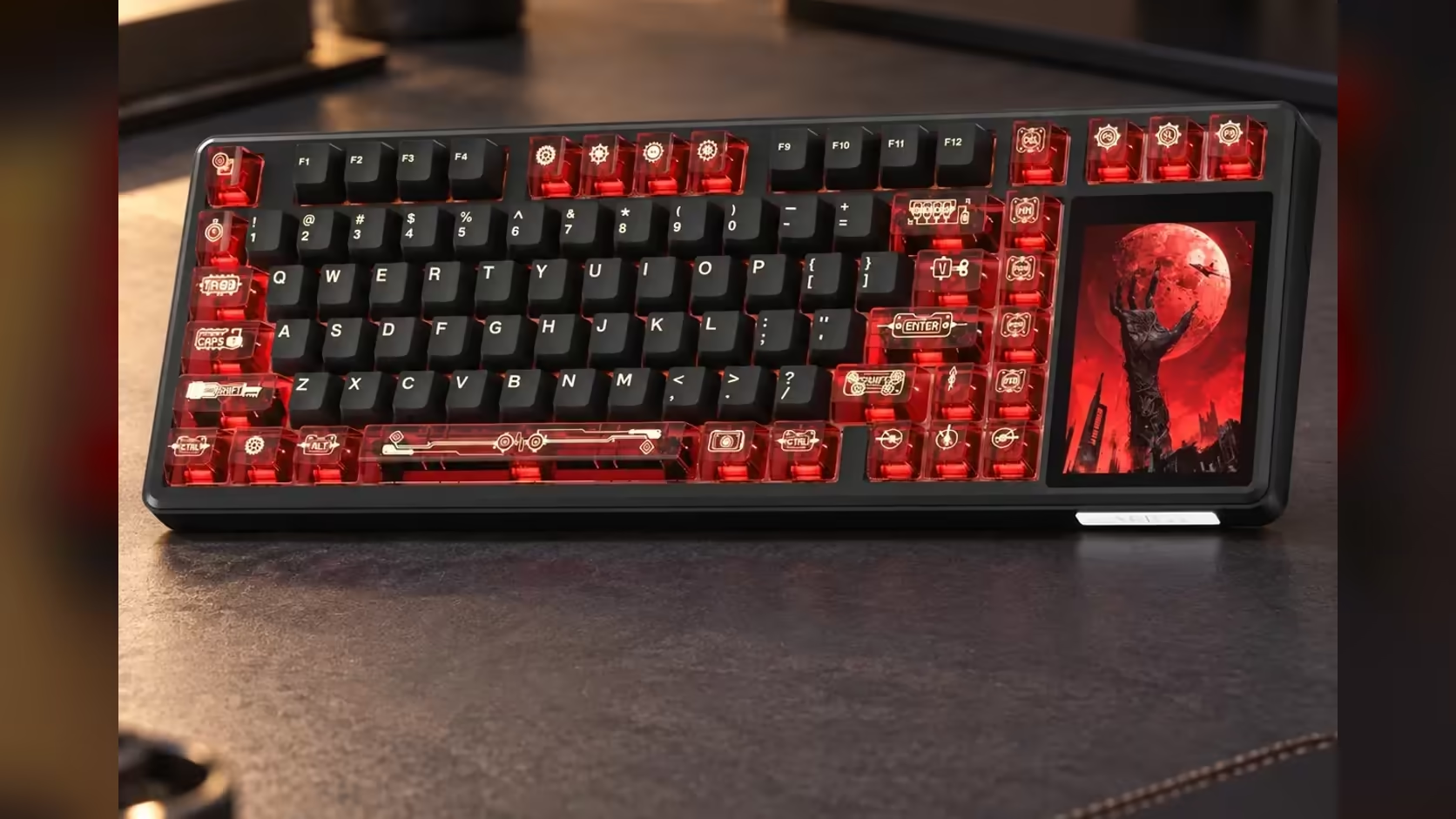
On the day your L99 is delivered, work through every touchscreen mode: lighting, settings, the numpad, the calculator, mouse simulation and a GIF or JPG upload. Then test every key, all three connection types and the battery reading. If anything misbehaves, report it to Evetech, which handles the 1 Year Local Warranty here in South Africa, so the board never needs to be posted overseas. Either L99 colourway is R1,099 at Evetech.
🔌 Before you start
Charge it, or plug it in. The L99 runs its wireless modes on an 8000mAh battery, and the touchscreen shows the charge level, so a quick glance tells you whether you need the cable before testing. A flat battery can make a healthy board look faulty, and you do not want to report a problem that a charge would have fixed.
Also check the box contents against what you expected, and note the colourway: Grey/White/Blue with Raindrop switches, or Red/Black with Caramel Latte switches. Having your order number ready saves time if you need to contact Evetech later.
🖥️ Testing the 3.98-inch touchscreen
The screen is the L99's headline feature, so give it the most attention.
Touch response across the whole panel
The display is 320 x 480, and every part of it should respond. Tap near the edges and corners as well as the centre. A dead strip along one side is the kind of fault that only shows if you look for it.
Every mode, one by one
Open each tool the panel offers. Change the lighting effect and colour, and confirm the keys follow. Bring up the numpad and tap digits into a text document to check they appear. Run a simple sum on the calculator. Try mouse simulation and see that the cursor moves. Then upload a GIF or a JPG and make sure it plays or displays cleanly.
Look for visual faults
With a plain bright image on screen, check for stuck pixels, uneven brightness or discoloured patches. Do the same with a dark image. Small panels show flaws clearly when the content is simple.
⌨️ Beyond the screen
Every key and the lighting
Open a keyboard-testing web page or a blank document and press every key once, including combinations with Fn. The L99 supports full N-key rollover, so pressing several keys together should register all of them. Per-key RGB covers about 16 million colours and 20 presets; switch to a solid white effect and look for any key that stays dark or shows the wrong tint.
All three connections
Test the USB-C cable, then the 2.4GHz receiver, then Bluetooth. Bluetooth handles up to three devices, so pair a phone or laptop as well as the PC and switch between them. A board that works wired but drops on the dongle is exactly the fault you want to catch on day one.
Build and feet
Tap along the case and listen for rattles. With its internals floating on a gasket and padded out with damping, the board should sound even from one end to the other. Flip out the two-stage feet and check both positions hold. If you use a Mac, try the Mac mode as well as Windows.
🛡️ Why a local warranty matters for a screen keyboard
Buying the L99 through Evetech means the warranty is handled locally. If the touchscreen or anything else is faulty, you deal with a South African team in your own time zone, not an overseas seller, and you avoid international courier costs and customs paperwork on a return. That local backing is worth more on a board with a built-in display than on a simple keyboard, because there is more hardware to go wrong.
Report problems promptly, describe exactly what you tested and what failed, and include photos or a short video if the fault is visual. A clear, early report is the quickest route to a fix.
While you are setting up, the gaming keyboards range and the keyboard best sellers are useful for comparing the L99 with other boards on Evetech's shelf.
Frequently Asked Questions
What should the touchscreen test include?
Touch response across the whole panel, every mode (lighting, settings, numpad, calculator, mouse simulation), a GIF or JPG upload, and a check for stuck pixels.
What else should I check apart from the screen?
Every key with its lighting, the cable, 2.4GHz and Bluetooth connections, the battery reading, and both feet positions.
How long does the L99's cover last?
One year, which is why testing early in that period makes sense.
Who do I contact about a faulty L99?
Contact Evetech with your order number and a description of the fault. The warranty is handled locally, so nothing goes overseas.
Why charge the board before testing?
A flat battery can mimic a fault, especially on the wireless modes. The screen shows the charge level, so check it before you begin.
Should I test with photos or video?
Yes, for visual faults. A short clip of a dead area or flicker makes a warranty report much clearer.
Ready to set up your new board with confidence?
Browse Evetech's gaming keyboards, and keep your order details handy so any warranty question is quick to raise.