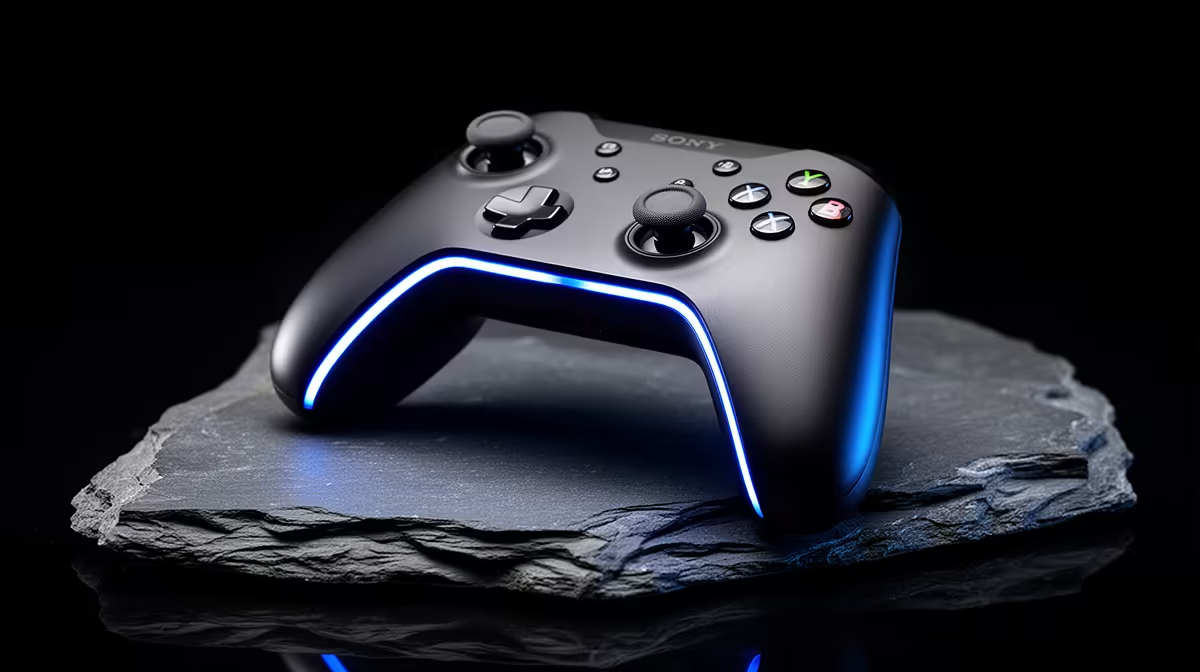
Plugging in Sony's pad is the easy part; getting every trigger and vibration effect is where expectations wobble. A DualSense on PC works across many games, while its headline features depend on support and connection mode.
Quick Answer
Connect DualSense to a Windows PC with a USB-C data cable for the most dependable setup, or pair it over Bluetooth for a cleaner desk. Standard buttons and sticks work in many games through native support or Steam Input. Adaptive triggers, advanced haptics, speaker, microphone and light behaviour depend on the game, connection and software path. Wired play still gives the broadest chance of full features. Sony's PlayStation Accessories app can update controller firmware on Windows, so you do not need a PS5 for that job.
Connect with USB first
Use a cable that carries data as well as power. A charge-only cable can light the controller without creating an input device. Plug directly into the PC while troubleshooting instead of going through a hub.
Windows should detect the pad. Open the game-controller panel or Steam's controller test and press every button. If it appears twice in a game, two software layers may both be translating the same input.
USB avoids wireless pairing and battery concerns. It also gives supported games a direct path for DualSense features that may be limited over Bluetooth. Leave enough cable slack so a sudden movement does not pull the PC port.
Pair over Bluetooth
Hold the create and PS buttons until the light bar flashes, then add a Bluetooth device in Windows and choose Wireless Controller. The exact name can vary with software.
Remove an old pairing when Windows sees the pad but will not connect. Also check whether it is reconnecting to a nearby console, phone or another PC. DualSense does not guess which screen you intend to use.
Bluetooth quality depends on the PC adapter and antenna placement. A desktop motherboard with its external antenna left in the box can produce short range and missed inputs. Move USB Bluetooth adapters away from crowded rear ports and metal cases.
Native support versus Steam Input
A game with native DualSense support can show PlayStation button prompts and may use adaptive triggers or haptics. The developer decides which features work and whether they require USB.
Steam Input can translate DualSense into an Xbox-style controller for games that expect XInput. That improves basic compatibility and lets you remap controls. The translation can hide native DualSense detection, so a supported game may lose its special features while Steam Input is active.
Test two routes. First, disable translation for a game with documented native support. Second, enable Steam Input for a title that ignores the pad. Change one layer at a time and restart the game after changing it.
Games outside Steam can be added to the library for controller handling, but launchers and anti-cheat can affect that route. Third-party remapping tools are another option; read their security and compatibility notes before installing them.
What the special features need
Adaptive triggers can change resistance in supported actions. Haptic feedback can produce more detailed vibration than a standard rumble motor. Both require the PC game to implement them. A feature working on PS5 does not prove the Windows version includes it.
Connection matters. Some newer PC games support rich features over Bluetooth, while others require USB or offer only standard rumble. Check the current game's own PC notes rather than applying one rule to the controller.
The touchpad can act as a game input in supported titles and can be mapped through software. It is not a universal Windows trackpad out of the box. The built-in speaker and microphone also have game and connection limits; choose your normal headset for predictable chat.
Firmware and battery
Install Sony's PlayStation Accessories app on a compatible Windows PC to check DualSense firmware. Use USB during the update, keep the PC powered and do not disconnect the controller mid-process.
Wireless runtime changes with haptics, trigger effects, light and speaker use. Charge before a long session or continue over USB. Repeated disconnects can be battery, Bluetooth, firmware or radio interference, so test wired before blaming the game.
When the buttons look wrong
Many PC games show Xbox ABXY prompts even when DualSense controls the action. The game may have no PlayStation glyph set, or a translation layer may present the pad as an Xbox controller.
Choose prompts in the game's settings when available. Avoid swapping physical actions based only on letters; position is often the intended guide. Community mods can change prompts, but they add maintenance and should come from a source you trust.
Fit it into a gaming PC setup
You do not need a special computer brand for DualSense. You need working USB or Bluetooth, current drivers and game support. Browse complete gaming PC deals and popular PC configurations if the controller is part of a wider move from console.
Test the controller before buying extra wireless hardware. A desktop with built-in Bluetooth may only need its antenna attached. A wired connection may suit a fixed desk better and keeps the battery out of the routine.
FAQ
Do adaptive triggers work in every PC game?
No. The Windows version of the game must implement them, and its connection requirements can differ.
Can Steam improve compatibility?
Steam Input can map DualSense for games that expect an Xbox-style pad. It may need disabling when you want a game's native DualSense features.
Do firmware updates require a PS5?
No. Sony's PlayStation Accessories app can update supported DualSense firmware from Windows over USB.
Compare gaming PCs for your wider setup, then test DualSense over USB before adding wireless adapters or remapping tools.