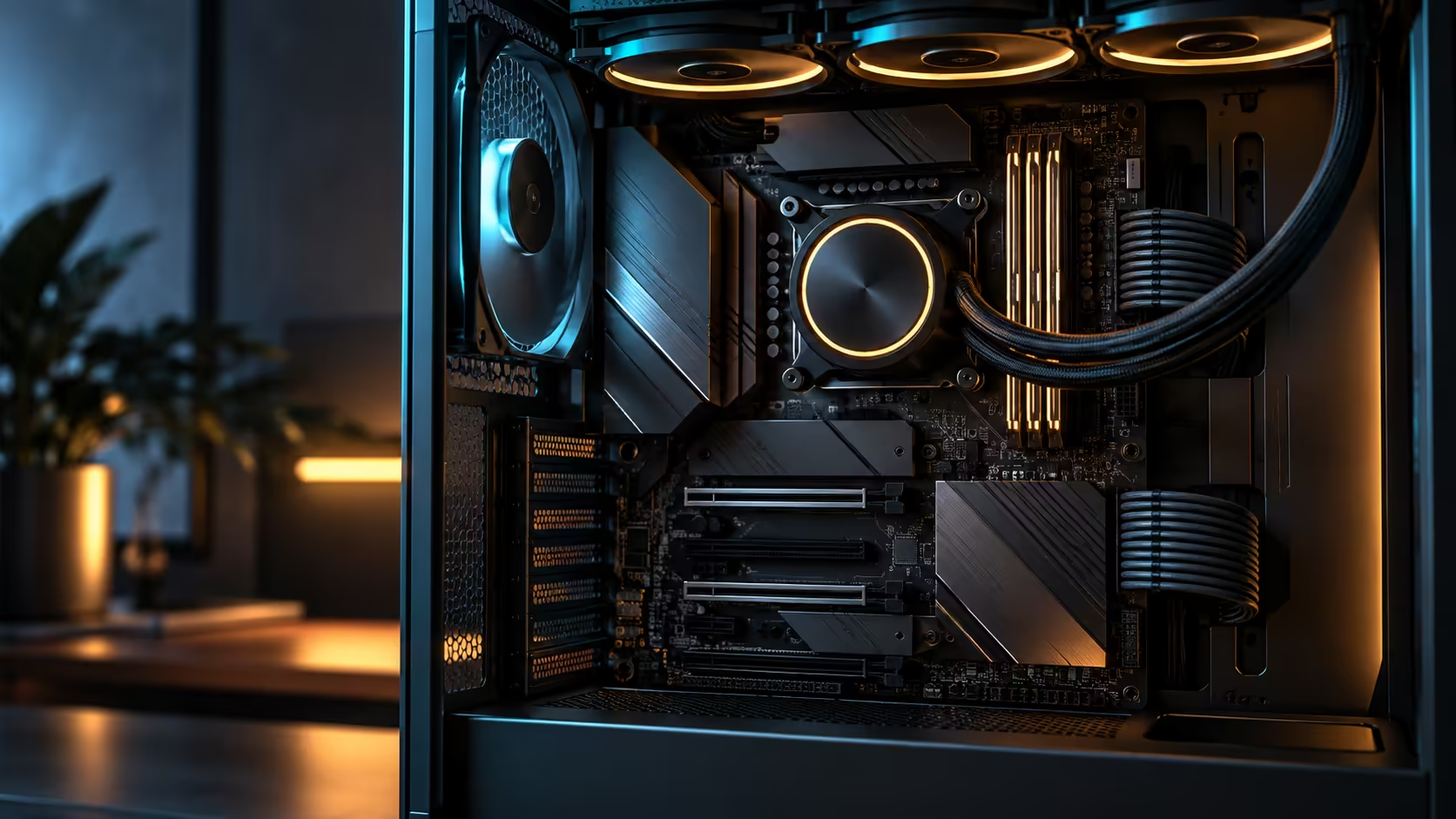
Fitting a new drive into an empty M.2 socket on any board in the AMD motherboard range feels like a job with no way to get wrong, right up until a different slot on the same board mysteriously drops speed. PCIe lane and slot planning exists because M.2 sockets on a modern board rarely operate in total isolation from each other, and a five-minute check against the manual avoids that surprise entirely.
Quick Answer
Filling certain M.2 sockets changes what bandwidth other slots get, because groups of sockets share a single pool of PCIe lanes from the CPU or chipset. Map each planned drive to a specific socket using the board manual's own lane-sharing diagram before fitting anything, rather than assuming every slot behaves identically. Five onboard sockets, at R54,999 for the whole ROG Crosshair X870E Edition 20 board, give you enough room to choose the right combination the first time, without discovering a shared-bandwidth surprise after the drives are already seated.
🗺️ Why sockets share lanes at all
A CPU has a fixed total number of PCIe lanes available, and those lanes are divided between the graphics slot, M.2 sockets, USB4 ports and other connected devices. Board makers frequently wire two or more M.2 sockets, or an M.2 socket and a secondary PCIe slot, to share a single group of lanes rather than giving each its own dedicated path, simply because there are not enough total lanes to give everything an independent connection.
This is not a design flaw; it reflects a real limit in how many lanes the platform actually has. The consequence is that populating one socket in a shared group can automatically reduce the lane width, and therefore the bandwidth ceiling, available to the other socket in that same group.
📖 Reading the manual's block diagram before buying anything
Every board manual includes a diagram, often on one of the early pages, showing exactly which M.2 sockets and PCIe slots share a lane group and what happens when both are populated. This diagram is the actual source of truth, not a general assumption based on socket position on the board, since layouts differ meaningfully even between boards from the same maker.
Reading it before you buy a fourth or fifth drive, rather than after, is the difference between a storage layout that performs exactly as expected and one where a perfectly good 2TB NVMe drive rated for 12,000MB/s runs at half that speed because it landed in the wrong socket for what else is populated.
🧩 Assigning drives to avoid the trade-off entirely
Once you know which sockets share lanes, assign your fastest, most bandwidth-sensitive drive to a socket with no sharing conflict, typically the primary M.2 slot nearest the CPU on most boards. Save the shared-group sockets for drives where a reduced lane width genuinely will not matter, such as an archive drive or a secondary game library where sequential throughput headroom is rarely used in full anyway.
This kind of planning matters more as you add drives, since the first one or two rarely trigger a conflict on most boards, but a fourth or fifth drive is exactly where an unplanned layout starts costing bandwidth somewhere you did not expect.
🔍 Confirming it worked after the build
After fitting drives, check each one's negotiated PCIe generation and lane width in a monitoring tool rather than assuming the rated speed on the box is what you are actually getting. A drive reporting a narrower lane width or a lower generation than expected is the clearest sign a lane-sharing conflict is active, and cross-referencing that against the manual's diagram usually explains it immediately.
If you are shopping for additional drives with this in mind, the wider solid state drive range covers both NVMe and SATA options, and a SATA drive for archive duty sidesteps the PCIe lane question entirely for a role where its lower speed ceiling was never going to be the limiting factor anyway.
Frequently Asked Questions
Why would adding a drive to one M.2 slot slow down another slot?
Because the two sockets share a single group of PCIe lanes from the CPU or chipset, and populating one can reduce the bandwidth available to the other.
Where do I find which slots share lanes on my specific board?
In the board manual's block diagram, usually near the front of the manual, which lists exactly which combinations trigger reduced bandwidth.
Which socket should get my fastest drive?
Whichever socket the manual shows as having no lane-sharing conflict, typically the primary slot nearest the CPU on most board designs.
How do I check if a drive is actually running at its rated speed?
Use a monitoring tool that reports negotiated PCIe generation and lane width, and compare it against the drive's rated specification.
Does this only matter for people using many drives?
It matters most from the fourth or fifth drive onward, but even a two-drive build benefits from checking the diagram before assuming both sockets behave identically.
Ready to plan your drive layout instead of discovering a conflict after the build?
Read your board's lane-sharing diagram first, then assign your fastest drive to the socket with no shared bandwidth.