You sit down for a sweaty session of Warzone... loadout ready... but your wireless headset is dead silent. Or maybe your controller refuses to connect. When Bluetooth is not working on your PC, it feels like a personal attack. Do not panic and throw your peripherals across the room just yet. Let us walk through the ultimate driver and hardware fixes to get you back in the game. 🚀
Why is Bluetooth Not Working on PC?
Before you rush out to buy replacements, we need to find the culprit. Sometimes pesky Windows updates break things overnight. Other times, it is a simple hardware glitch. Whether you are running a custom rig or one of the latest laptops in South Africa, wireless dropouts happen to the best of us. The good news is that these issues are usually easy to solve at home.
Quick Hardware Fixes to Try First 🔧
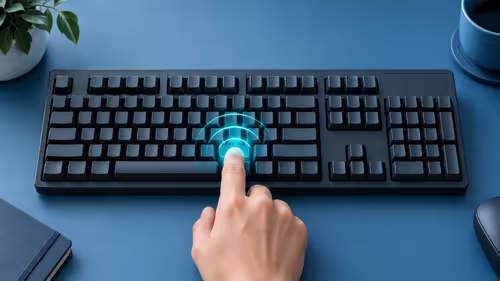
Always start with the absolute basics. Did you accidentally hit airplane mode on your keyboard? Check your Windows taskbar right now. If you use a USB dongle for your devices, unplug it immediately. Try plugging it into a different port on the back of your motherboard. Sometimes the system just needs a fresh hardware handshake.
If your current machine is getting too old to keep up with modern wireless standards, you might be fighting a losing battle. It might be time to browse some pre-built PC deals to save yourself future headaches and guarantee a stable connection.
Quick Restart Trick ⚡
Sometimes Windows holds onto corrupted temp files. Instead of a standard shutdown, hold the Shift key while clicking Restart. This forces Windows to completely clear the kernel session and often fixes stubborn Bluetooth issues instantly.
Tackling Windows Driver Issues
If hardware tricks fail, it is time to check your software. A corrupted driver is usually the main reason Bluetooth is not working on PC setups. Right-click your Windows Start button and open Device Manager. Look closely for the Bluetooth drop-down section. Do you see a yellow warning triangle?
Right-click your adapter and hit 'Uninstall device'. Restart your computer immediately. Windows will automatically reinstall a fresh, clean driver upon booting up. If you are upgrading your setup to avoid these bottlenecks entirely, checking out the best gaming PC deals ensures you get a motherboard with built-in Wi-Fi 6 and Bluetooth 5.2. That means rock-solid connections for all your gear.
Checking Windows Services ✨
Sometimes the background service just stops running without warning. Press the Windows key, type 'Services', and hit enter. Scroll down until you find 'Bluetooth Support Service'. If it is not running, right-click and select 'Start'. Make sure the startup type is also set to Automatic.
Still struggling with an outdated rig that drops connections? A simple upgrade can make a massive difference to your daily gaming. Grab one of our daily specials to score premium components in ZAR without breaking the bank. Alternatively, if your motherboard is fine but your visuals are lagging behind your audio, it is worth looking to buy a new graphics card to balance out your system's overall performance.
Ready for a Flawless Wireless Experience?
Stop fighting with outdated hardware and dropping connections. If your current rig is holding you back, it is time for an upgrade. Explore our massive range of PC components and systems and find the perfect hardware to conquer your world.