A page starts behaving oddly after an add-on appears, but removing every browser tool would create more work. Edge turn off extensions is a useful first test because disabling an item is separate from uninstalling it. You can identify the cause without immediately rebuilding your browsing setup.
Quick Answer
Open Manage extensions and turn off the suspected add-on, then reload the affected page and repeat the same task. The setting change needs no hardware purchase. As a separate local price reference, an ASUS Vivobook Go 15 Corei 3 configuration was listed at R8499 on 29 October; replacing a laptop is premature for an untested extension problem.
🧩 Identify what changed
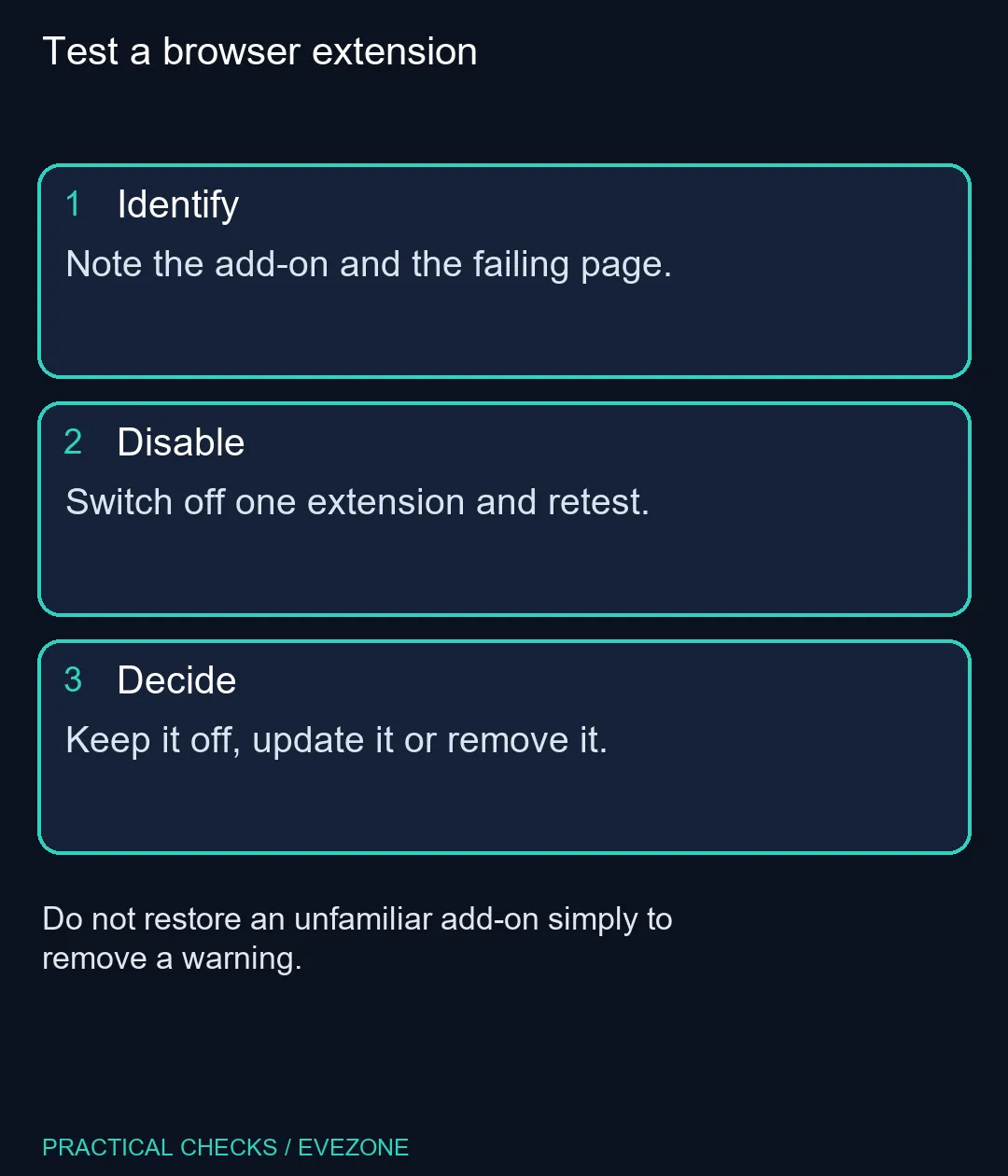
Note the extension's name and the behaviour you are trying to fix. A changed search engine, a missing page control and an unexpected overlay are different symptoms. Save the page address and describe the exact action that fails so that the comparison is repeatable. Avoid changing several browser settings while you test the add-on.
Use the Extensions button near the address bar, or open Extensions from Settings and more. In the management screen, find the relevant installed item and use its toggle. Close any menu covering the page, reload it and repeat the original action. Record whether the problem changed before you try another item.
🛡️ Treat an automatic warning as useful information
Edge can turn off extensions that attempt to modify settings without permission. Do not interpret that as a request to switch the extension straight back on. Check whether you recognise it and understand the permissions it requests. An unfamiliar tool should remain disabled while you establish why it was installed.
If the add-on belongs to a workplace browser configuration, ask the administrator about the warning. Trying to bypass managed controls can make the diagnosis harder. The aim is a known, working browser configuration, rather than restoring every installed item simply because it used to be present.
🔍 Retest before deciding to remove
If disabling one extension resolves the symptom, keep that result in your notes. Check the developer's current information before re-enabling or replacing it. If there is no difference, move to the next reasonable test instead of calling the add-on responsible without evidence.
A browser configuration can be carried onto a newer machine, so compare all laptops on special only when you also have a separate hardware requirement. Likewise, gaming keyboards can help with physical input needs but cannot repair a page altered by browser software. Keep the purchase decision tied to a demonstrated problem, after the reversible software test has answered its part.
Frequently Asked Questions
Does turning an extension off uninstall it?
No. Disabling it and removing it are separate actions in the extension controls.
Where is Manage extensions?
Open the Extensions button or Settings and more, choose Extensions, then manage the installed items.
Should I disable everything at once?
A one-at-a-time test usually makes it easier to identify which add-on changes the result.
Why did Edge disable an extension itself?
Edge can disable an extension that attempts to change browser preferences without permission.
Should I immediately switch a disabled add-on back on?
First check its identity, permissions and the reason for the warning. Leave unfamiliar software disabled.
Will a new laptop fix an extension conflict?
It may follow your browser configuration. Test the add-on before assuming the computer needs replacement.
Want a cleaner browsing setup?
Finish the extension test first, then compare hardware only for needs the browser setting cannot address.