A long setup guide has the connector name you need somewhere in the text. Edge find on page is faster than reading every paragraph again, provided you open the page search rather than a new web query. The result belongs to the page currently loaded in the browser.
Quick Answer
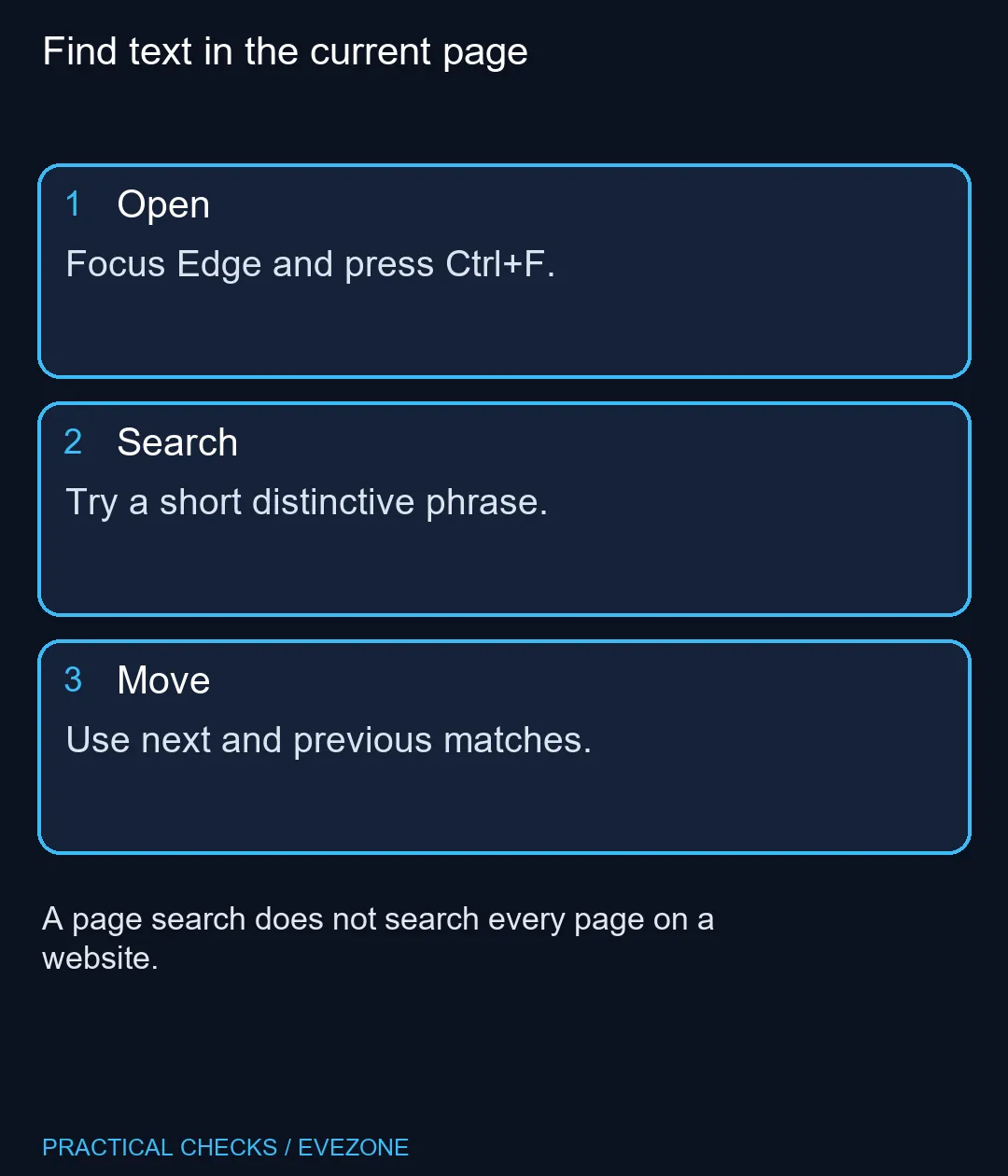
On Windows, focus Edge and press Ctrl+F, then enter a short distinctive word or phrase. Use Ctrl+G for the next result and Ctrl+Shift+G for the previous one. The shortcut costs R0 to try and does not need a browser extension or a new keyboard.
🔎 Start with a small search phrase
Click into the browser window before pressing the shortcut. If another application has focus, the key combination may act there instead. Check that the Find box belongs to the page you intend to read, then type a term you can recognise in the surrounding content.
Begin with a short product code or distinctive word rather than pasting an entire paragraph. A difference in spacing or wording can make a long phrase harder to match. If there are many results, add another useful word. If there are none, shorten the query before deciding that the information is absent.
📄 Know what is being searched
The page search concerns the current document. It is not the same as searching a website for another article. Confirm the page address and heading when a result seems surprising. You may be on an overview while the exact specification sits on a separate linked page.
Words drawn into an image are also a different case from ordinary page text. A photograph of a label does not necessarily provide a text match. Look for a proper specification table or accessible text version where available. Do not conclude that a product lacks a feature simply because a browser search did not find the word in one view.
⌨️ Move between matches and read the context
Ctrl+G advances through results, while Ctrl+Shift+G goes back. Read the sentence around each match instead of stopping at the highlighted word alone. A feature can appear in a compatibility warning, an optional configuration or a comparison, rather than in the specification for the item you selected.
If the physical Ctrl or letter key does not work elsewhere either, test that input separately before blaming page search. Browse gaming keyboards for a replacement only after identifying a hardware need. For a reading-focused machine from all laptops on special, try the same shortcut during setup so that long support pages are easy to navigate. The most useful outcome is finding the right passage and understanding it, rather than merely obtaining a highlight.
Frequently Asked Questions
What shortcut opens Find on page?
Ctrl+F opens it in Microsoft Edge on Windows.
How do I move to the next result?
The Edge shortcut list assigns Ctrl+G to the next Find on page result.
How do I move backwards?
Use Ctrl+Shift+G to move to the previous result.
Does it search the whole website?
No. Find on page concerns the current page, not every URL on a website.
What if the words are inside an image?
Try the surrounding page text. An image of words is a different case from ordinary searchable page text.
Does Game Assist have the same feature history?
Microsoft documents Game Assist separately. Do not treat its release notes as a list of every desktop Edge option.
Reading a long hardware guide?
Use the page search to locate the term, then read the surrounding specification before buying.