A video becomes less smooth when you unplug the laptop, and Task Manager also shows a leaf icon. Edge energy saver and Windows process efficiency mode can sound like the same setting. They are separate controls, so changing one does not prove that you changed the other.
Quick Answer
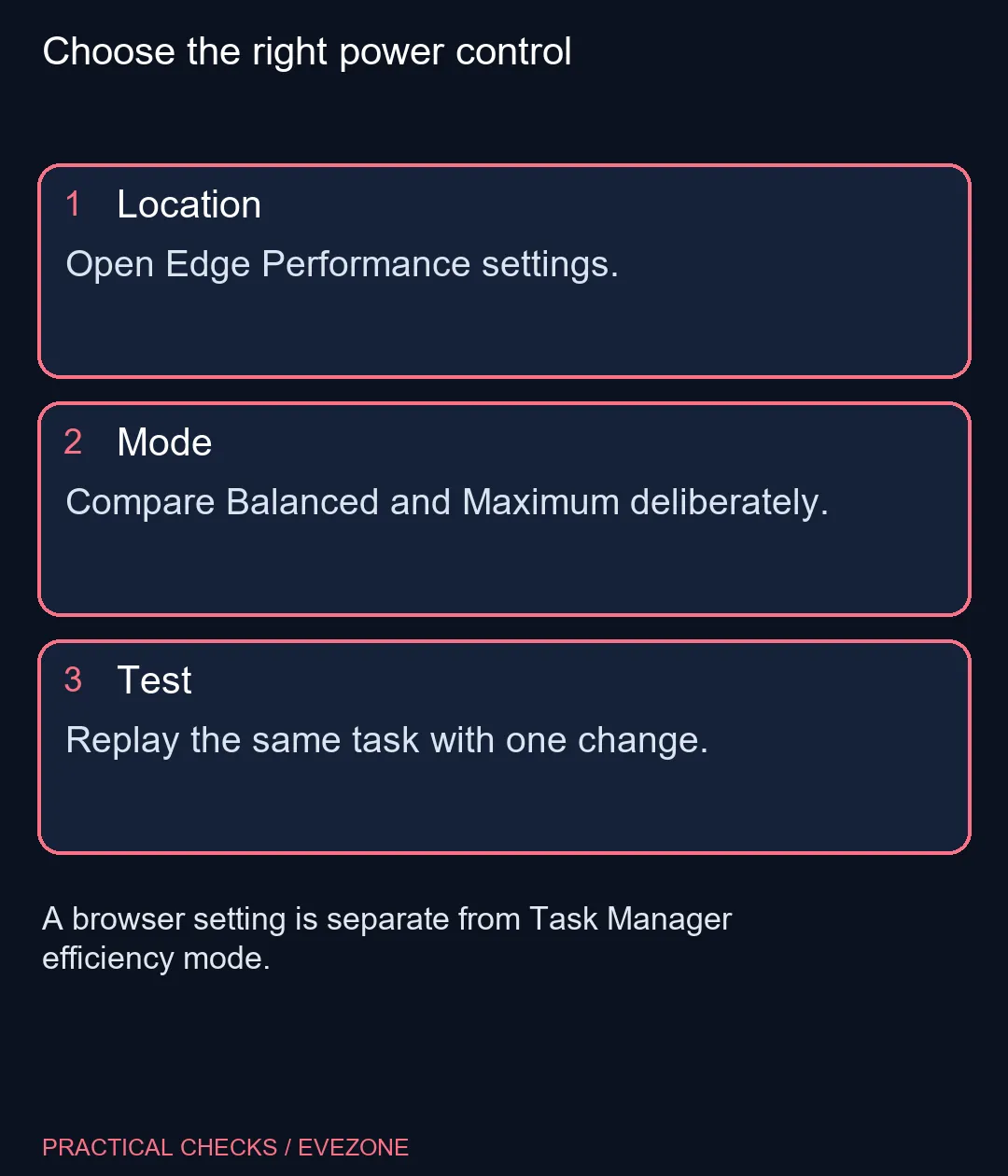
In Edge, open Settings, System and performance, then Performance to inspect energy saver. Compare Balanced and Maximum against the task you actually use. A reversible setting test costs R0; neither a new battery nor a monitor purchase should be the first response to an untested browser power setting.
🍃 Identify which control you are changing
The browser feature was previously named efficiency mode. Windows Task Manager also uses that term for a process resource control. If you only change the Task Manager option, you have not necessarily changed Edge's own energy-saver setting. Read the location of the control as carefully as its name.
Keep a short note of whether the laptop was plugged in and which browser mode was selected when the symptom appeared. Use the same page or video for the comparison. A different website, connection or workload can make a power-setting test misleading before you have learned anything useful.
⚖️ Balance responsiveness and runtime
Microsoft describes Balanced as the recommended option and Maximum as a stronger saving choice. Extra saving measures can cause visible slowdowns, including less smooth video. There is no universal number of extra minutes that every laptop will gain, because hardware and browsing habits differ.
If a task is sensitive to the setting, compare the relevant mode while keeping other conditions steady. Do not judge the result only by how a static page looks. Try the activity that prompted the question, such as video playback or an interactive browser application, and decide whether the trade-off suits that session.
🔋 Make the change fit the device
Check the current activation controls on your own installation. Managed devices may have policy settings, and the browser's behaviour can differ across platforms or configurations. Avoid copying a registry change or a process command when the ordinary setting is the item you need to inspect.
When shopping through all laptops on special, compare battery suitability for your workload separately from browser preferences. An external display from gaming monitors can improve desk space but does not remove the need to understand a performance control. Keep the savings setting that suits your task, and restore a prior setting if the comparison shows no useful benefit. A repeatable result is more helpful than switching every option off and hoping the symptom disappears.
Frequently Asked Questions
Is energy saver the old efficiency mode?
Yes. Microsoft now calls the browser feature energy saver.
Is it the green-leaf Task Manager setting?
No. Windows process efficiency mode is a separate control.
Can energy saver make video less smooth?
Microsoft says additional saving measures may cause visible slowdowns, including less smooth video.
Where can I turn it off?
In Edge, open Settings, System and performance, then Performance and the energy-saver toggle.
Does Maximum guarantee a particular battery-life gain?
No. Benefits depend on the device, applications and browsing habits.
Should I disable every power-saving feature?
Test the relevant browser control first. Changing several power settings together makes the result hard to interpret.
Need longer browsing sessions?
Test the browser saving mode with your normal workload before choosing a different laptop setup.