Your desktop has the bookmark you need, while the laptop shows an older list. Edge favourites not syncing often sends people looking for a reset button before they have checked the active browser account. Start with the two profiles side by side and keep the working copy intact.
Quick Answer
Confirm the same intended account in Edge on both devices, then inspect Profiles and Sync and enable Favourites where appropriate. These checks cost nothing. The 29 October catalogue listed an ASUS Vivobook Go 15 Corei 3 at R8499, but a replacement machine is not a solution to signing into the wrong browser profile.
👤 Compare accounts before comparing lists
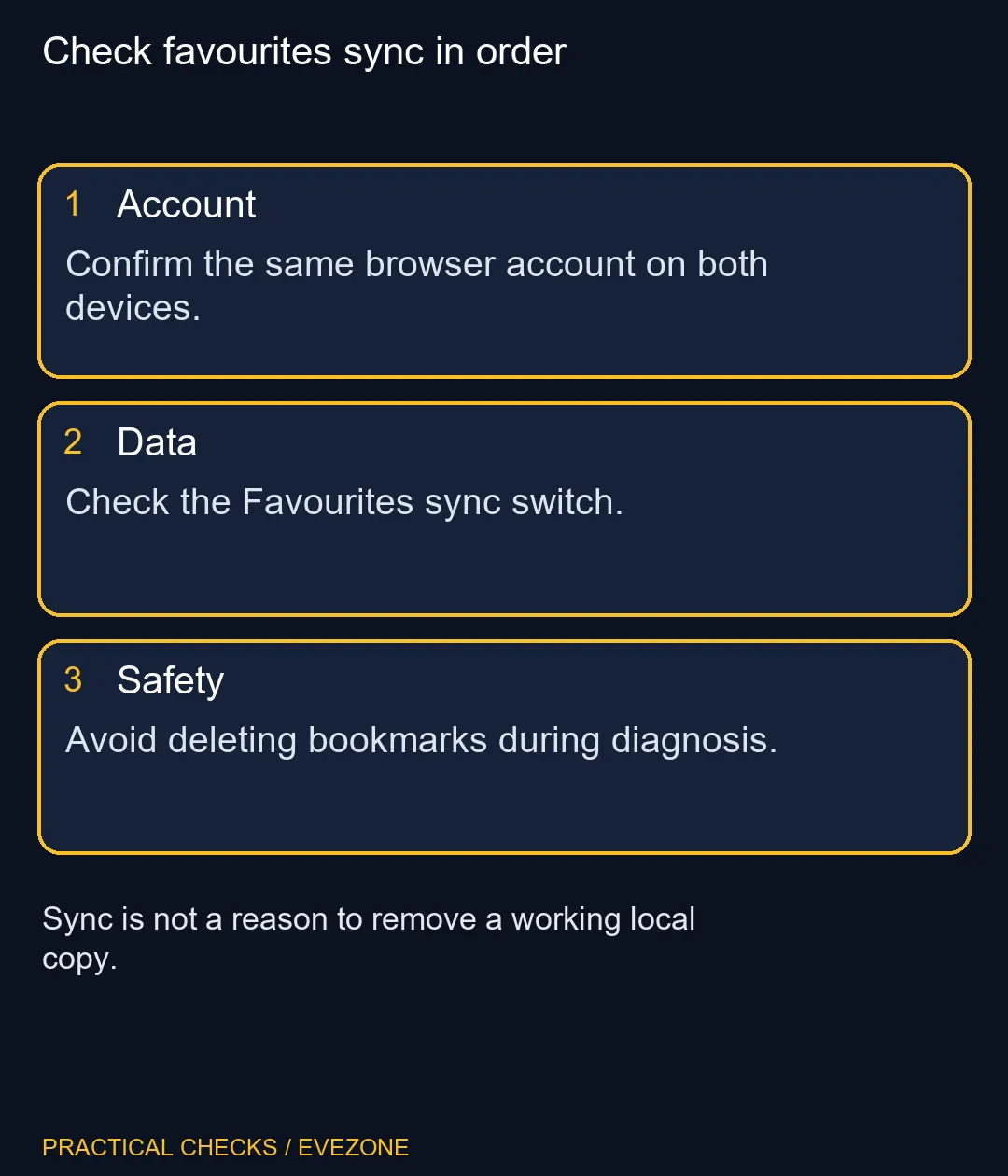
Select the profile image in each browser and read which account is active. A computer shared with family or work may contain several profiles. Do not assume that the account used for Windows is the account currently selected inside Edge. Check the actual browser state on both devices.
Choose the profile that should contain the saved items. Avoid immediately copying a large set of bookmarks between profiles, since that makes the original mismatch harder to understand. Write down which device has the expected list so that later changes can be judged against a clear reference.
🔄 Inspect the data switch deliberately
In Edge settings, open Profiles and then Sync. Check whether syncing is enabled and whether Favourites is selected. Other types of information have their own switches. Seeing one kind of data on another device does not remove the need to check the favourites option itself.
Once the accounts and switches are correct, use a harmless, recognisable test bookmark and check for it on the other device. Keep the network available while comparing. If an error is shown, note its exact wording rather than repeatedly signing out and deleting information in the hope of clearing it.
🗂️ Preserve the working bookmarks
Microsoft warns that deleting data while signed in and syncing can remove it from other synced devices. Treat that as a reason to avoid bulk deletion during diagnosis. Establish the expected account and the location of your working collection before making any clean-up changes.
When moving to a machine from all laptops on special, configure the intended profile before using it as your everyday browser. The same applies to a desk built around mini pcs. Sync can make a move more convenient, but the quality of that move depends on selecting the right account and data types. Verify a few important favourites before assuming the whole collection has arrived.
Frequently Asked Questions
Does signing into Windows prove Edge is syncing?
Check the browser profile itself. Windows sign-in and the active browser profile should not be assumed to be identical.
Where is the Favourites sync toggle?
Open Edge settings, then Profiles and Sync, and inspect the data-type switches.
Can different accounts show different favourites?
Yes. Confirm the same intended account on each browser before comparing saved items.
Should I clear browser data to restart sync?
Avoid deletion as an initial test. Deleting while signed in and syncing can affect other synced devices.
Can I choose which data types sync?
Yes. Edge provides separate controls for supported types, including favourites.
Does a new computer recover the wrong profile?
A new device does not correct an account mismatch. Establish which account holds the expected favourites first.
Moving between devices?
Confirm the browser account and a few important favourites before making a new PC your main workstation.