Quick Answer
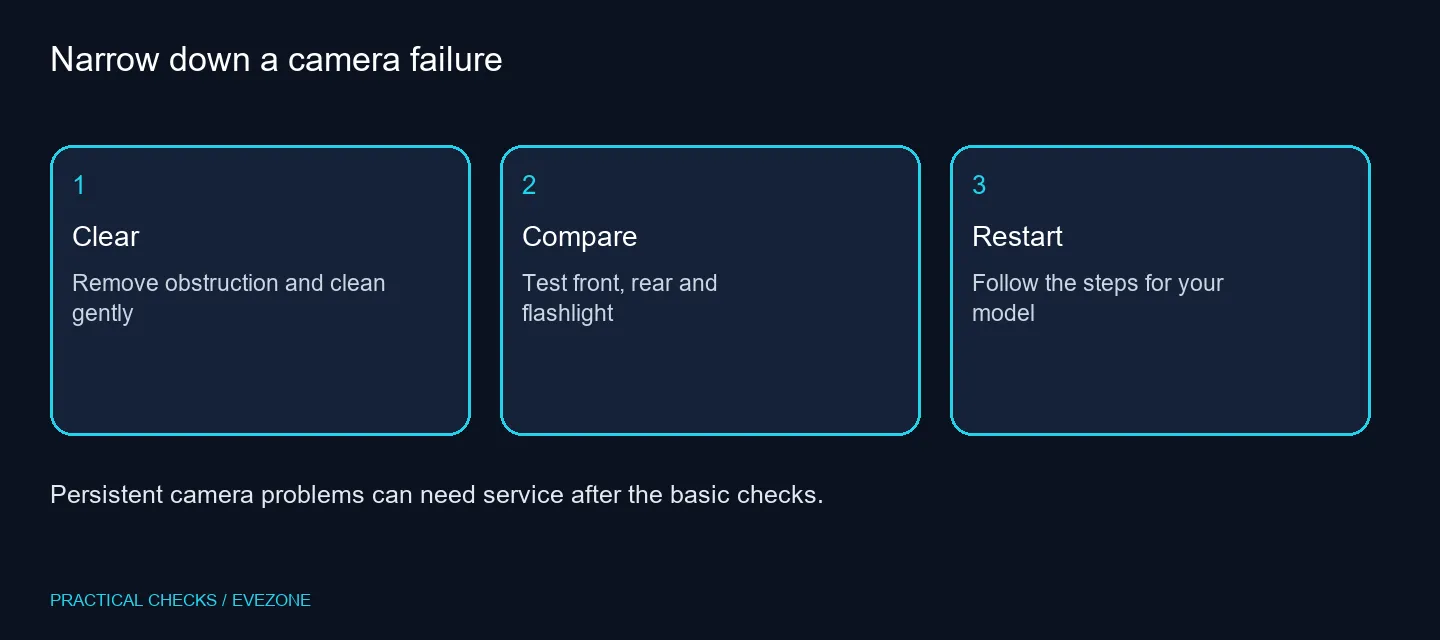
iPhone camera not working is a symptom to narrow down before choosing a repair. Remove anything blocking the lens, clean it gently and test front and rear cameras separately. If the problem persists, restart the phone, check its software update and consider service.
📷 Check the outside first
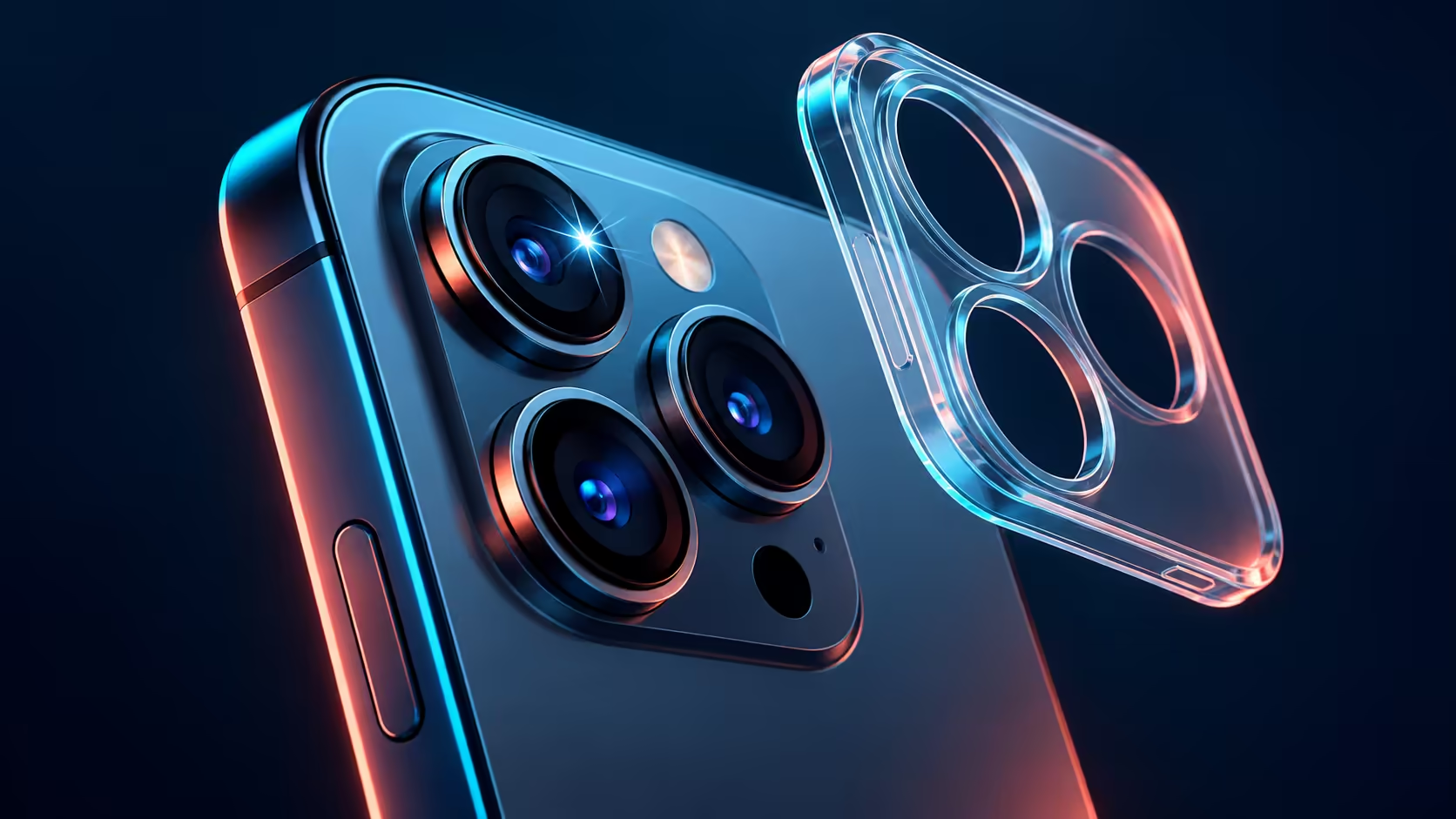
Take off a case, film or accessory that might cover a lens or interfere near the camera. Magnetic accessories deserve attention too. Set the accessory aside for the test rather than moving it slightly and assuming it is no longer involved.
Clean the front and rear lens areas with a microfibre cloth. Look for a simple obstruction before experimenting with more settings. Do not use an improvised cleaning method or open the handset as part of this first check. A clear lens gives you a fairer test of the camera itself.
🔦 Compare the cameras and flash
Open the camera and switch between the front and rear views. Record whether both previews fail or only one does. Test the flashlight from Control Centre as well. These observations are useful because a black preview, an unresponsive flash and a blurry image describe different behaviour.
Take a simple photo if a preview is available. Check the saved result rather than judging only the live view. If the issue happens in one particular app, compare it with the phone's camera app before calling it a general camera failure.
🔄 Restart using the correct model steps
Follow the restart method for your iPhone model. On iPhone X and later, the normal power-off gesture uses the side button with a volume button; other models use a different button arrangement. Drag the power-off slider, wait 30 seconds, then turn the phone back on using the appropriate button.
After restarting, repeat the same front-camera, rear-camera and flash checks. Also check for an iOS update. Changing several things at once makes it harder to describe what helped, so keep a short note of the symptom before and after each step.
🛠️ Know when the quick checks are finished
If a camera or flash still does not work, arrange service. Tell the technician which camera fails and whether the flashlight test worked. Do not treat a fresh case, a desktop webcam or a new cable as a guaranteed repair for an unresolved handset fault.
For a separate PC calling setup, webcams can provide a dedicated camera and gaming headsets cover audio options. The product grid is for that different use case. It does not repair the iPhone, and there is no need to buy a PC accessory to perform the checks above.
Frequently Asked Questions
Why is my iPhone camera showing black?
There is no single diagnosis from a black preview. Remove obstructing accessories, test each camera and restart before deciding the hardware has failed.
Should I remove a magnetic accessory?
Apple recommends removing accessories that can block the lens or place a magnet near the camera, then testing again.
How should I clean the lens?
Use a microfibre cloth. Inspect the lens area for obstruction before testing another photo.
What if only the rear camera fails?
Compare front and rear cameras and note which fails. Share that specific result when arranging service.
Do I need to erase the phone?
The initial checks here do not require erasing it. Start with obstruction, cleaning, restart and software update.
When should I get help?
If the camera or flash still fails after the recommended checks, arrange service rather than buying unrelated accessories.
Get a clearer diagnosis before spending
Test the lens, both cameras and flash, then seek service if the same fault remains.