Quick Answer
Windows title bar accent colour needs its own switch. Selecting a colourful accent does not by itself establish that every application will display a matching top edge. Start with the Windows preference, then distinguish it from an app's separate design.
🎨 Apply the accent to window borders
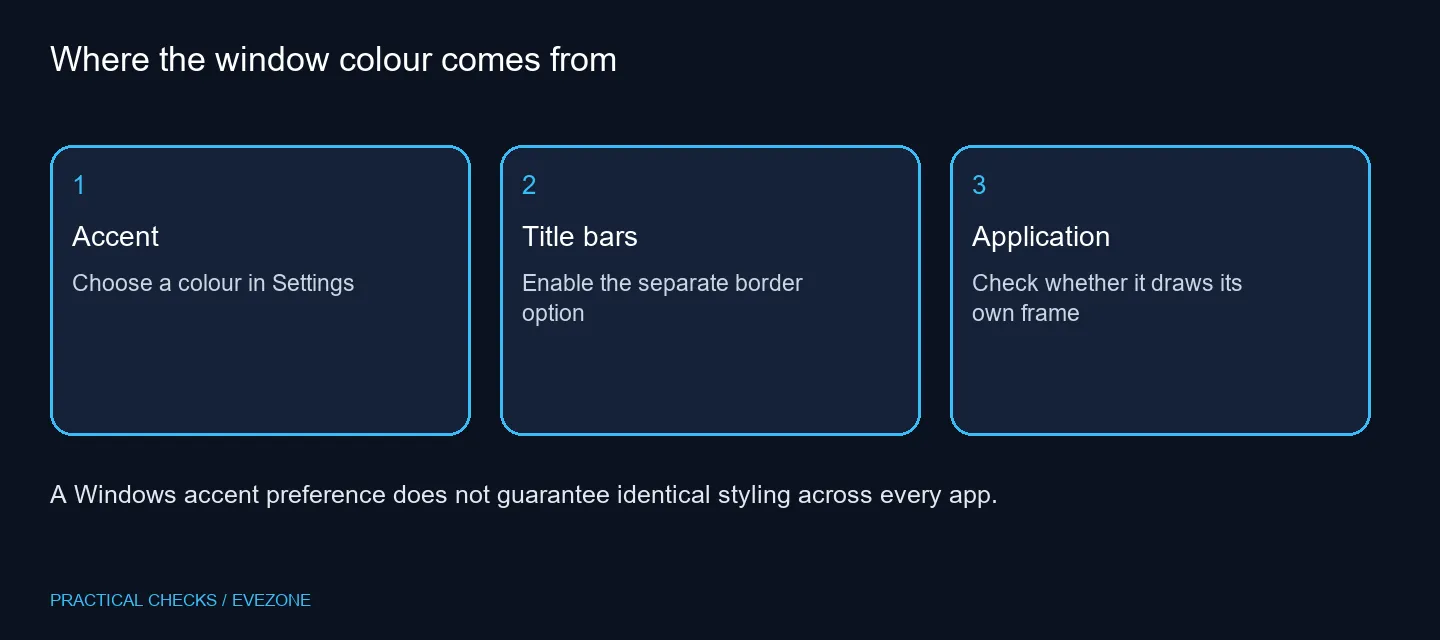
Open Settings and choose Personalisation, then Colours. Pick the accent you want to use and locate the option for showing accent colour on title bars and window borders. Turn that option on. Keep the Settings window open while comparing the result with another window so that you can reverse the preference easily.
The related Start and taskbar colour control serves a different purpose. A changed taskbar is not a test of title-bar behaviour, and an unchanged Start menu does not prove that the window-border switch failed. Read the full label beside each toggle before changing it.
🪟 Compare applications carefully
Some apps provide their own window chrome, including the strip containing tabs or navigation. Their design can differ from a standard Windows frame. Use a second application as a comparison instead of repeatedly changing the same accent while staring at one custom-styled window.
Close and reopen the application if its appearance does not refresh immediately. Check that you are looking at the active window: an inactive window can look different from the focused one. If only one program remains different, investigate its appearance preferences before making system-wide changes.
🖥️ Separate a preference from a display fault
A monitor colour problem affects rendered output more broadly. This Windows preference decides which interface areas receive an accent. Replacing a display or adjusting its hardware menu will not make an app obey a frame-colour setting it does not use.
If you are already choosing a screen for another reason, compare gaming monitors and office monitors according to your actual work. Treat the product grid as shopping context, not a remedy for a missing colour toggle. No additional hardware is required to change this setting.
🧩 Keep the result readable
Choose a colour you can distinguish comfortably from the surrounding desktop. Test it with your usual light or dark appearance and with more than one window open. The useful result is a border that helps you identify the working window without making labels harder to read.
When a theme change produces an unexpected appearance later, return to the same Colours page and inspect the current controls. That gives you a visible, reversible adjustment before you consider more involved customisation tools.
Frequently Asked Questions
Where is the title-bar switch?
Go to Settings, Personalisation, Colours and look for the option to show accent colour on title bars and window borders.
Does choosing an accent enable it?
Choosing a colour and applying it to title bars are separate controls. Check both.
Why does one app still look different?
Applications can use their own frames and styling. Compare another ordinary window before assuming Windows ignored your choice.
Must I change my monitor profile?
A profile changes colour rendering, not which application frame receives the Windows accent.
Will a theme change affect this?
Themes and colour settings interact. Revisit Colours after applying a different theme.
Is registry editing necessary?
Use the supported Settings controls first. Registry changes are unnecessary for this basic preference.
Make the active window easier to spot
Choose a readable accent, enable its title-bar control and compare the apps you actually use.