Headings such as Today and Yesterday can interrupt a simple search through downloaded files. File Explorer group by date is often the reason. Removing the headings changes how the folder is displayed; it does not require reorganising the documents you have saved.
Quick Answer
Open the affected folder and choose Group by, then None; current Explorer versions can place this under Sort. Set the sort order separately afterwards. This is an R0 display adjustment, and other folders or Open and Save dialogs may still use their own arrangement.
🗓️ Change grouping in the affected place
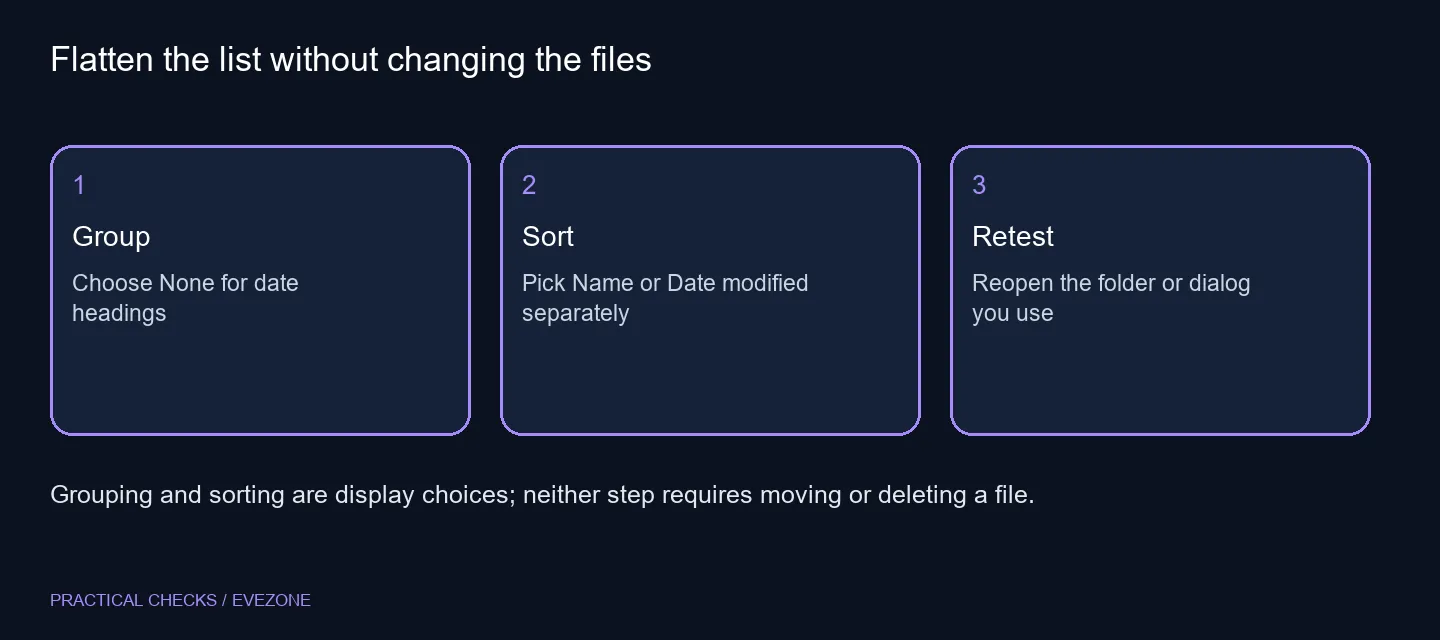
Start in Downloads itself, not in a different folder that already looks correct. Open Sort and inspect the grouping option, or right-click a clear part of the file area and look for Group by. Choose None where that option is available.
The menu can differ across Windows versions and dialogs. Read the labels in the window you are actually using rather than following a screenshot blindly. The aim is a flat file list, so you can immediately see whether the selected control changed the headings.
↕️ Keep the ordering you prefer
A flat list can still be sorted by Date modified. Grouping places files beneath section headings; sorting decides their order. If changing the view leaves a list that feels backwards, adjust the sort direction instead of switching the date groups back on.
Use a filename you know as a test. Confirm that it is still present and the location has not changed. There is no reason to rename files, alter timestamps or drag them into new folders merely to remove date-based sections from the screen.
🪟 Check folders and dialogs separately
Reopen Downloads after making the change. Then try the application dialog where the problem originally annoyed you. A browser's download picker or a program's Save window may not reproduce the main Explorer view exactly, so test that specific path before declaring a global fix.
Avoid copying registry edits from an unrelated Windows version to force every view to match. A single-folder control is a useful small change. It is not a promise that every application will ignore its own choices or that a managed PC will keep a preference permanently.
💾 Do not confuse layout with storage
Date headings are not evidence that an SSD is slow or that files have been duplicated. If you need more room for downloads, compare external ssds for portable storage based on capacity and connection. Keep that purchase decision separate from the way Explorer arranges a list.
For a planned internal upgrade, use internal ssds and check system compatibility as usual. A new drive will not automatically impose your preferred folder view. Once the headings are gone and the desired sort remains, the practical job is finished; leave the saved files and their dates untouched.
Frequently Asked Questions
How do I remove Today and Yesterday headings?
In the affected folder choose Sort, Group by, None where offered, or use the blank-area context menu.
Will None change file dates?
No. It changes grouping in the displayed list, not the stored modification date.
Can the files remain sorted by date?
Yes. Sorting and grouping are separate controls; select the required date sort after removing groups.
Does one change apply to every dialog?
Do not assume so. Test other folders and the particular Open or Save dialog separately.
Should I delete Downloads to reset it?
No. Removing grouping needs a view change, not deletion of the folder or its contents.
Does it need extra software?
Start with the existing Explorer controls; the basic grouping adjustment needs no paid utility.
Keep the folder fix simple
Use the built-in view controls first, then consider Evetech storage only for an identified space or performance requirement.