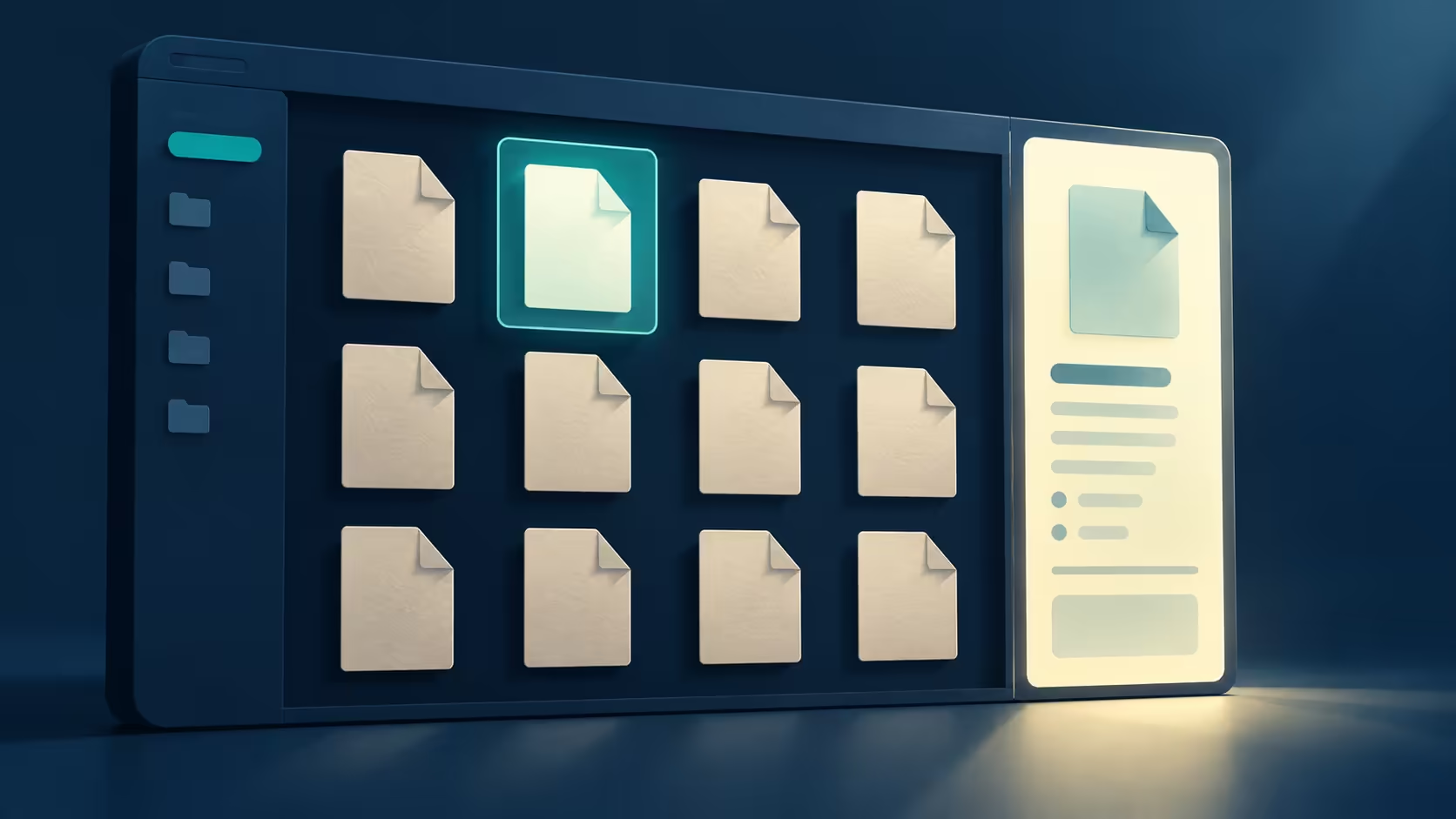
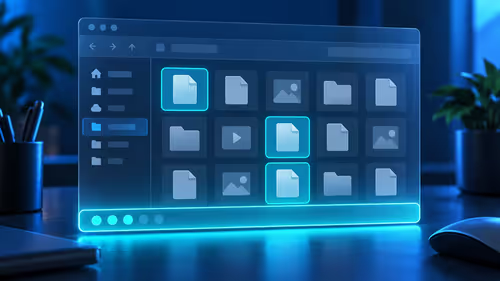
A missing sidebar can make a familiar folder feel broken. The File Explorer details pane is simply a view control, and restoring it is a better first step than changing storage drivers. Start with one selected file so you can tell whether the panel is hidden or a particular property is unavailable.
Quick Answer
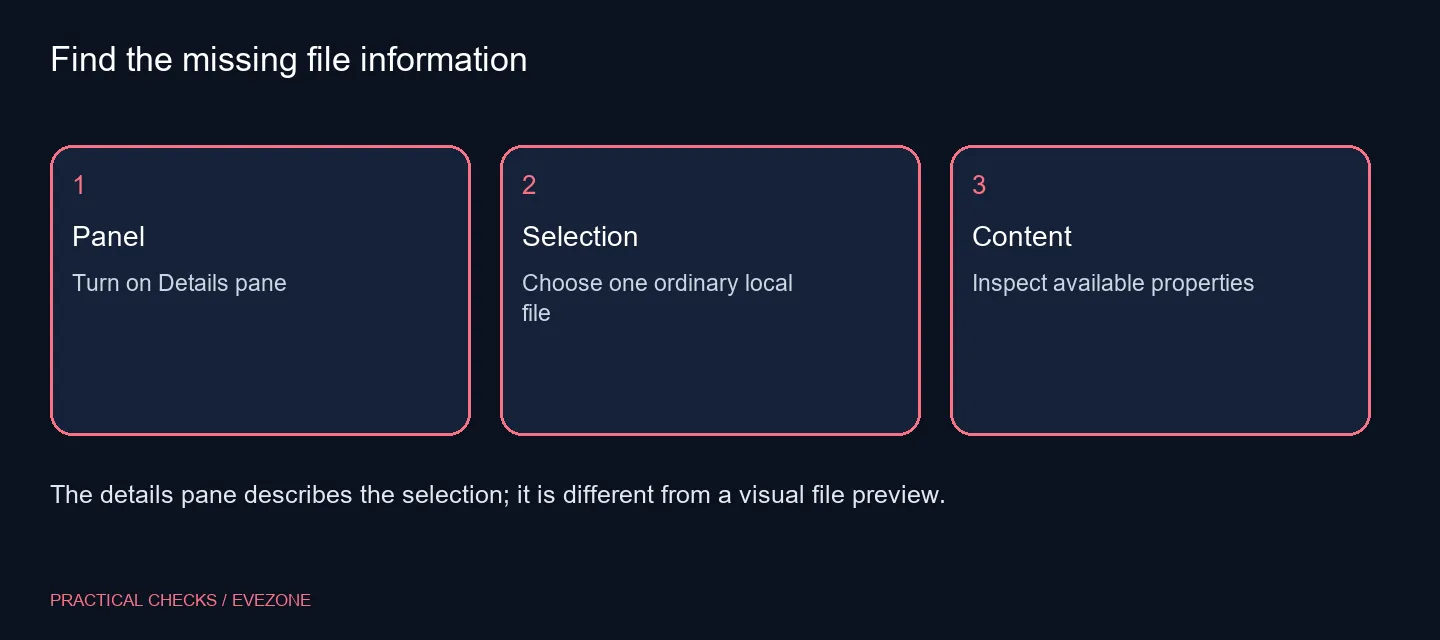
Open File Explorer, select a file and choose Details pane in View; Alt+Shift+P is the keyboard toggle. The view change costs R0 in additional hardware. It reveals properties for the current selection, while Details view and the preview pane perform different jobs.
📋 Find the right control
Bring the Explorer window to the foreground before trying the shortcut. If another application has focus, its own shortcut handling can produce a different result. Use the View menu when you want an explicit control rather than guessing which window received the keys.
Details view changes the main list into columns such as name and date. The details pane sits beside that list and describes what you selected. You can therefore have a detailed file listing while the information sidebar remains hidden. Changing one does not prove the other is enabled.
📄 Test the selection
Click one ordinary local document and look at the panel. Then choose a picture if you want to compare which properties are offered. A photograph and a text file do not necessarily carry the same metadata, so an absent camera field in a document is not an error to fix.
Do not type into property fields merely to see whether the panel works. Showing information is one task; editing metadata is another. Keep the first check read-only, especially with shared documents where an unnecessary property change could confuse another person.
🔍 Separate information from preview
If your goal is to read a document without opening its app, you may be looking for Preview rather than Details. The information panel can function even when a content preview cannot be rendered. Write down which outcome is missing before reinstalling a reader or changing file associations.
Storage shopping is unrelated to the panel switch. internal ssds may help when a separate capacity or performance need is established, but a hidden sidebar does not identify that need. The files themselves can remain intact and accessible while the window layout changes.
🗂️ Keep file work separate
For an important folder, confirm that you can navigate to the expected location and open a known document normally. This tests something useful without deleting settings or moving the entire folder. If the file fails to open too, record that separate symptom and its message.
When making a portable copy, inspect external ssds for an actual storage requirement rather than expecting a new drive to restore Explorer furniture. Keep your working copy and any backup clearly identified. Once the details panel shows the selected item's available properties, stop changing the view and return to the file task you started.
Frequently Asked Questions
How do I restore the panel?
Open File Explorer and enable Details pane from View, or try Alt+Shift+P with Explorer focused.
Is Details view the same thing?
No. Details view arranges the file list in columns; the details pane is an extra information panel.
Why is some information missing?
Available properties vary by file type and selection. Not every document has camera or media metadata.
Will this open a file preview?
The preview pane is a different control. File properties do not require the same content renderer.
Does this change my files?
Showing or hiding the pane is a view change. Editing a property inside it is a separate action.
Should I buy another SSD?
A hidden information panel alone is no evidence of a storage defect.
Choose storage for a storage need
Compare Evetech SSD options after separating Explorer layout changes from capacity, speed or backup requirements.