Quick Answer
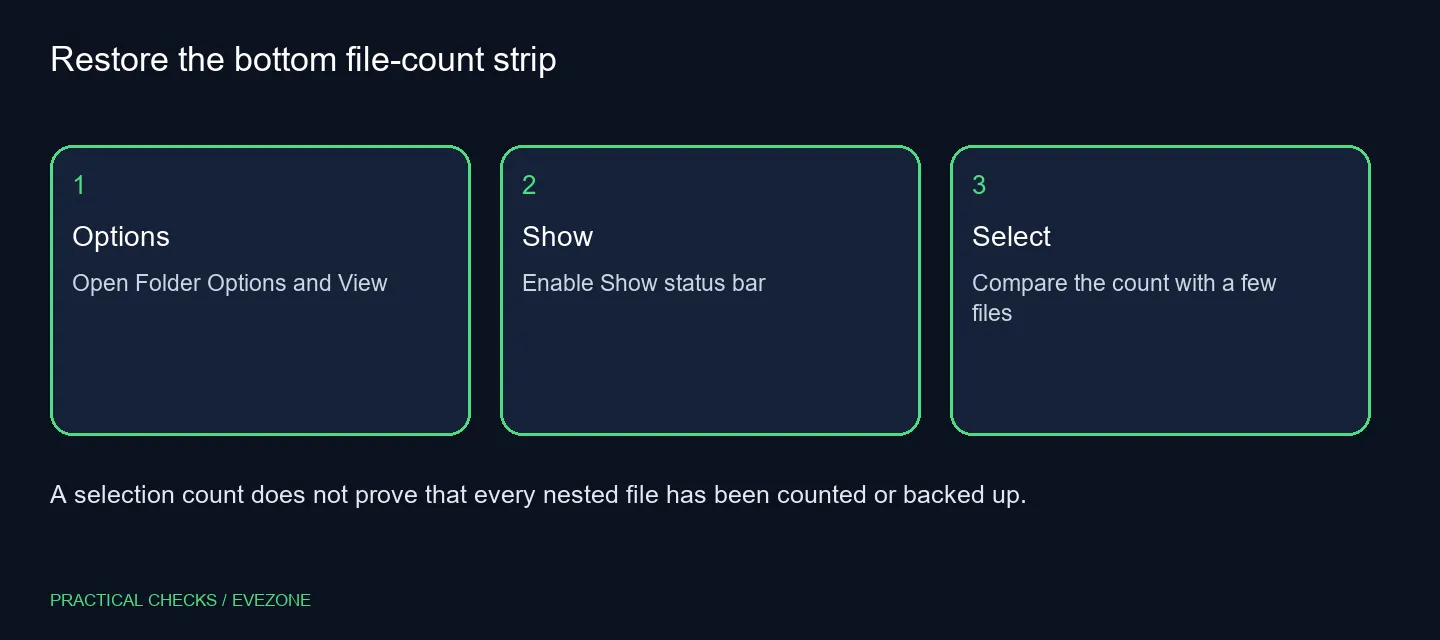
File Explorer status bar can be switched back on from Folder Options. Choose the View tab, enable Show status bar and apply the setting. Then select a few ordinary files to test whether the bottom strip reports the selection you expect.
🔢 Restore the count before changing files
Open File Explorer and reach its Options menu. In the Folder Options window, choose View and look for Show status bar. Enable it and apply the change. The menu route differs between Windows versions, but the preference controls the strip along the bottom of Explorer.
Use an ordinary local folder for the first test. Select two or three visible documents and check the displayed selection count. Change the selection once more so you can see whether the information follows it. This is a useful small check before drawing conclusions about a large or complicated folder tree.
🪟 Identify the right part of Explorer
The status bar is not the details pane beside your files. It is also different from a column named Status inside the file list. Moving or hiding a column cannot reliably restore a bottom strip, and enabling a sidebar does not establish that the status-bar preference is enabled.
Look at the position of the missing information before trying another control. A screenshot or a short note saying that the bottom count is absent makes the problem easier to describe than saying all file details have disappeared. The distinction also prevents changes to unrelated layout settings.
📂 Understand the boundary of the number
A count beside your current selection is useful for checking that you highlighted the intended items. It is not a promise that every file nested inside selected folders has been enumerated. A folder can contain more folders, and the view you are looking at may not be a full storage inventory.
Do not use a matching count as your only proof that a backup succeeded. File identity, content and destination matter too. Keep the status bar as a quick interface aid and use an appropriate verification process for a backup or migration rather than inferring completeness from one number.
💽 Separate capacity planning from the display
Nothing in the Show status bar preference moves documents or frees space. If you need a portable destination for another task, compare external ssds by capacity and connection. For a planned internal expansion, check internal ssds against the computer's supported interface and physical fit.
Those shopping paths are separate from restoring Explorer's count. A new SSD cannot make an unchecked view preference become checked. Once the bottom strip responds to a small selection, return to your normal folder and use the count with the same limits in mind.
Frequently Asked Questions
Where is Show status bar?
Open Folder Options, choose View, enable Show status bar and apply the preference.
How do I test the count?
Use an ordinary folder, select a few visible files and compare the selected-item count with your selection.
Is it the Status column?
No. A column in the main file list and the status bar at the bottom of the window are separate interface parts.
Does it count every nested file?
Do not treat a current folder or selection count as a recursive inventory of everything inside all subfolders.
Will it recover missing files?
Restoring the strip only reveals interface information. It does not restore deleted items or change backups.
Should I replace my drive?
A hidden count alone does not demonstrate a drive fault. Check the view preference before buying storage.
Check the selection before a larger file job
Restore the bottom count, test a small selection and keep backup verification separate from a display preference.