Quick Answer
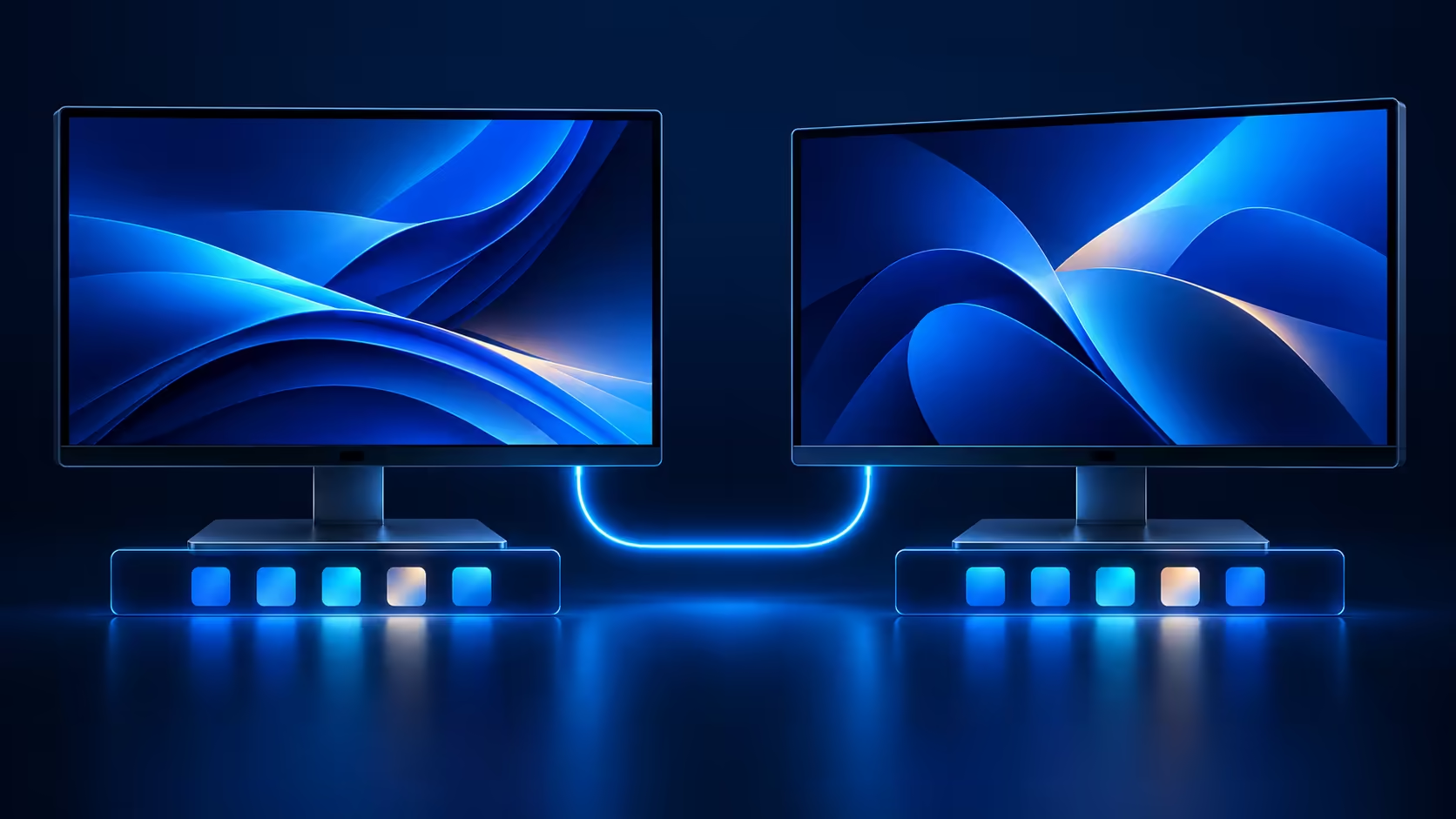
Windows taskbar on all displays can be enabled from the taskbar's behaviour controls. Before changing it, establish whether the second monitor is part of the desktop at all. A visible desktop with no taskbar is a different situation from a screen that Windows cannot detect.
🖥️ Establish the desktop arrangement
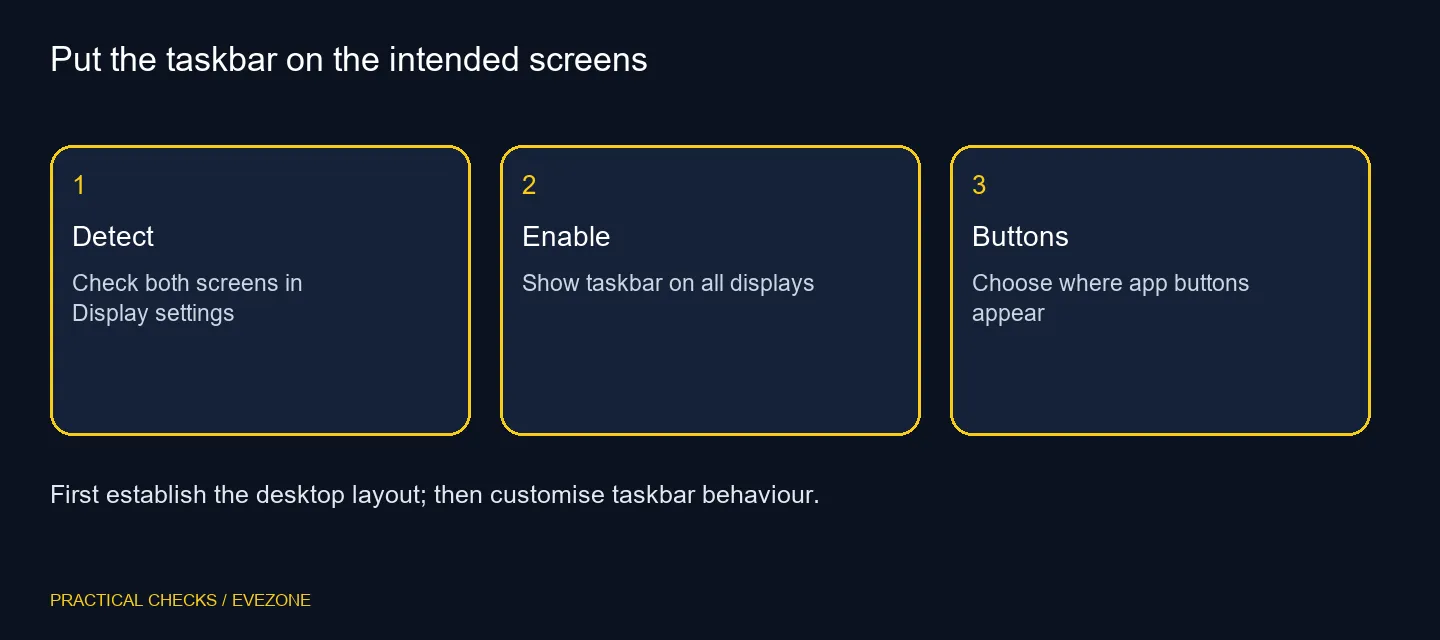
Open Display settings and inspect the connected screens. Identify which physical screen corresponds to each rectangle and check the display mode. Arrange the desktop to match how the monitors sit on your desk before deciding where application buttons should appear.
Move the pointer and a spare window between the screens. This small test separates a layout mistake from a taskbar preference. If the pointer travels through the wrong edge, correct the arrangement rather than treating the taskbar as the cause.
⚙️ Open Taskbar behaviours
Right-click an empty part of the taskbar and open its settings. Expand Taskbar behaviours, then enable the option to show the taskbar on all displays. Wording can vary with the Windows version, but the multiple-display control is the relevant preference.
Review the adjacent choice for where taskbar app buttons appear. You might want buttons repeated across screens or associated with the screen containing the window. Choose according to how you move between applications, then open a couple of programs and test the result.
👀 Check hiding before troubleshooting hardware
An automatically hidden taskbar can look absent until the pointer reaches its edge. Check the hide preference and test each screen while no full-screen application covers the desktop. Also notice which display is the main one; that choice can affect where particular interface elements appear.
If Windows cannot see the other monitor at all, taskbar controls cannot create the missing display connection. Check the cable, selected monitor input and supported display configuration before returning to personalisation. Do not change several unrelated settings at once, because that obscures which adjustment helped.
🧭 Match the screen to the job
For a desk expansion, browse office monitors for everyday workspace choices or gaming monitors when gaming features matter. The grid below is a way to compare screens if you need another physical display. It is not a required purchase for showing a taskbar on an existing working monitor.
Once the arrangement is comfortable, leave a familiar application open on each screen and check the buttons again. The final test is whether you can reach the right window naturally from either side of the desk.
Frequently Asked Questions
Where do I enable the second taskbar?
Open taskbar settings, expand Taskbar behaviours and look for the option to show the taskbar on all displays.
Why is the multiple-display option absent?
Check that Windows detects an additional display and that your chosen display mode provides the desktop arrangement you expect.
Will every button appear on both screens?
Taskbar visibility and the placement of application buttons have separate settings. Review both controls.
Does this choose my main display?
The main-display choice belongs in Display settings. It is separate from enabling taskbars across screens.
Can automatic hiding make it seem missing?
Yes. Check the automatic-hide preference and move the pointer to the relevant taskbar edge.
Should I buy an adapter first?
Only investigate connection hardware if the display itself is not detected or cannot run the required layout.
Set up a calmer two-screen desk
Verify the display layout, choose taskbar visibility and test how your own app buttons behave.