Quick Answer
File Explorer opens folders in separate windows when its browsing preference requests a new window for each folder. If every double-click adds another window to your desktop, inspect that setting first. You can change the preference without moving files or deleting anything.
📁 Find the folder-browsing choice
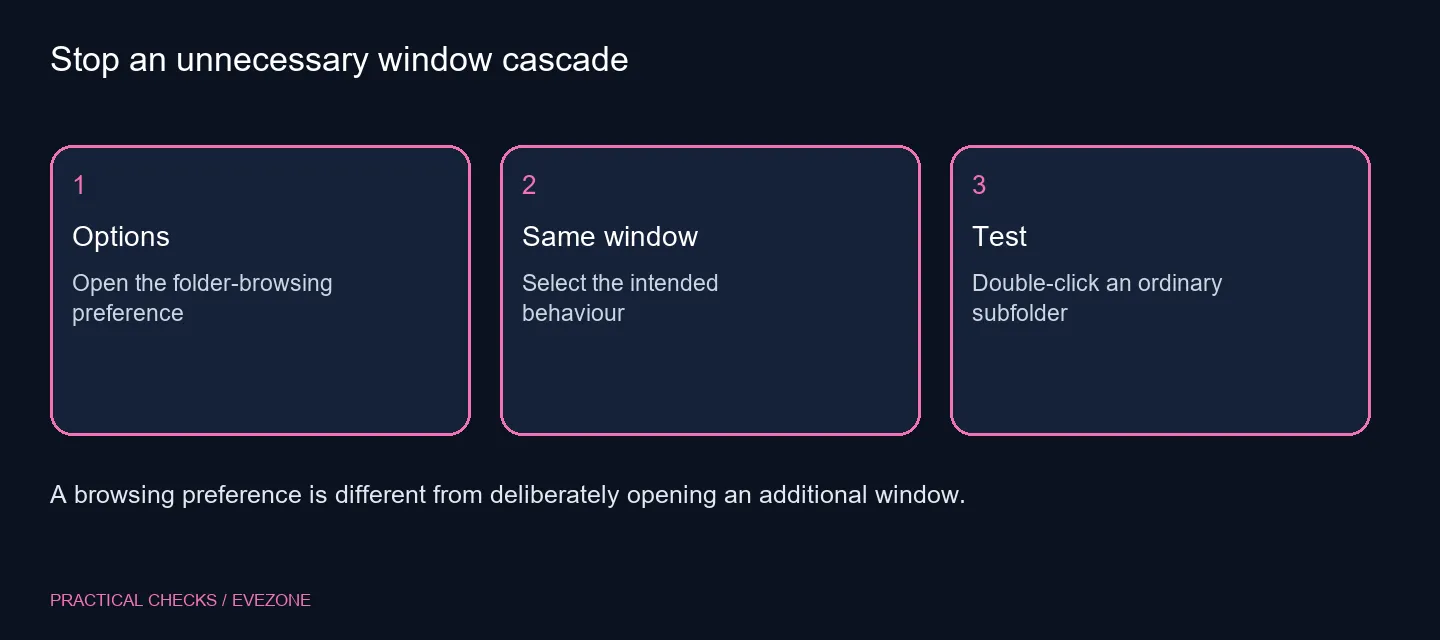
Open File Explorer and use its menu to reach Options. In Folder Options, look on the General tab for the choice between opening each folder in the same window and opening it in its own window. Select the same-window behaviour and apply the change.
The route to Options varies with the Windows interface, so focus on the setting's label rather than expecting an older screenshot to match every menu. Make only this one adjustment before testing; unrelated view changes will not make the diagnosis clearer.
🧪 Test a simple folder path
Start in a normal folder and double-click a subfolder. Observe whether the existing window navigates into it. Use Back to return, then try another ordinary folder. This gives you a repeatable check without involving special shortcuts or another application.
A command that explicitly opens a new window should still create one. That is useful when comparing two locations, and it does not show that the same-window preference failed. Judge the setting by ordinary folder navigation rather than by a command designed to override it.
🗂️ Keep tabs and windows distinct
On Windows versions with File Explorer tabs, several folder locations can share one outer window. A new tab and a new top-level window are different things. Describe what you see before changing further controls: another tab inside Explorer, or another separate frame on the desktop.
If the basic folder test behaves properly but one shortcut still creates a window, inspect how that shortcut is being opened. Avoid changing the system preference repeatedly to compensate for a single deliberate launch action. Close spare windows normally once you have established the pattern.
💾 Avoid unnecessary storage changes
A folder window is only a view onto a location. Switching between same-window and separate-window navigation does not merge folders, change backups or recover deleted files. Keep file-management actions separate from this presentation preference.
For a different project involving capacity, compare internal ssds or external ssds. The products below are storage options, not a fix for window behaviour. First get Explorer navigating the way you want; then assess storage needs using capacity, connection and backup requirements of their own.
Frequently Asked Questions
Which setting controls folder windows?
In Folder Options, choose the General-tab preference to open each folder in the same window.
Where are Folder Options?
Open File Explorer and use its menu to reach Options. The menu layout differs between Windows versions.
Will this prevent a manual new window?
No. An explicit new-window command is meant to create another window.
Does it delete extra folders?
No. This changes browsing behaviour, not the folders or the files inside them.
Why should I test a normal folder?
A shortcut or application command can deliberately request another window. An ordinary subfolder is a clearer preference test.
Is a faster drive the fix?
Storage speed does not choose whether Explorer reuses a window. Check the view preference before considering hardware.
Keep folder navigation under control
Set the browsing preference, test an ordinary subfolder and keep explicit new-window commands available when useful.