Three letters and a hyphenated aspect ratio do a lot of work on a monitor box, and most shoppers never unpack what any of it actually means for the desk in front of them. A 34-inch WQHD ultrawide is a specific, measurable thing rather than a marketing flourish, and the numbers behind it explain why this shape of screen keeps showing up on serious desks.
Quick Answer
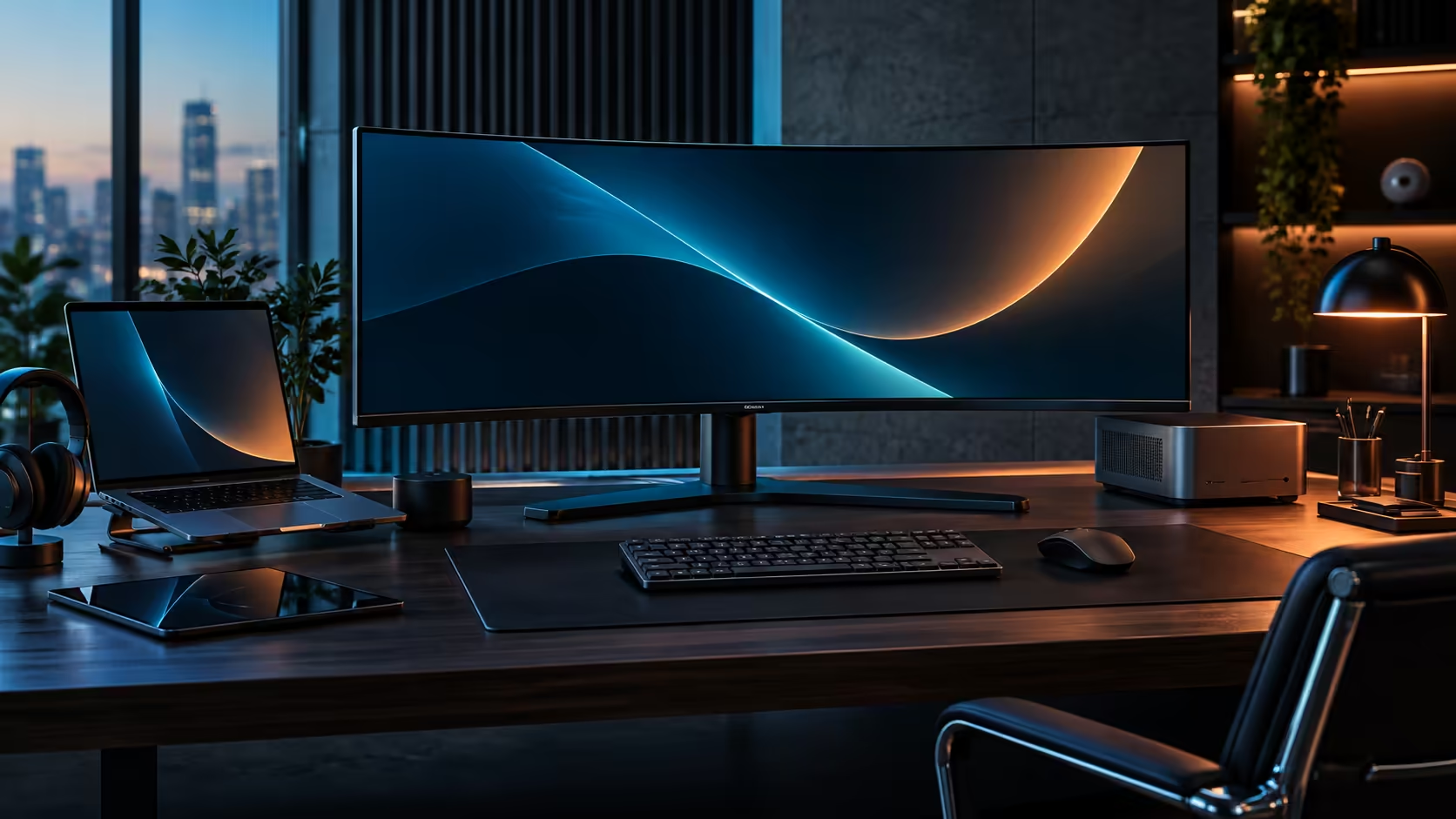
WQHD ultrawide means 3440 pixels across and 1440 down, 880 more columns of pixels than a standard 2560x1440 QHD screen offers. Spread across 34 inches with a 1500R curve, as on the R7,999 CU34E4CW at Evetech, that extra width becomes one continuous workspace rather than two monitors pretending to be a single screen.
🔢 Where the letters WQHD actually come from
WQHD stands for Wide Quad High Definition, and each part of that name describes a specific step away from a standard screen.
Quad HD, or QHD, refers to 2560x1440, four times the pixel count of 720p HD. The "wide" prefix signals a stretched aspect ratio rather than the standard 16:9, and in this case that stretch produces 21:9, sometimes written as 2.37:1. Multiplying that out gives 3440x1440: the same 1440 vertical pixels as standard QHD, but 880 additional horizontal pixels squeezed in by the wider shape. Nothing about the vertical detail changes; the entire gain is in width.
📏 Why 880 extra pixels changes how a desk actually works
That extra horizontal width is not a rounding difference, it is roughly a third more room than a standard QHD monitor offers.
880 pixels is enough for a genuinely useful extra column: a chat panel, a file browser, or a second document pane that would otherwise need its own separate monitor. Rather than two 2560x1440 screens joined by a visible bezel, a single 3440x1440 panel presents that width as one uninterrupted surface, which matters most for content that is meant to be read or scanned continuously, such as a spreadsheet, a timeline or a wide code layout.
🌀 What the 1500R figure adds to the resolution story
Resolution explains the width; the curve figure explains how that width is physically presented to your eyes.
Simple geometry puts a flat panel's two far edges noticeably further from your eyes than its centre once it gets this wide. Bending the CU34E4CW's glass to 1500R closes that gap for anyone seated square in front of it, at the kind of distance an ordinary chair sits back from an ordinary desk, somewhere between one and two arm's lengths. Paired with the 3440x1440 resolution, the curve is what stops a panel this wide from being a screen you turn your head for and makes it feel like one continuous surface edge to edge.
See how this exact resolution and curve combination stacks up elsewhere by browsing the curved monitor category, the office monitor range, and the full monitor selection for context.
🖥️ Why 21:9 won out over even wider shapes
WQHD ultrawide is not the widest shape a monitor can take, and knowing why 21:9 became the common middle ground helps explain what you are actually buying at this size.
A 32:9 "super ultrawide" panel is genuinely wider still, effectively two 16:9 screens joined with no bezel, but keeping the whole width in comfortable focus generally means pushing your chair back a fair bit further than a normal desk allows, and it pushes graphics card requirements up sharply for gaming. 21:9 at 3440x1440 sits at a point where the extra width is easy to use for three working panes without needing an unusually large desk or an unusually powerful graphics card to drive it well. That balance, rather than any technical limit, is why 21:9 rather than 32:9 is the shape most commonly sold at this 34-inch size.
⌨️ Fitting the CU34E4CW's width into a real Windows workflow
The resolution figure only matters once it translates into something you actually arrange windows around, so here is what that looks like in practice.
Windows already ships a built-in tool for this: hover any window's maximise icon, or press the Windows key plus Z, and a set of layouts tuned specifically for a 21:9 shape appears alongside the usual halves and quarters. Picking the three-way split on the CU34E4CW hands each pane close to 1150 pixels of its own, which is roomy enough to keep a spreadsheet, an email inbox and a running chat all genuinely legible at the same time rather than fighting each other for space. A standard 2560-pixel QHD screen, by contrast, manages two comfortable columns before things start to feel cramped, which is the practical, everyday difference the extra 880 pixels actually buys.
Frequently Asked Questions
What does WQHD actually stand for?
Wide Quad High Definition, describing a 21:9 stretched version of the standard 2560x1440 QHD resolution, which produces 3440x1440 on a 34-inch ultrawide.
How much extra screen space does WQHD give over standard QHD?
About 880 additional horizontal pixels, roughly a third more width, with exactly the same 1440 pixels of vertical height as standard QHD, so nothing about the vertical detail changes.
Does a curved panel change the resolution figure?
No. Curve radius and resolution are independent specifications, chosen separately by the manufacturer. 1500R describes the physical bend of the panel; 3440x1440 describes the pixel grid, regardless of curve.
Is 3440x1440 sharp enough for a 34-inch screen?
Yes, at roughly 109 pixels per inch, which is comfortably sharp for text and interface elements at normal desk viewing distances of 60cm to 80cm, without needing display scaling adjustments above 100%.
Why choose 3440x1440 over a 4K ultrawide?
A 3440x1440 panel needs less graphics power to run at high refresh rates than an ultrawide 4K panel does, which is why it remains the common choice for combining width with smooth motion.
Is a 32:9 super ultrawide better than a 21:9 WQHD panel?
Not automatically. A 32:9 screen adds more width still, but it needs considerably more desk depth to view comfortably and demands more from a graphics card, so 21:9 remains the more practical middle ground for most desks and most budgets.
How many working panes fit across the 3440-pixel width at once?
About three side by side, each landing near 1150 pixels wide once you use Windows' built-in layout picker on the maximise icon, which is enough room to keep a spreadsheet, an inbox and a chat window all readable together.
Ready to see WQHD's extra width on your own desk?
Compare 3440x1440 against your current screen's resolution before deciding how much workspace you actually need.