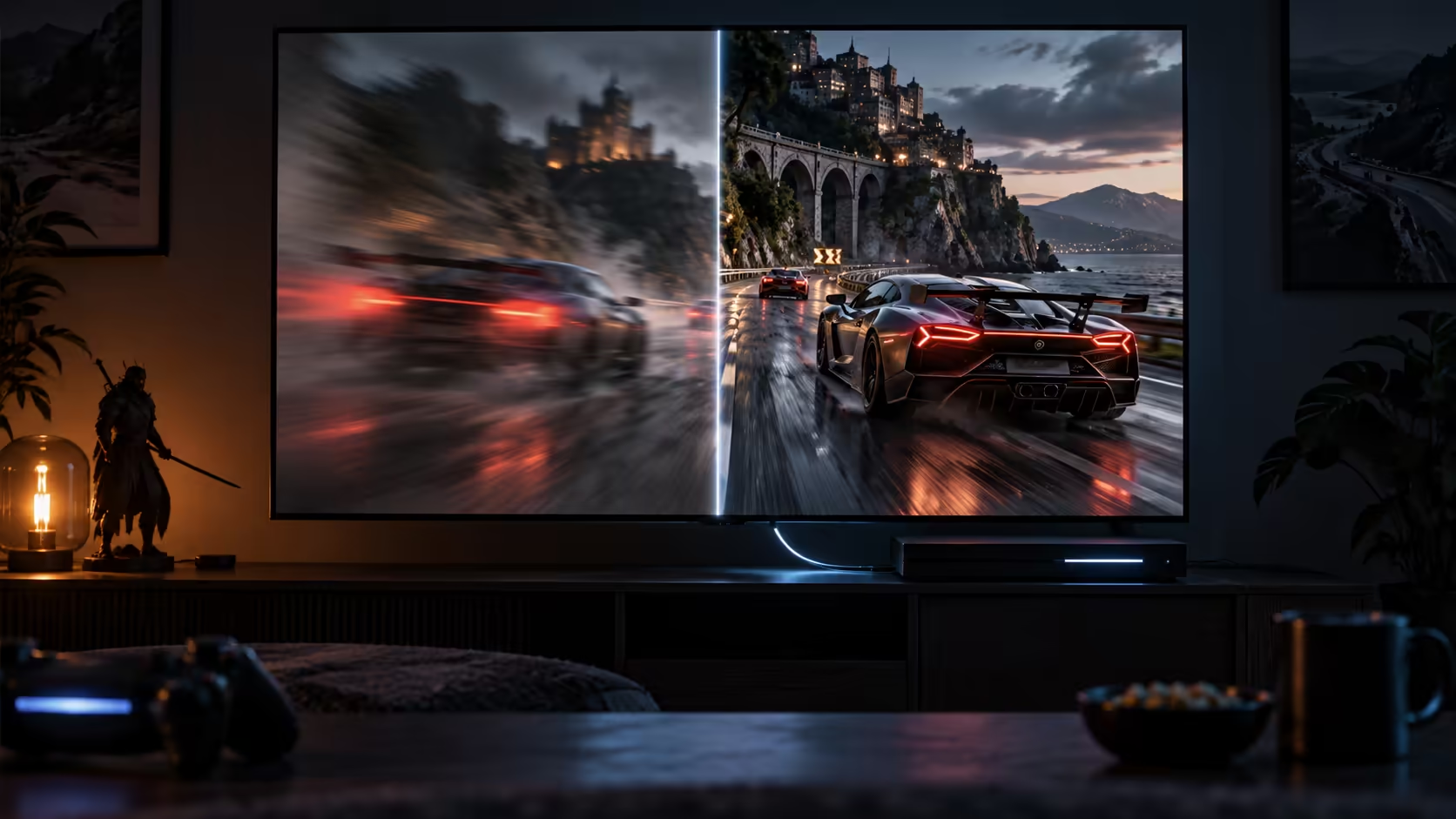
Switching a console from 4K 60Hz to 4K 120Hz does not touch the resolution number on the box, but it changes almost everything about how a game feels to play. Frames arrive twice as often, panning shots stop smearing, and the half-second between pressing a button and seeing it happen on screen gets noticeably shorter. None of that shows up in a screenshot, which is exactly why the difference gets undersold.
Quick Answer
Frames arrive twice as often at 120Hz, so aiming feels sharper and fast panning smears less than it does at 60Hz. The resolution stays the same and only the delivery rate changes, which is why the jump needs an HDMI 2.1 socket at both ends plus a 48Gbps lead such as the R299 Anker 1.8m to actually reach the screen.
🎯 What changes on screen, frame by frame
At 60Hz, each frame stays on screen for roughly 16.7 milliseconds before the next one replaces it. At 120Hz that window halves to about 8.3 milliseconds, so fast-moving objects and camera pans are sampled twice as often, which is what reduces the smearing effect your eye picks up during quick movement. The resolution of each individual frame has not changed at all; what changes is how frequently a new one arrives.
This is most obvious in anything with fast camera movement or quick target acquisition, competitive shooters and racing games especially, where the extra frames give you more recent information about where something actually is on screen at the moment you react to it.
⏱️ Input lag drops along with the frame time
Console input lag is measured from the moment you press a button to the moment the result appears on screen, and a large chunk of that delay is simply waiting for the next frame to be drawn. Halving the time between frames at 120Hz cuts directly into that wait, which is why competitive players chase the higher refresh rate even on games that do not look dramatically different frame to frame.
Auto low latency mode, part of the HDMI 2.1 standard, adds a further reduction by telling a compatible television to switch into its lowest-lag picture mode automatically the moment the console starts sending a game signal, rather than leaving you to find that setting in a menu.
🕹️ The trade-off consoles rarely mention on the box
Getting to 120Hz on current consoles usually means choosing a Performance mode over a Quality or Fidelity mode in the game's own settings, and that choice has a cost. Performance modes typically render at a lower or dynamic resolution, sometimes upscaled back to 4K, and often disable or reduce ray tracing to hit the higher frame rate consistently. Quality modes do the opposite: full native resolution and the best visual effects, capped at 60Hz or occasionally 30Hz.
Neither option is universally correct. A slower, story-driven game usually looks its best in Quality mode, where the extra detail is what you are there to see. A fast multiplayer title is generally worth the resolution trade for a Performance mode running at 120Hz, since the responsiveness matters more than the last bit of texture detail. Check each game's own settings menu, because the option to choose is not always turned on by default even when the game supports it.
📉 What the resolution trade actually looks like
A Performance mode's dynamic resolution is not a fixed number, which is part of why it is easy to misunderstand. A game might render internally anywhere from around 1440p up to a native 2160p depending on how demanding the current scene is, then upscale the result back to a full 3840x2160 output before it reaches the cable. In a calm corridor the engine can afford closer to native detail; in a busy firefight with dozens of effects on screen at once, it drops the internal resolution to protect the frame rate instead.
The output signal leaving the console is always the same 4K at 120Hz regardless of what is happening inside that budget, which is exactly why the cable and display side of the chain never needs to change between the two modes. The trade happens entirely in the console's rendering pipeline, invisible to the HDMI link carrying the result.
🔌 What has to be true for 120Hz to reach the screen
Three things need to line up before any of this happens: the game needs a 120Hz mode, the display needs an HDMI 2.1 input capable of accepting it, and the cable between the two needs to carry the full 48Gbps that mode requires. Miss any one of the three and the console quietly falls back to 60Hz without necessarily telling you why.
Check the supported refresh rate against a specific panel on our gaming monitor range before assuming a screen bought a few years back can accept the higher figure. On the cable side, the Anker 1.8m lead is rated for 48Gbps at R299 and removes that variable entirely. If responsiveness rather than raw refresh is the real goal, pairing it with a wired controller takes wireless latency out of the equation too, and browsing the full cable range is worth doing if more than one device in the lounge needs the upgrade.
Frequently Asked Questions
Does 4K 120Hz actually look sharper than 4K 60Hz?
The static image resolution is identical; what looks different is motion. Panning and fast action appear smoother and less blurred at 120Hz because frames update twice as often.
Should I always choose Performance mode for 120Hz gaming?
Not always. A slower game benefits more from a Quality mode's extra resolution and effects, while a fast competitive title usually gains more from the responsiveness Performance mode's higher frame rate offers.
Why does my console fall back to 60Hz in some games?
Not every title includes a 120Hz mode. When one is missing, the console runs the game at its standard frame rate regardless of what the display and cable can otherwise support.
Does a 48Gbps cable improve input lag by itself?
No. The cable's job is to carry the 120Hz signal without dropping frames or falling back to a lower mode; the input lag reduction comes from the higher frame rate and auto low latency mode, not the wire itself.
Is the difference between 60Hz and 120Hz noticeable on a smaller screen?
Yes, motion clarity improves at any screen size, though it is easiest to see on fast panning shots or quick camera turns regardless of how large the display is.
Ready to feel the difference 120Hz makes?
Confirm your display accepts it, pick the right game mode, and carry the signal on a cable rated for the full 48Gbps.