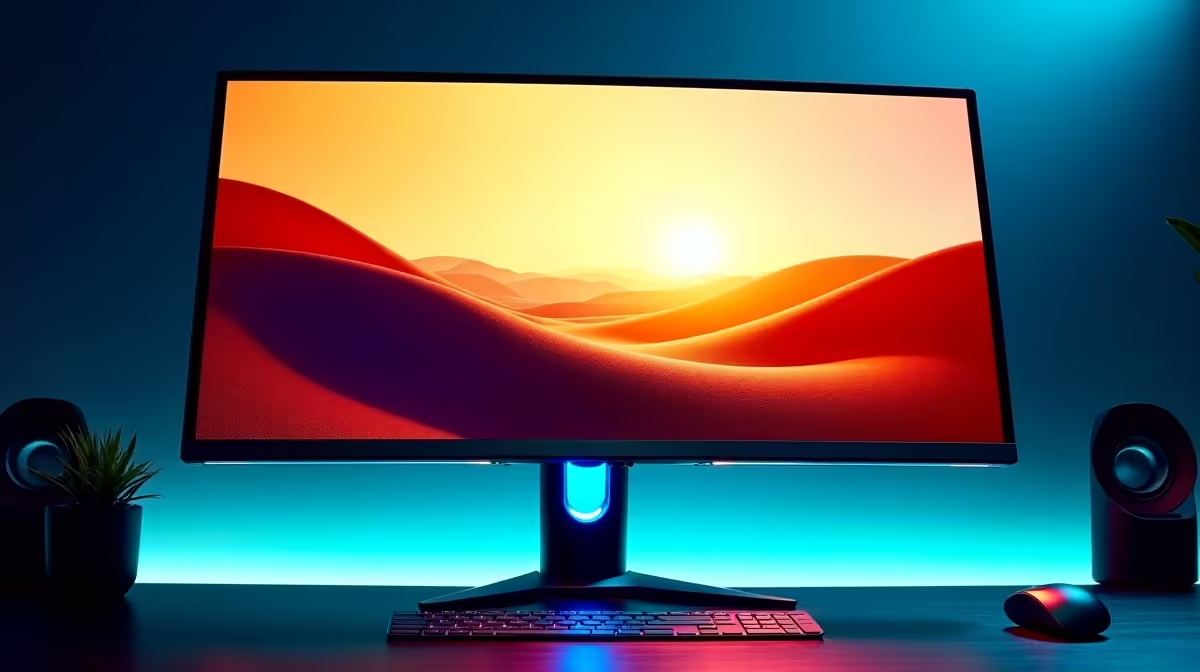
Is the red in your favourite game a vibrant, fiery crimson, or is it looking a bit… washed out? Are the photos from your last holiday looking dull on screen? What you're seeing might not be the real picture. Proper monitor color calibration isn't just for professional designers; it’s a crucial step for anyone in South Africa who wants the most accurate, immersive, and comfortable viewing experience for gaming, work, and everything in between. Let's fix that. ✨
Why Is Monitor Colour Calibration So Important?
Think of an uncalibrated monitor like a musical instrument that's out of tune. It might still play a song, but it won't sound right. Similarly, your screen displays colours based on factory settings that are often too bright, too blue, and inconsistent.
Effective monitor colour calibration ensures:
- True-to-Life Colours: Your photos and videos look exactly as they were captured.
- Gaming Advantage: You can spot enemies lurking in shadows that might otherwise be crushed into a black mess. Details pop, and worlds feel more alive.
- Reduced Eye Strain: A correctly calibrated screen with optimised brightness and contrast is much gentler on your eyes during long work or gaming sessions.
- Consistency: What you see is what your friends or clients see, which is vital for any creative work.
Getting this right starts with choosing the right PC monitor for your needs, but even the best panel benefits from a little fine-tuning.
Your First Steps to Better Monitor Calibration 🔧
You don't need expensive gear to make a massive improvement. Your journey to better colour accuracy can start right now with the tools you already have.
1. Set the Scene
Before you touch any settings, consider your environment. Your room's lighting dramatically affects how you perceive colour on screen.
- Avoid Direct Light: Position your monitor away from windows or bright overhead lights that can cause glare and wash out the image.
- Use Neutral Lighting: If possible, use a neutral, dim light source in the room. A simple desk lamp bouncing light off a wall behind the monitor works wonders.
2. Use Built-in OS Tools
Both Windows and macOS have built-in utilities to guide you through a basic screen calibration.
- On Windows: Search for "Calibrate display color" in the Start Menu and follow the on-screen wizard. It will help you adjust gamma, brightness, contrast, and colour balance using simple visual guides.
- On macOS: Go to System Preferences > Displays > Color > Calibrate. The step-by-step assistant is excellent for beginners.
This simple process is a fantastic starting point for achieving better monitor color calibration and will make a noticeable difference across all our gaming monitors.
Brightness Pro-Tip 💡
Most monitors are way too bright out of the box. A good starting point is to match your screen's white level to a piece of white paper held next to it. If the screen glows like a lightbulb compared to the paper, it's too bright. Lower it until they look similar.
Advanced Calibration: For the Pros and Perfectionists 🚀
While built-in tools are great, they rely on your subjective vision. For pixel-perfect accuracy, especially for creative professionals using high-end displays, a hardware calibrator is the way to go.
A device like a colorimeter or spectrophotometer hangs over your screen and objectively measures the colours your monitor produces. It then works with software to create a custom "ICC profile"—a correction file that tells your graphics card exactly how to display colours accurately. This is the gold standard for professional monitor colour calibration.
This level of precision is especially crucial for those working on high-resolution 4K and 5K monitors, where every single pixel counts. Whether you're using immersive curved monitors for that wrap-around gaming feel or one of the latest portable monitors for work on the go, the principles of accurate colour remain the same. To complete your setup, remember that the right monitor accessories, like a quality stand or cleaning kit, also contribute to a perfect viewing experience.
Ready for Perfect Colour?
An uncalibrated screen is holding you back from seeing the full picture. Explore our incredible range of displays and see the difference true colour makes. Check out the best PC monitor deals at Evetech and upgrade your view today!