How to Use a Nano SIM 4G Router for Reliable Home Internet
Master using a Nano SIM 4G router as your primary internet solution. Get stable speeds and seamless connectivity for gaming and streaming at home! 🌐🚀
Read moreConnect laptop to projector quickly with this essential classroom guide — step-by-step cables, adapters, wireless tips, and troubleshooting. 🎓🔌
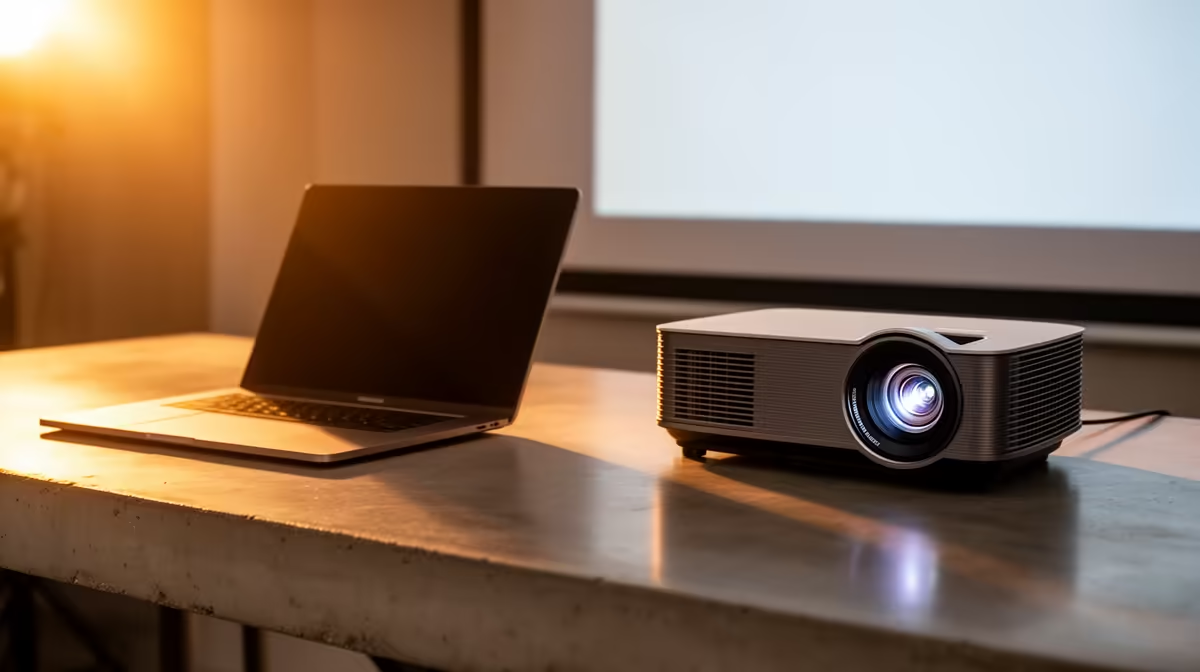
In a classroom, the moment your laptop mirrors a lesson to a projector, engagement shifts. Whether you're running slides, streaming a curriculum video, or demoing software, knowing how to connect laptop to projector saves class time and avoids awkward pauses. This guide is practical, low-fuss and tuned for South African schools and tertiary labs.
If the projector image is stretched or cut off, set your laptop to the projector’s native resolution and choose 'Mirror' only after resolutions match. Always keep a spare HDMI cable in your bag.
Ready to Find Your Perfect Match? The Mac vs Windows debate is complex, but for maximum power, choice, and value in South Africa, Windows is hard to beat. Explore our massive range of laptop specials and find the perfect machine to conquer your world.
Use an HDMI, VGA, or USB-C cable to mirror or extend your screen. Choose HDMI for best quality; select the projector input and set display mode on your laptop.
Yes. Use a USB-C to HDMI adapter or Thunderbolt adapter, or use AirPlay for compatible projectors. Adjust display settings to mirror or extend.
Use Chromecast, Apple AirPlay, or a wireless HDMI kit. Plug the wireless receiver into the projector, join the same Wi-Fi, then cast or mirror your laptop.
If your laptop has USB-C, Mini DisplayPort, or DisplayPort, use the corresponding adapter to HDMI. Choose active adapters for older GPUs.
Common fixes: check cables and input selection, update video drivers, and set the laptop to duplicate or extend the display to the projector.
Open your laptop's display settings, select the projector as the external display, and choose a supported resolution and refresh rate to avoid distortion.
They can add slight lag. For smooth slides use a stable Wi-Fi or wired HDMI for video and low latency when timing matters.