Quick Answer
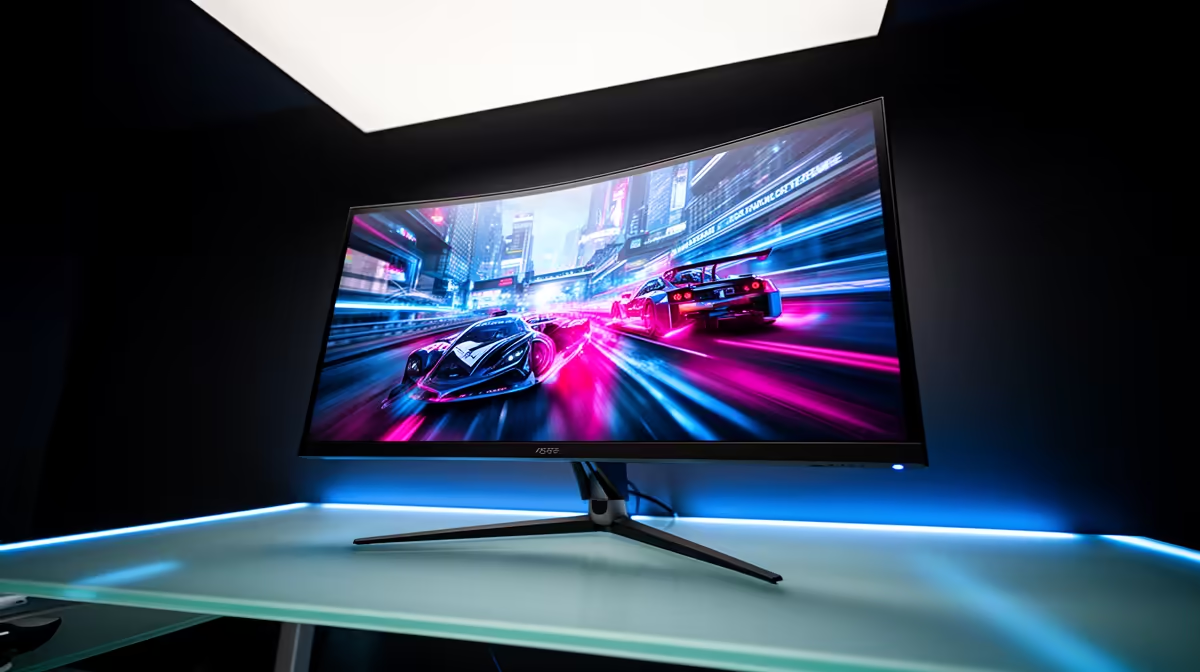
VRR (G-Sync or FreeSync) eliminates tearing by synchronising the monitor's refresh to the GPU's frame output. ELMB Sync (Extreme Low Motion Blur Sync, ASUS) reduces perceived motion blur by backlight strobing while keeping VRR active. They solve different problems: VRR fixes tearing, ELMB Sync sharpens moving images. When combined (ELMB Sync), both benefits apply simultaneously.
How Variable Refresh Rate Stops Tearing 🖥️
Screen tearing occurs when the monitor refreshes at a fixed rate and the GPU delivers a frame mid-refresh, showing parts of two different frames simultaneously. VRR makes the monitor wait for a complete frame before refreshing, dynamically matching GPU output. At 165Hz with a GPU producing 120 fps, the monitor runs at 120Hz, eliminating tearing without V-Sync input lag. Tearing returns if the frame rate falls below the VRR minimum or above the maximum.
How ELMB Sync Reduces Motion Blur 🎮
Motion blur on LCD panels is caused by the backlight remaining on between frame updates, blending the current and previous frame. Backlight strobing turns the backlight off between frames so the eye sees only the completed new frame. This produces noticeably sharper motion in fast titles. Traditional strobing only works at fixed refresh rates and conflicts with VRR. ELMB Sync combines strobing with active VRR on supported ASUS monitors. The trade-off is reduced peak brightness and potential eye strain at longer sessions.
Choosing Between VRR Only and ELMB Sync 🔧
For most SA gamers, VRR alone is the correct starting point. It eliminates tearing completely and costs no brightness penalty. ELMB Sync is worth enabling for competitive players who want the absolute sharpest motion in titles like CS2, Valorant, or Apex Legends where tracking moving targets is critical. Evaluate ELMB Sync in a thirty-minute gaming session to confirm it does not cause eye discomfort; some people are more sensitive to the strobe effect than others. If comfort is fine, keep it on. If your frame rate regularly drops below the VRR floor (which briefly disengages VRR and can cause tearing), ELMB Sync has less value since the anti-tearing benefit is already compromised.
Enable ELMB Sync From the OSD, Not the Driver Panel ⚡
ELMB Sync is activated from the monitor's OSD menu rather than from the NVIDIA or AMD driver settings. Look for the ELMB Sync option in the OSD's gaming or display settings category. Once enabled, confirm VRR is also active by checking the OSD information screen while a VRR-capable game is running. Both should show as active simultaneously on supported ASUS monitors.
FAQ
Does ELMB Sync work with AMD FreeSync as well as NVIDIA G-Sync?
ELMB Sync on ASUS monitors is designed to work with G-Sync Compatible monitors using NVIDIA GPUs. FreeSync equivalents with simultaneous strobing exist (some panels support it via Adaptive Sync with strobing), but ELMB Sync as a branded feature is ASUS-specific and primarily verified with NVIDIA GPUs.
Does enabling ELMB Sync reduce my monitor's brightness significantly?
Yes. The strobe duty cycle typically reduces peak brightness by 30% to 50% compared to the monitor's continuous backlight mode. If you game in a bright room, ELMB Sync may make the panel look too dim. Test it in your actual lighting conditions before committing to it as a default setting.
Can I switch ELMB Sync on and off per game?
Yes. It is an OSD toggle, not a permanent hardware change. Many users enable it for competitive FPS titles and disable it for slower single-player games where maximum brightness and VRR-only are sufficient.
Want a monitor with both VRR and ELMB Sync support for tear-free, sharp competitive play?
Evetech stocks ASUS gaming monitors with ELMB Sync alongside a full range of FreeSync and G-Sync Compatible displays. Browse the monitor section to find the right competitive panel.