



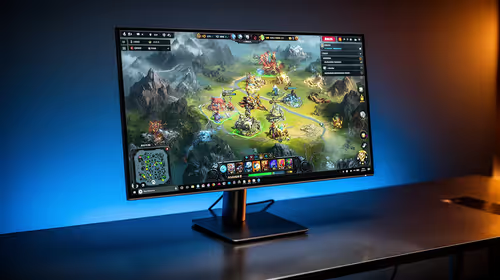
IPS vs VA for Strategy and Sim Games in SA
IPS vs VA for strategy and sim games should be judged by fit, not a single winner. Compare compatibility, latency, capacity, upgrade path, cost planning, and South African setup needs.
Read moreG502 Lightspeed macros — Checklist: • Install Logitech G HUB • Map buttons • Test macros. Follow this step-by-step beginner guide to create, assign and troubleshoot macros on your G502 Lightspeed 🎮✨

So, you’ve unboxed your shiny Logitech G502 Lightspeed, a beast of a mouse. But are you using it to its full potential? If you're still clicking like it's 2010, you're leaving performance on the table. Mastering G502 Lightspeed macros is the key to unlocking faster, smarter, and more efficient gameplay. This guide will show you exactly how to turn complex actions into a single, satisfying click. Ready to level up?
Think of a macro as a recorded sequence of keyboard presses or mouse clicks that you can play back with a single button press. Instead of frantically hitting 5 > R > Click to use a potion and reload, you can assign that entire combo to one of your G502's programmable buttons.
For South African gamers, this means a real competitive edge. Whether you’re building structures in Fortnite, executing combos in Street Fighter, or managing your inventory in Tarkov, a well-optimised macro saves precious milliseconds. It’s not just about speed; it’s about reducing mental load so you can focus on strategy. The power packed into a top-tier gaming mouse is truly defined by its software customisation.
Getting your first G502 Lightspeed macros set up is easier than you think. The magic happens inside Logitech’s G HUB software. If you haven’t installed it yet, grab it from Logitech's official website first.
Launch the G HUB application. On the main screen, you should see your connected Logitech gear. Click on the image of your G502 Lightspeed to open its specific settings. This mouse is a highlight of Logitech's lineup of gaming mice for a reason... the deep customisation.
Once you're in the G502's settings, look for a tab on the left-hand side, usually labelled "Assignments" (it might have an icon that looks like a + inside a circle). This is your command centre for customising buttons. In this section, you'll see a panel for "Macros".
Click on "Create a New Macro". Give it a name that makes sense to you, like "Apex Shield Swap" or "Photoshop Save & Export". Now you have to choose the type of macro:
For beginners, "No Repeat" is the perfect place to start.
Macros aren't just for gaming! Create a macro that types out your email address or a common code snippet. For graphic designers, a macro that triggers Ctrl+Alt+Shift+S (Save for Web) in Photoshop is a massive time-saver. Your gaming mouse can double as a serious work tool.
Click the "Start Now" button and then press the sequence of keys and clicks you want to record. G HUB will capture everything, including the delays between each action. For example, to create a simple crouch-jump macro, you would:
CTRL.SPACE.You can then fine-tune the delays between actions for perfect timing. While the G502 Lightspeed is one of the most popular premium wireless gaming mice, this macro process is similar across many top brands, though the software for other brands like Marvo will have its own unique interface.
Once you've saved your macro, simply drag it from the macro list on the left and drop it onto the button you want to assign it to on the image of your G502. That's it! G HUB will automatically save the profile. Jump into a game and test it out. ✨
This ability to create custom G502 Lightspeed macros is what separates a good mouse from a great one. And while wireless offers incredible freedom, many pro players still swear by the flawless connection of reliable wired alternatives for peace of mind.
Ready to Unleash Your True Potential? Setting up G502 Lightspeed macros is just the beginning. The right mouse can transform your entire gaming experience. Explore our massive range of gaming mice and find the perfect weapon for your playstyle.
Open Logitech G HUB, select your G502 profile, go to Assignments > Macros, create or record a macro, save and assign it to a button.
Use Logitech G HUB — it includes the Macro Editor tailored for the G502 Lightspeed to record, edit delays, and assign macros.
Yes. In G HUB you can assign one macro to multiple buttons or copy it across different profiles for different games.
It depends on the game's rules. Macros that automate gameplay or give unfair advantage may violate terms of service.
Check that G HUB is running, firmware is up to date, the correct profile is active, and no other software is interfering.
Basic button assignments can use onboard memory, but advanced macros, delays and profiles require Logitech G HUB.
In G HUB's Macro Editor press Record, perform actions with natural delays, then fine-tune timings manually in the editor.
IPS vs VA for strategy and sim games should be judged by fit, not a single winner. Compare compatibility, latency, capacity, upgrade path, cost planning, and South African setup needs.
Read more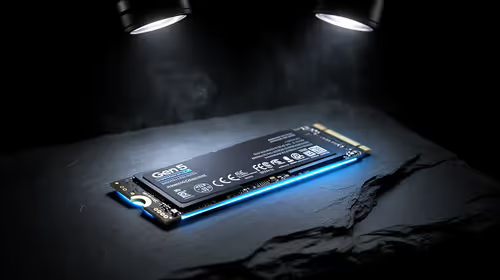
Gen 5 NVMe SSD guide for Bloemfontein gamers should be shortlisted around the job it must do. South African buyers should compare capacity, speed, thermals, and motherboard support, warranty path, and upgrade room before treating any pick as best.
Read more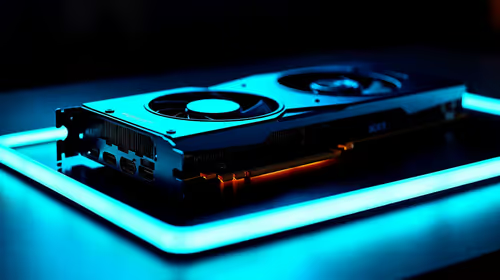
Skip the RTX 5070 if your first-time builder budget needs better balance. Better SA picks can free room for the right CPU, PSU, case, monitor, storage, and cooling while still giving a strong first gaming PC experience this year in South Africa.
Read more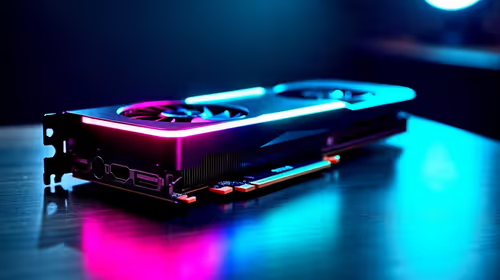
RTX 5080: weighing the pros and cons for SA should be shortlisted around the job it must do. South African buyers should compare GPU tier, VRAM, cooling, and PSU headroom, warranty path, and upgrade room before treating any pick as best.
Read more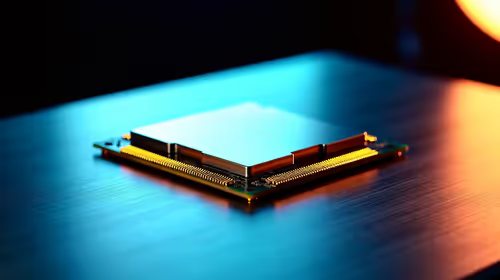
Core i5-13400F gives South African PC builders a capable mid-range CPU choice with clear limits. Check its gaming fit, discrete GPU requirement, LGA1700 platform costs, and upgrade path before locking in your parts list.
Read more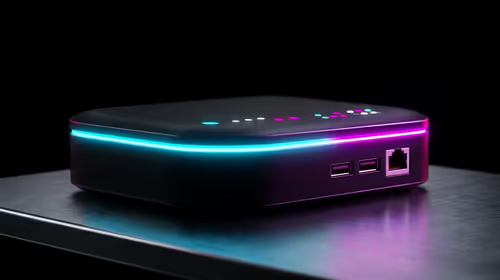
Pros and cons of the Wi-Fi 7 routers for SA should be shortlisted around the job it must do. South African buyers should compare WiFi standard, coverage, latency, and device support, warranty path, and upgrade room before treating any pick as best.
Read more
Steam content servers unreachable needs a download-path check, not an immediate reinstall of every game. Restart the client, inspect download settings and compare another connection when practical. Clearing the download cache is separate from deleting installed games.

Keychron G6 HE has built-in and swappable battery versions with different weights. The product brief lists 42g and 46g respectively, each with a 3g tolerance. Choose by grip and battery preference before treating one headline weight as universal.

Corsair HS80 v2 MAX supports 2.4GHz wireless and Bluetooth. Its maximum battery figures use RGB-off conditions and differ by connection. Check microphone routing, comfort and the exact device support before assuming every wireless mode behaves alike.

Windows taskbar notification badges can be shown or hidden in Taskbar behaviours. This changes the small app indicators, not the underlying messages. Choose a calmer desktop while keeping a deliberate routine for checking important conversations and app updates.
Windows taskbar notification badges can be shown or hidden in Taskbar behaviours. This changes the small app indicators, not the underlying messages. Choose a calmer desktop while keeping a deliberate routine for checking important conversations and app updates.

Windows USB device in use can mean a program still has the drive open. Finish transfers and close files before retrying ejection. Better performance caching requires safe removal; a replacement drive is not the first fix for an open-file warning.

Windows Nearby Sharing not working starts with feature, Bluetooth and visibility checks on both PCs. My devices only depends on matching Microsoft accounts. Test a small harmless file before buying networking hardware or changing your home router.

Windows hardware reserved RAM is different from memory used by applications. Compare installed memory with firmware detection and the usable amount before buying modules. Reservations and reporting limits vary by system; no universal setting restores every byte.

Windows title bar window shake can minimise other open windows when you shake the active window by its title bar. Inspect the Multitasking setting and switch it off if that gesture interrupts your work. The preference costs R0 and does not require new hardware.

Windows Print Screen opens Snipping Tool when its keyboard preference is enabled. Change the option under Accessibility, Keyboard to choose another workflow. Test whether you need a clipboard image or a saved file.

Windows desktop icons missing may be a visibility setting. Right-click the desktop, choose View and inspect Show desktop icons. If only system icons are absent, use Desktop icon settings. Check the Desktop folder before assuming files were deleted.

Windows set time zone automatically greyed out calls for a location and device-policy check. Automatic time-zone selection relies on location services. A manual time-zone choice is separate from synchronising the clock; check both before replacing hardware.