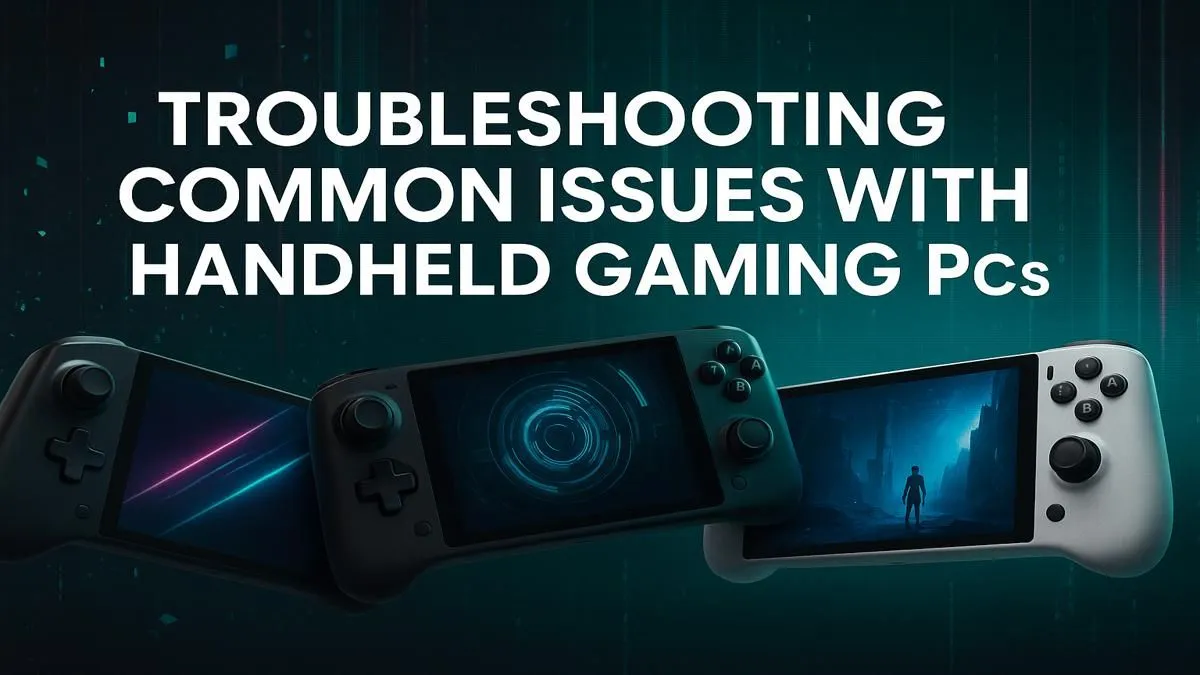
You’re deep into a boss fight in Elden Ring, miles from your main rig, when it happens… a massive stutter, a frozen screen, or worse, a complete crash. Your powerful handheld gaming PC suddenly feels like a paperweight. Before you rage-quit, take a breath. Most issues are fixable with a bit of know-how. This guide provides the essential handheld gaming PC troubleshooting steps to get you back in the game, fast. Let's get that portable powerhouse running smoothly again.
Taming Performance and Power Problems
Nothing ruins a session faster than lag or a dead battery. Most handheld performance issues stem from software settings or power management. A systematic approach to your handheld gaming PC troubleshooting can solve these frustrating problems without much fuss.
Battling the Stutter and Lag Monster 🔧
When your frames-per-second (FPS) drop, it’s time to investigate. The fix is often simpler than you think.
- Update Your Graphics Drivers: Companies like AMD frequently release driver updates for devices like the ROG Ally and Legion Go that significantly boost performance and fix bugs. Check the manufacturer's official support app or website.
- Optimise In-Game Settings: Don't expect to run Cyberpunk 2077 on Ultra settings. Start with 'Low' or 'Medium' presets and tweak individual settings like textures, shadows, and anti-aliasing until you find a sweet spot between visual quality and smooth gameplay.
- Adjust the TDP: Most handhelds let you adjust the Thermal Design Power (TDP). A higher TDP delivers more power to the chip for better performance but drains the battery faster. A lower TDP does the opposite. Experiment to find the right balance for each game.
v
Sometimes, slow loading times aren't a graphics issue at all, but a storage bottleneck. If you're still running on a small or slow drive, you'll feel it. For a massive speed boost, consider upgrading your internal SSD.
Diagnose Like a Pro ⚡
Use the built-in performance overlay on your device (like the one in SteamOS or AMD's software) to monitor FPS, CPU GPU usage, and temperature in real-time. This data is invaluable for handheld gaming PC troubleshooting, helping you pinpoint exactly what's causing the slowdown. If your GPU is at 99% usage, you know you need to lower your graphics settings.
Winning the War Against Battery Drain
A portable PC is useless if it’s always tethered to a wall. Maximise your playtime with these tips:
- Dim the Screen: Your display is one of the biggest power hogs. Lowering the brightness by just 20-30% can add significant time to your session.
- Close Background Apps: Make sure unnecessary apps like web browsers or chat clients are fully closed, not just minimised.
- Use Power Profiles: Switch to a power-saving mode when playing less demanding indie games. You can always crank it back up for the AAA titles. Having a reliable power bank is also a must-have for long trips; you can find great options among our other tech essentials.
Solving Annoying Input and Connection Issues
When your Wi-Fi drops or your controller misbehaves, it can be just as frustrating as poor performance. Let's tackle these common handheld gaming issues head-on.
Fixing Wi-Fi Woes and Bluetooth Blues
A stable connection is crucial for online gaming and downloads. If your Wi-Fi is flaky or your Bluetooth audio is laggy, try these steps:
- Restart the Device: The classic "turn it off and on again" solves a surprising number of wireless problems.
- Update Wireless Drivers: Just like graphics drivers, manufacturers release updates for Wi-Fi and Bluetooth modules. Check your device’s support page.
- Reduce Interference: Move closer to your Wi-Fi router and disconnect other unused Bluetooth devices. For flawless audio, nothing beats a quality gaming headset, which often uses a dedicated low-latency dongle.
When Your Controls Go Rogue ✨
Controller drift or unresponsive buttons can make any game unplayable. Before assuming it’s a hardware fault, run through the software fixes.
- Recalibrate: Both SteamOS and Windows have built-in tools to recalibrate analogue sticks and triggers. This often fixes issues with deadzones or drift.
- Check for Firmware Updates: The controllers built into your handheld have their own firmware. Manufacturers release updates to improve responsiveness and fix bugs.
- Use Steam Input: For games that don't play nicely with the built-in controls, Steam Input is a powerful tool that lets you remap every button, stick, and trigger to mimic a standard controller or even a keyboard and mouse. For complex strategy games or just a more ergonomic setup on the go, check out our range of essential gaming accessories, including compact keyboards and controllers.
By working through these troubleshooting steps, you can solve the vast majority of issues plaguing your handheld gaming PC and get back to what matters... conquering your digital worlds.
Ready to Perfect Your Portable Setup?
Troubleshooting is key, but the right gear can prevent problems before they start. From high-speed storage to ergonomic controllers, the right accessories make all the difference. Explore our huge range of gaming accessories and build the ultimate on-the-go battle station.