Quick Answer
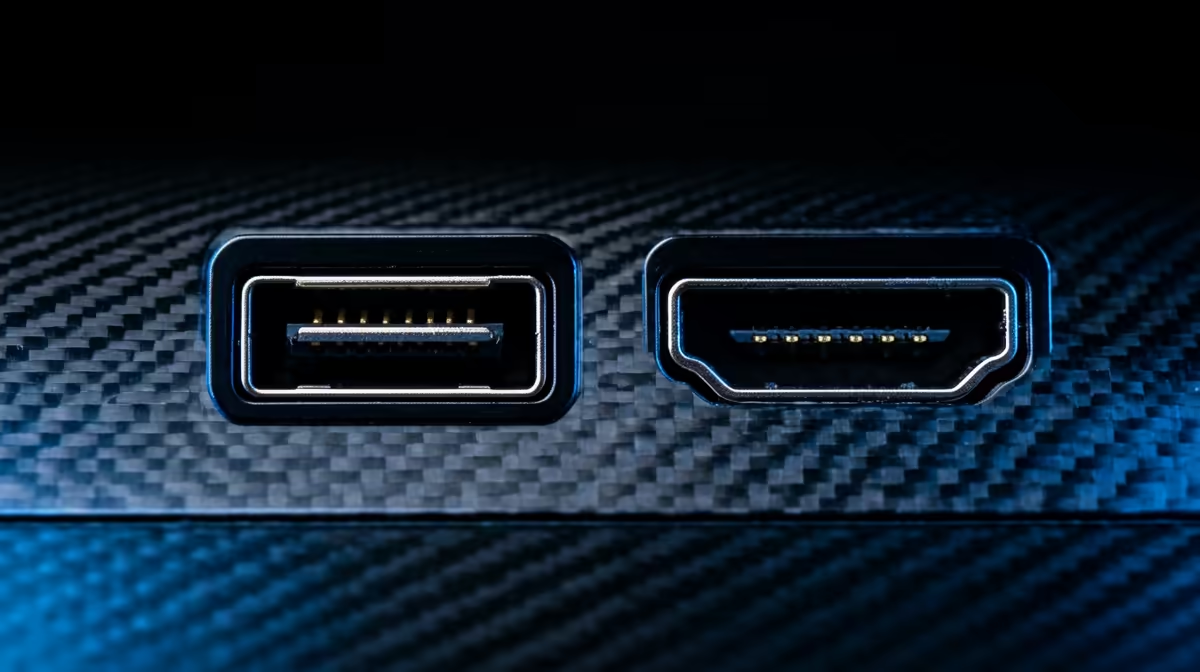
Use DisplayPort 1.4 for gaming monitors where you want high refresh rates above 120Hz at 1440p or 4K. Use HDMI 2.0 for connecting to a TV or a secondary monitor where 60Hz is sufficient. DisplayPort is the better gaming cable; HDMI is the more universal consumer cable.
DisplayPort 1.4 Bandwidth and Gaming Performance 🎮
DisplayPort 1.4 carries 32.4 Gbps of total bandwidth, enough to drive 4K at 144Hz with HDR or 1440p at 240Hz, and supports Adaptive Sync (FreeSync and G-Sync compatible). Daisy-chaining multiple monitors through a single DP cable is also possible if your monitors have DisplayPort output as well as input. For gaming with an RTX 5070 or RX 9070 XT pushing above 144 frames per second at 1440p, DisplayPort 1.4 is the correct cable. Most gaming monitors priced from R3,500 upwards include at least one DisplayPort 1.4 input, and the cable itself costs between R150 and R400 depending on length and build quality. DisplayPort also carries the audio signal simultaneously, eliminating the need for a separate audio cable to the monitor speakers.
HDMI 2.0 Bandwidth and Use Cases 📺
HDMI 2.0 provides 18 Gbps, supporting 4K at 60Hz or 1080p at 240Hz. It is the universal consumer standard found on every TV, console, soundbar, and AV receiver manufactured in the last decade. If you are connecting a PC or laptop to a Samsung, LG, or Hisense TV available from local SA retailers for a cinema-style gaming or streaming setup, HDMI is the correct choice because TVs universally lack DisplayPort inputs. HDMI 2.0 also carries the HDCP content protection signal required for Blu-ray, Netflix 4K, and DStv streaming apps. For PS5 and Xbox Series X, HDMI 2.1 is the correct connection (not covered here), but the cable path from a GPU to a monitor for PC gaming tips firmly toward DisplayPort.
Choosing Based on Your Setup 💡
Primary gaming monitor: use DisplayPort 1.4. Secondary productivity monitor: HDMI 2.0 is perfectly adequate. TV-connected gaming PC in the lounge: HDMI 2.0. Laptop to external monitor at 1440p or above: use DisplayPort via USB-C Alt Mode or a USB-C to DP adapter, since many laptop HDMI ports are version 1.4 or 2.0 rather than 2.1. Multi-monitor setups mixing both: connect the highest-refresh display on DP and the standard-refresh display on HDMI. This is a common and effective configuration for creative professionals in South Africa who need a calibrated secondary reference monitor alongside a high-refresh primary.
Check Your Monitor's Input Spec Before Buying a Cable ⚡
Some monitors label their input as DisplayPort 1.2 in firmware even though the physical port is 1.4. If you buy a DP 1.4 cable and set 1440p 165Hz and the monitor refuses to hold the signal, go into the monitor's OSD and manually enable DisplayPort 1.4 or higher bandwidth mode. This setting is found in monitors from most major brands and is off by default to maintain backward compatibility.
FAQ
Can I convert DisplayPort to HDMI?
Yes, with an active adapter. Passive adapters only work in one direction for display output, not input. An active DP-to-HDMI adapter costs around R200 to R500 and correctly converts the signal to HDMI 2.0 for monitors or TVs without DP ports.
Does HDMI 2.0 support G-Sync or FreeSync?
FreeSync works over HDMI on AMD GPUs with compatible monitors. G-Sync Compatible certification on NVIDIA is more reliable over DisplayPort. If variable refresh rate performance is a priority for your gaming, confirm your specific monitor's HDMI VRR support before relying on it.
Which cable standard should I use for a 4K 120Hz gaming TV?
4K 120Hz on a TV requires HDMI 2.1, not HDMI 2.0. Confirm your TV and GPU both have HDMI 2.1 ports and use a certified HDMI 2.1 cable rated for 48 Gbps. HDMI 2.0 cables will cap output at 60Hz at 4K.
Upgrading your monitor or building a new gaming setup?
Browse the full gaming monitor range at Evetech to find displays that match your GPU's output spec.