Quick Answer
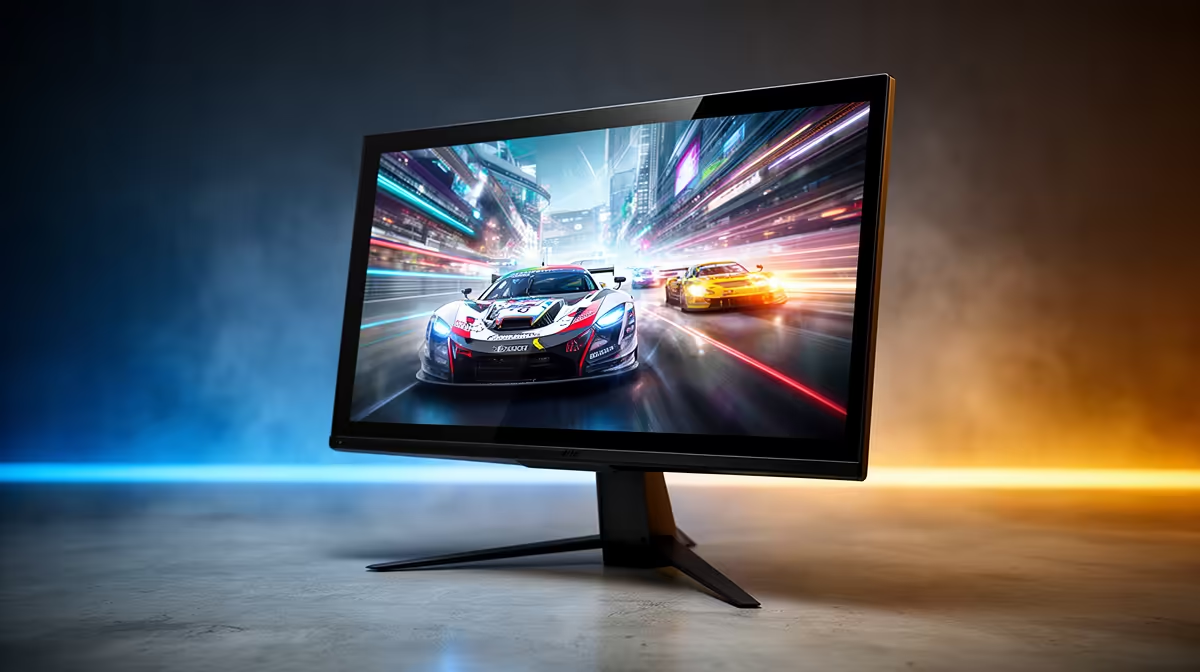
Enable your monitor's adaptive sync feature (FreeSync or G-Sync) through the OSD, then activate it in your GPU control panel. Tearing disappears because the monitor waits for the GPU to deliver a complete frame before refreshing, eliminating the moment where two frames overlap on screen. The fix takes under five minutes and costs nothing if your hardware already supports it.
Understanding Why Tearing Happens on Fast Panels 🔬
Screen tearing occurs when the GPU pushes frames to the display at a rate mismatched with the monitor's fixed refresh cycle. At 240Hz, a new scan starts every 4.17ms. If the GPU finishes a frame partway through a scan, the top half of the screen shows the new frame while the bottom shows the previous one. Fast-paced titles like CS2 or Warzone running at 300 fps on an RTX 5070 at 1080p produce this constantly without sync enabled. Adaptive sync removes the fixed timing, letting the monitor begin a new scan the moment a GPU frame is ready, within a supported frequency range such as 48Hz to 240Hz.
Enabling FreeSync and G-Sync Correctly 🎮
For AMD GPUs with a FreeSync monitor, open the AMD Software Adrenalin Edition app, go to Gaming, then Display, and toggle FreeSync on. In the monitor OSD, find the adaptive sync or FreeSync menu and enable it. For Nvidia GPUs on a G-Sync Compatible monitor, open Nvidia Control Panel, navigate to Set up G-Sync, check Enable G-Sync G-Sync Compatible, select your monitor, and apply. Then in Nvidia Control Panel under Manage 3D Settings, set Monitor Technology to G-Sync Compatible. Verify the feature is active by running a tearing test in your game at an unlocked frame rate above the monitor's maximum Hz, then capping frames 3 to 5 below the top end to keep the GPU inside the sync window.
Frame Rate Caps and Sync Zones 🖥️
Adaptive sync has a lower limit, typically 48Hz. If your fps drops below that, the monitor reverts to a fixed refresh and tearing returns briefly. For graphically heavy titles on mid-range hardware, a cap 10fps above your expected minimum keeps you inside the sync zone. Use Nvidia Reflex or AMD Anti-Lag to reduce input latency while sync is active, since sync itself adds a small buffer. SA gamers on servers with 10ms to 20ms ping to Johannesburg nodes benefit from low-latency settings regardless of tearing concerns.
VSync vs Adaptive Sync ⚡
Do not run VSync and FreeSync or G-Sync simultaneously. VSync introduces frame queuing that fights adaptive sync, doubling input lag. Turn VSync off in both the game settings and the GPU control panel when adaptive sync is enabled on your monitor.
FAQ
Do I need a G-Sync certified monitor to use G-Sync with an Nvidia GPU?
No. G-Sync Compatible certification means Nvidia has validated that monitor, but most FreeSync monitors work with G-Sync through the Nvidia Control Panel toggle without certification. Performance is nearly identical in practice.
Will adaptive sync affect my frame rate or performance?
No direct performance cost. There is a very small latency addition compared to running uncapped with no sync, which competitive players sometimes disable in favour of raw response. For the vast majority of players, the tearing elimination outweighs the fraction-of-millisecond latency impact.
My monitor shows a sync range of 48Hz to 144Hz but I target 200 fps. Will it work?
Above the top of the sync range, the monitor locks to its maximum refresh rate. Tearing may reappear if fps exceeds 144 significantly. Cap your frame rate at 144 or choose a monitor with a higher upper sync limit for this use case.
Still seeing tearing even with sync enabled?
Browse Evetech's range of FreeSync and G-Sync Compatible gaming monitors to find a panel that matches your GPU and target frame rate.