


PCIe 5.0 vs PCIe 4.0 for Strategy and Sim Games in SA
PCIe 5.0 and PCIe 4.0 differ most in lane support, compatibility, and upgrade value for strategy and sim games. SA buyers should match the choice to their actual hardware and games.
Read moreCalibrate the OLED panel to 99 percent DCI-P3 for HDR film grading, switch to sRGB clamp for web work, and enable 10-bit over DisplayPort 2.1a to keep gradients smooth in dark scenes. Match specs to your build and use case before you commit to the upgrade.
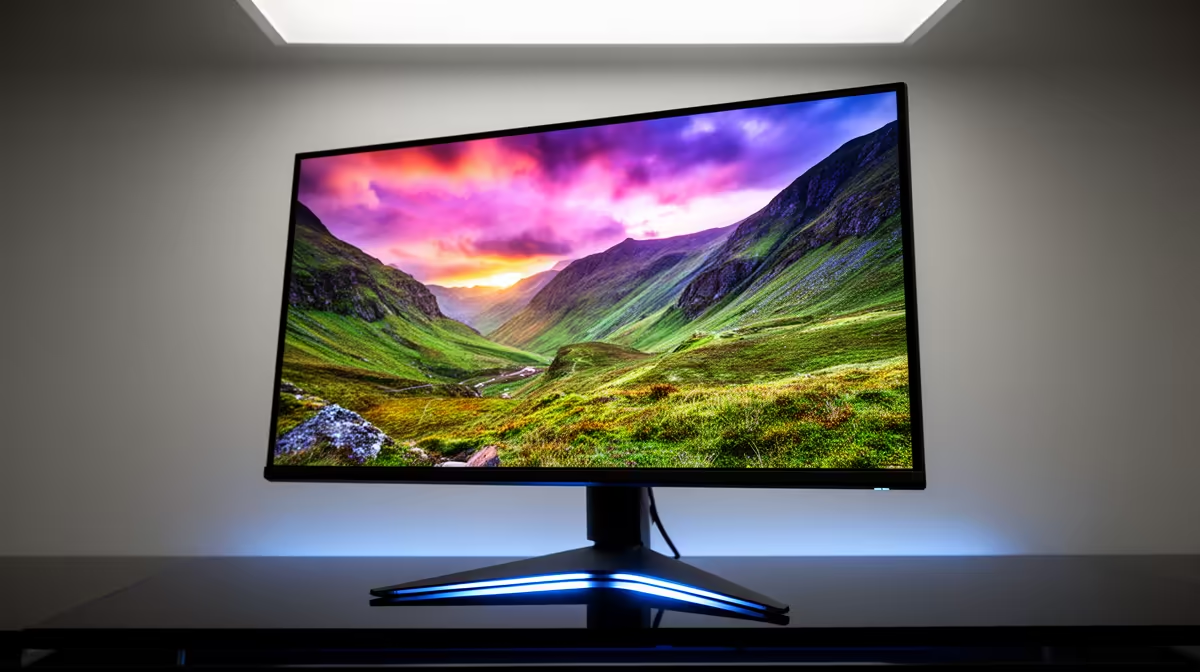
To use 99% DCI-P3 coverage and true 10-bit colour effectively, set the monitor's colour space to DCI-P3 in the OSD for HDR gaming and video work, switch to sRGB mode for web browsing and SDR gaming to avoid oversaturated colours, and ensure your GPU outputs a 10-bit signal through the driver settings. True 10-bit panels display over 1 billion colour shades versus 16 million on an 8-bit panel.
DCI-P3 is the colour space defined for digital cinema projection. A monitor claiming 99% DCI-P3 coverage reproduces almost the entire cinema colour gamut, meaning colours like deep reds, saturated greens, and vivid blues that fall outside the sRGB standard are displayed faithfully. For gaming, HDR-enabled titles authored in wide colour gamut (WCG) benefit directly: environments with rich foliage, sunset skies, or neon-lit cityscapes show visibly more saturated and differentiated hues on a 99% DCI-P3 panel than on a typical sRGB monitor.
True 10-bit colour requires both a 10-bit capable monitor and a GPU that outputs a 10-bit signal. On NVIDIA GPUs (RTX 30-series and above), navigate to NVIDIA Control Panel, select Change Resolution, and set the output colour depth to 10 bpc under the advanced display settings. On AMD GPUs (RX 6000-series and above), enable 10-bit pixel format in AMD Software under Display settings.
For gaming in HDR titles, leave the monitor in its HDR or Cinema DCI-P3 preset and let the game engine handle colour mapping. For SDR gaming, switch to sRGB mode in the OSD to prevent the wider DCI-P3 gamut from making skin tones and environments look oversaturated. For video editing in DaVinci Resolve or Adobe Premiere on a wide-gamut monitor, set the software's monitor output to DCI-P3 or display-referred P3-D65 and work in a calibrated colour-managed environment.
Running a 99% DCI-P3 monitor without sRGB mode active makes web images, social media photos, and SDR YouTube videos appear oversaturated, since those assets are authored for sRGB displays. Most monitors with wide gamut coverage include an sRGB clamp mode in the OSD; enable it as your default and only switch to the wide-gamut preset when launching HDR content or colour grading software.
In HDR-enabled games with wide colour gradients, such as sky transitions, skin tones, or dark shadow detail, the difference is visible as smoother tonal transitions without banding. In SDR gaming and general desktop use, the difference between 8-bit and 10-bit is subtle and most users will not notice it without direct comparison.
RTX 30-series and above on the NVIDIA side and RX 6000-series and above on the AMD side support 10-bit output. Some entry-level consumer GPUs limit 10-bit to specific display outputs. Workstation GPUs (NVIDIA RTX A-series, AMD Radeon Pro) have traditionally offered full 10-bit support without limitations, but for gaming purposes, consumer RTX 50-series and RX 9000-series cards cover 10-bit adequately.
Yes, and it is well-suited to it. Photography typically targets the Adobe RGB colour space, which overlaps significantly with DCI-P3. A 99% DCI-P3 monitor covers approximately 85 to 90% of Adobe RGB, making it suitable for most photo editing workflows without a dedicated Adobe RGB panel. For commercial print work requiring strict Adobe RGB coverage, a dedicated photography monitor is more appropriate.
Want a wide-gamut 10-bit monitor for gaming and creative work? Evetech stocks monitors with DCI-P3 coverage and true 10-bit panels suited to both gaming and content creation. Browse the monitor range at Evetech to find a display that covers your colour workflow.
PCIe 5.0 and PCIe 4.0 differ most in lane support, compatibility, and upgrade value for strategy and sim games. SA buyers should match the choice to their actual hardware and games.
Read more
AM5 vs AM4 for video editing in 4K Difference explained is mostly about compatibility, budget, upgrade path, and setup fit. SA buyers should check device support and real needs before expecting a clear win from either option.
Read more
OLED vs QD-OLED for strategy and sim games buyers - what changes is mostly about compatibility, budget, upgrade path, and setup fit. SA buyers should check device support and real needs before expecting a clear win from either option.
Read more
DisplayPort 2.1 and 1.4 differences matter when SA PC builders match GPUs, monitors, and refresh targets. Use this difference between displayport 2 1 and displayport 1 4 explained pc builders guide to avoid mismatched parts.
Read more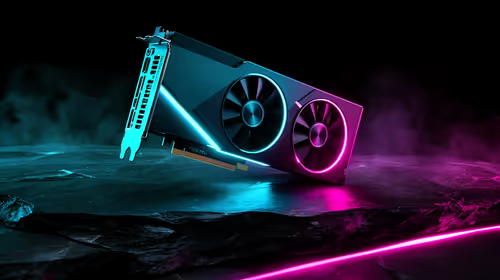
Ray tracing vs Path tracing depends on Strategy and sim games needs, platform limits, and budget fit. Compare compatibility, latency, upgrade path, and real setup constraints before choosing for an SA build.
Read more
wireless mouse guide for Gqeberha gamers should be shortlisted around the job it must do. South African buyers should compare sensor, shape, weight, and wireless latency, warranty path, and upgrade room before treating any pick as best.
Read more
From 1 October 2026, WhatsApp Business Platform service replies in South Africa are expected to cost about $0.0076, or 12 cents, per delivered message.
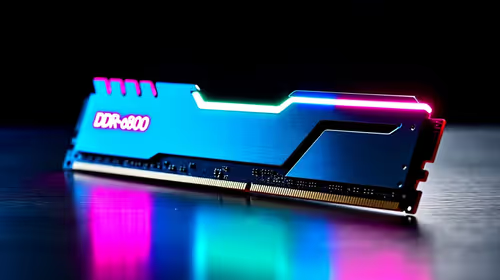
DDR5-8000 RAM Kits pros and cons depend on the build, budget, and workload. Weigh gaming needs, platform fit, power, cooling, warranty support, and South African pricing context before shortlisting it.

Wi-Fi 6E vs Wi-Fi 6 depends on AAA single-player gaming needs, platform limits, and budget fit. Compare compatibility, latency, upgrade path, and real setup constraints before choosing for an SA build.

Ryzen 9 9950X3D dead pixel checks should isolate the panel first. Run colour fills, inspect the monitor menu, test another cable or input, and capture proof before linking it to the SA CPU upgrade.

YouTube will count public views from the first frame across video formats from 24 August, while earnings and eligibility remain tied to engaged viewing.

Canonical expects Ubuntu on WSL users to outnumber native Ubuntu desktop users before the end of 2026. The software is open source and runs inside supported Windows PCs.

Telkom's daily bundles pair WhatsApp access with 10 all-network voice minutes. The R15 option includes 300MB, while the R17 option uses a fair-use threshold.

A 10,000-hour test found similar image retention across older and newer OLED TVs, while newer panels were brighter and more efficient. Local OLED monitors started at R9,999.

Windows 11 update KB5121003 is linked to crashes in several multiplayer games on versions 24H2 and 25H2. Check the build, report the fault and avoid risky file or update changes unless the problem is confirmed on your PC.

Comsol's standalone 5G network covers about one million Gauteng homes and starts commercial ISP service in September. Early packages range from R275 to R875 a month, but coverage and fair-use rules still decide the real value.

Sennheiser's Momentum True Wireless 5 adds user-replaceable batteries, 12-hour playback and a $299.95 launch price. There is no confirmed South African date, so compare longevity with live earbuds from R199 to R2,999.

AVerMedia's GC531 and GC535 are professional HDMI capture devices for continuous streaming, with RGB24 capture up to 2K30 and 4K30. South African creators should compare them with live 4K capture cards from R2,099.