



How to Use a Nano SIM 4G Router for Reliable Home Internet
Master using a Nano SIM 4G router as your primary internet solution. Get stable speeds and seamless connectivity for gaming and streaming at home! 🌐🚀
Read moreDirect mouse answer: Set up your wireless mouse in this order: direct answer for general buyers: 4000 DPI sensor matters when you switch between laptop and desktop without re-pairing. Lays out 4000 DPI tracking accuracy, when 1600-2400 DPI is enough, and how DPI affects

At 4,000 DPI, a productivity mouse is useful primarily on high-resolution displays of 2K or 4K, where higher sensitivity prevents constant wrist repositioning across large screen real estate. On a standard 1080p monitor, most users set DPI between 800 and 1,600 and never engage the upper range.
DPI stands for dots per inch and describes how many pixels the cursor moves for every physical inch the mouse travels. At 800 DPI on a 1080p screen, moving the mouse one inch shifts the cursor roughly 800 pixels. At 4,000 DPI on the same screen, that same inch of movement sends the cursor flying almost off the edge. This is why raw DPI figures are misleading marketing numbers on their own. A sensor that is stable and consistent at 1,600 DPI is far more useful for document editing, spreadsheet work, or browser research than an unstable sensor that reaches 4,000 DPI but introduces jitter or acceleration errors at any setting.
There are three scenarios where a 4,000 DPI ceiling is genuinely useful. First, on a 4K (3840x2160) monitor or a multi-monitor setup spanning two 1440p screens, the additional sensitivity lets you cross the full display without lifting the mouse. Second, for digital artists and CAD users who toggle between macro-level canvas navigation and fine-detail work, adjustable DPI with a high upper limit provides useful range. Third, for users with limited desk space, higher DPI compensates for a smaller physical sweep. A South African student at a dorm desk with roughly 20cm of mouse movement room can set 3,200 to 4,000 DPI to navigate a full laptop screen without dragging to the edge of the pad.
The honest answer for productivity buyers is that sensor quality trumps the DPI ceiling. A mouse using a PixArt PAW3395 or PAW3335 optical sensor at 1,600 DPI will track more accurately than a budget mouse claiming 6,400 DPI with an unbranded sensor. Accuracy, minimal angle snapping, zero acceleration, and low power consumption at operating speeds are the real specs to check. Most quality wireless productivity mice in the R500 to R900 range at Evetech deliver all of this with a 4,000 DPI capability that you may rarely exceed but appreciate when you use a larger display.
Open your operating system's mouse sensitivity settings and set them to the midpoint or lower. Then adjust your mouse's onboard DPI until cursor movement feels natural at that system sensitivity. Mixing high system sensitivity with high DPI creates pixel-skipping; matching medium DPI to moderate system settings gives you the cleanest, most controllable tracking.
Most productivity users find 800 to 1,200 DPI comfortable for precise work in Excel and Word on a 1080p screen. On a 1440p or 4K display, 1,600 to 2,400 DPI prevents excessive physical mouse movement across the wider canvas.
Not all mice include a physical DPI button. Entry-level wireless mice may have a fixed DPI, often 1,000 or 1,200. Mid-range and productivity-focused models include a DPI cycle button that steps through three to five preset values. Check the product listing before buying if on-the-fly DPI switching matters to you.
Slightly. The sensor polls more frequently at higher DPI settings. The difference in battery consumption is small enough that most manufacturers do not differentiate it in quoted battery life figures, but running consistently at maximum DPI will modestly reduce the time between charges or battery swaps.
Looking for a productivity mouse with a sensor that actually keeps up? Evetech carries wireless office and productivity mice with quality optical sensors across a range of DPI capabilities and price points.
Master using a Nano SIM 4G router as your primary internet solution. Get stable speeds and seamless connectivity for gaming and streaming at home! 🌐🚀
Read more
Confused by Cat4 vs Cat6 LTE routers? 🌐 We break down the technical differences to help you choose the right router for faster gaming and streaming. Get the speed you deserve today! 🚀
Read more
Learn how to setup a VPN server on your 4G LTE router to secure your remote access. Protect your data and browse safely from anywhere with our easy guide! 🌐🔐
Read more
Choosing the best 4G LTE router for South Africa ensures reliable internet when fibre is unavailable. Discover top connectivity tips for rural and urban areas. 🌐📶
Read more
Discover what is passive PoE and how it streamlines outdoor router installations. Eliminate messy cabling and simplify your network setup with this efficient power delivery method. ⚡🌐
Read more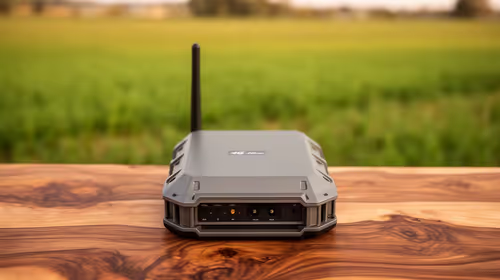
Need to extend internet coverage to outbuildings or farms? 📡 An outdoor 4G router is the ultimate solution for stable, high-speed connectivity in remote locations. Discover how to boost your range and stay connected anywhere on your property. 🌐
Read more
Wondering if a TKL wireless mechanical keyboard is worth it for everyday productivity? We break down latency, battery life, comfort, and workflow gains for real work. ⚡⌨️

Maximise battery life on a fanless 15-inch laptop using efficiency core architecture. Cut idle drain, tune power profiles, and improve thermals for longer runtime. 🔋⚙️

Learn how to reduce desk clutter with a TKL wireless keyboard using fewer cables, smart placement, and tidy essentials. Get a faster, calmer workspace with better ergonomics. ✅🧼

RGB keyboard lighting too distracting? Learn how to manage backlight modes, set brightness, and reduce distraction for focus and productivity 😌🖱️

Are themed gaming keyboards worth the extra cost? Compare build quality, switch options, features, and resale value to find the best fit for your setup 🎮⌨️

Full-Size vs Tenkeyless mechanical keyboards for gaming: find out if a smaller layout truly improves aim, speed, and comfort. We break down layout, desk space, latency-feel, and keybinds 🎮⌨️

Dedicated media rollers vs function key shortcuts: learn which setup gives you better workflow control, faster media access, and fewer mistakes. 🖱️🎧

Best Mechanical Switch Type for Gaming: Clicky vs Linear vs Tactile. Find your feel, speed, and noise balance with practical guidance for FPS, MOBA, and productivity 😄🎮

Direct mouse answer: Mouse not keeping up with your work? Everything that matters about dual-mode 2.4GHz + BT 5.0: DPI behaviour, channel switching, battery curves and per-app button mapping. Covers when 2.4GHz USB wins (low-latency desk) and when BT 5.0 wins (laptop, d

Plain wireless mouse guide: Mouse not keeping up with your work? Everything that matters about wireless productivity mouse: DPI behaviour, channel switching, battery curves and per-app button mapping. Includes DPI tuning tips, channel switch shortcuts, and ZAR-aware fea

Real productivity numbers: Set up your wireless mouse in this order: everything that matters about wireless productivity mouse: DPI behaviour, channel switching, battery curves and per-app button mapping. Includes DPI tuning tips, channel switch shortcuts, and ZAR-aware

Pen not feeling like paper? Stylus lag and skipping usually trace to old drivers, dirty nibs, or display refresh mismatches, not the pen itself. Covers pressure curve tuning, tilt thresholds, nib swap timing, and SA pricing brackets.