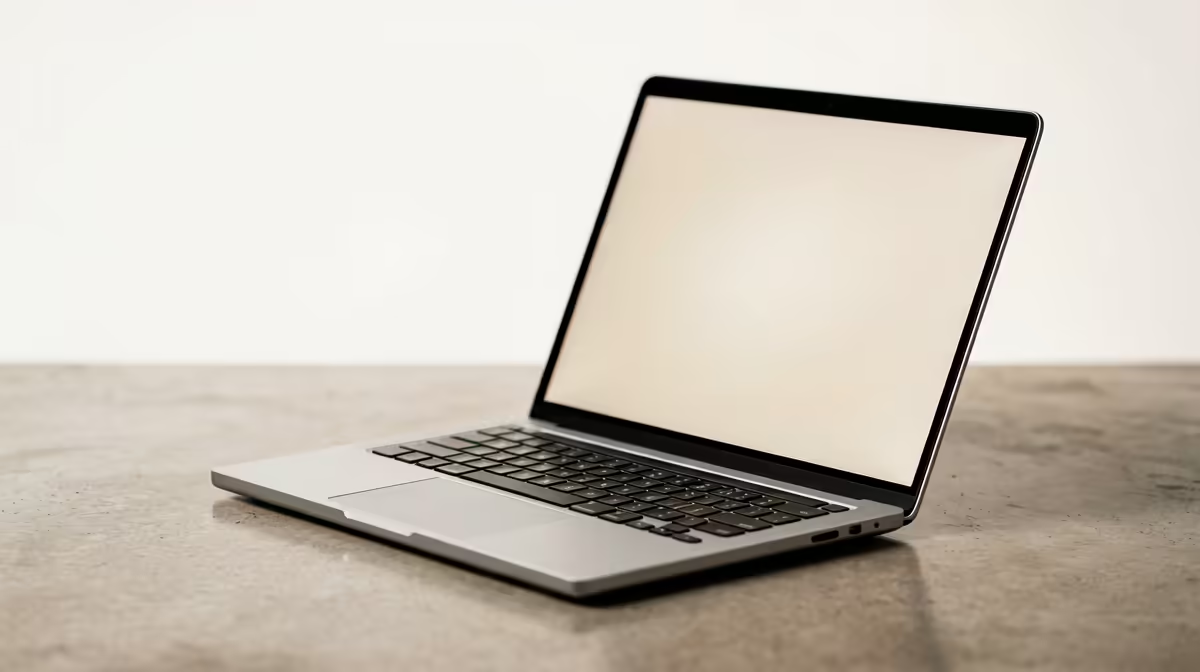
That incessant, maddening strobe... your laptop screen is flickering, and your deadline is looming. Whether you're in a crucial client meeting on Teams or finalising a presentation, a faulty display can grind your productivity to a halt. It’s a common frustration for corporate users across South Africa, but don’t panic. Before you start budgeting for a costly repair, let's walk through the most effective laptop screen flickering fix solutions you can try right now.
First, Diagnose the Flicker: Software or Hardware?
Before you start changing settings, you need to figure out the root cause. Is it a software glitch or a physical hardware problem? There's a surprisingly simple test for this in Windows.
Press Ctrl + Shift + Esc to open the Task Manager.
Now, watch your screen carefully. If the Task Manager window flickers along with the rest of your screen, the problem is likely with your display driver. If everything except the Task Manager flickers, the culprit is probably an incompatible application. This one simple step can save you hours of troubleshooting. ✨
Easy Software Solutions for a Flickering Laptop Screen
If the Task Manager test points to a software issue, you're in luck. These problems are often the easiest to solve. Here are the most common fixes, starting with the most likely suspect.
Update Your Display Drivers
A display driver is the software that lets your operating system communicate with your screen. When it's outdated or corrupt, it can cause all sorts of visual glitches, including flickering. This is the number one laptop screen flickering fix.
- For Integrated Graphics: Go to your laptop manufacturer's website (e.g., Dell, HP, Lenovo) and find the support section for your specific model.
- For Dedicated Graphics: If your machine has an NVIDIA or AMD graphics card, visit their official websites directly to download the latest drivers.
Ensuring your drivers are up-to-date is crucial, especially on modern Intel laptops on special that rely on optimised integrated graphics for efficiency.
Check for Incompatible Apps
Sometimes, a specific program just doesn't play nicely with your system. Think about any software you installed just before the flickering started. Older antivirus programs, desktop toolbars, or even some remote desktop apps have been known to cause issues. Try uninstalling any recent or suspicious applications to see if it resolves the flicker.
Quick Fix: Check Your Refresh Rate ⚡
An incorrect refresh rate can sometimes cause screen flicker. Right-click your desktop, go to 'Display settings' > 'Advanced display'. Under 'Choose a refresh rate', try selecting a different value from the dropdown menu. Sometimes, toggling between options is enough to stabilise the display.
Adjust Your Visual Effects Settings
Windows has a lot of background visual flair that can sometimes tax an older graphics driver. Disabling these can be a quick fix for a flickering laptop screen. Search for "Adjust the appearance and performance of Windows" in the Start Menu, and in the dialog box that appears, select "Adjust for best performance."
When It Might Be a Hardware Issue 🔧
If the software fixes don't work, or if the flicker changes when you move the laptop lid, you might be looking at a hardware problem. This usually points to a loose internal display cable or a failing screen panel. While a repair is possible, you have to weigh the cost against the age of the laptop. Downtime is expensive, and sometimes the most cost-effective solution is an upgrade to a machine built for reliability, like the robust units found in our best gaming laptop deals—their powerful components are perfect for demanding corporate workloads too.
For professionals who rely on multi-core performance for data analysis or creative work, the latest AMD laptops on special offer incredible processing power and stability, ensuring your workflow is never interrupted by hardware gremlins.
Ultimately, persistent flickering on an older device is often a sign that it's nearing the end of its life. Constant troubleshooting drains your time and focus... resources that are better spent on your actual work.
Tired of the Flicker? Upgrade Your View.
Your laptop is your most important business tool, and a reliable screen is non-negotiable. Stop losing productivity to frustrating glitches. Explore our massive range of laptop specials and find a crystal-clear, dependable machine that lets you focus on what truly matters.