Quick Answer
Extended desktop mode gives you more usable screen real estate by treating each monitor as a separate workspace, while mirror mode duplicates the same image on all screens. For productivity, extended mode is almost always the right choice; mirror mode is best reserved for presentations or when connecting a projector.
Extended vs Mirror: When Each Mode Makes Sense 🖥️
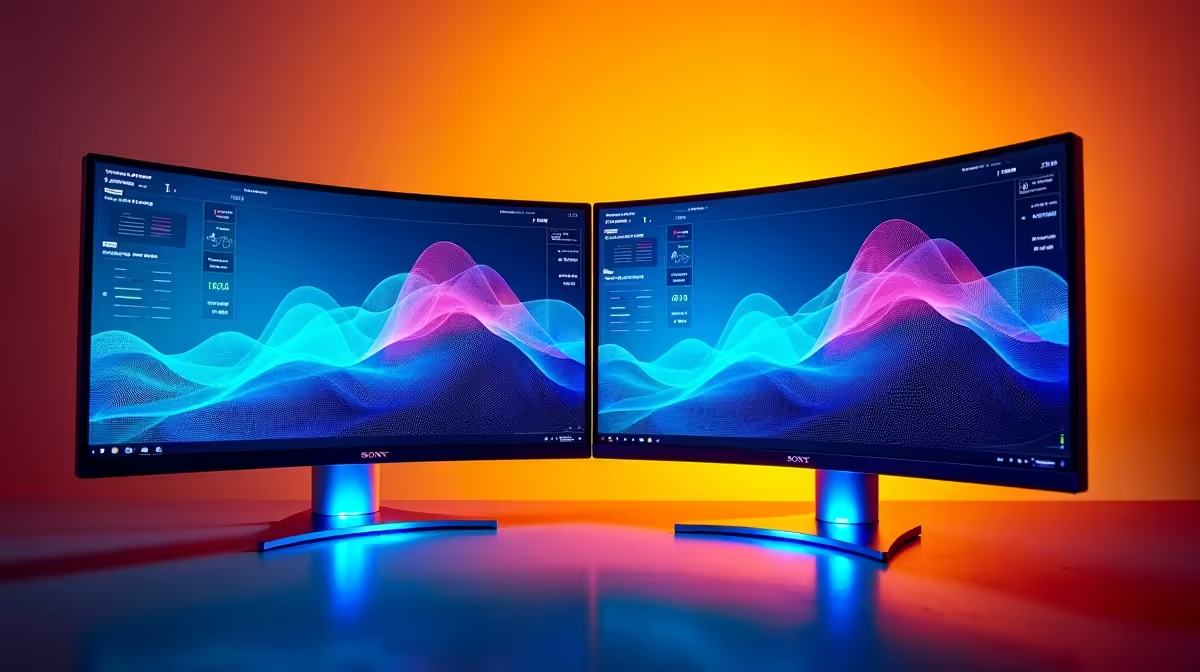
In extended mode, Windows or macOS treats each screen as a distinct segment of one large desktop. You can drag windows between screens, run a browser on one monitor and a spreadsheet on another, and keep a reference document open on a side panel without alt-tabbing. For hybrid work in a South African home office context, a common two-monitor setup pairs a 27-inch 1440p primary with a secondary 24-inch 1080p panel for email and Teams calls. Mirror mode locks both screens to the same resolution and frame rate, which forces both panels to run at the lower common denominator: a 4K primary mirrored to a 1080p secondary will render everything at 1080p.
Setting Up Extended Mode on Windows 11 and macOS 🔧
On Windows 11: right-click the desktop, select Display Settings, scroll to Multiple Displays, and choose Extend these displays. Drag the monitor thumbnails to match their physical layout on your desk. Set each monitor's resolution and refresh rate individually; mismatched refresh rates do not cause problems in extended mode because Windows manages each screen independently. On macOS: open System Settings, select Displays, then Arrangement, and confirm Mirror Displays is unchecked. macOS also allows you to set one screen as the primary (menu bar) display by dragging the white bar in the arrangement panel. Cables matter here: each monitor needs its own DisplayPort, HDMI, or USB-C connection from the GPU or dock. A single splitter cable forces mirror mode regardless of software settings.
Maximising Productivity with the Right Monitor Pairing 🎯
For SA professionals working from home, a dual-monitor configuration with a primary 27-inch 1440p monitor (around R3,500 to R6,000 at Evetech) and a 24-inch 1080p secondary for reference content is a cost-effective starting point. If your workflow involves video editing or colour-critical design work, prioritise a primary with at least 95 percent sRGB coverage and set Windows colour profiles per-display in Display Settings under Advanced. Portrait mode on the secondary (90-degree rotation) suits document-heavy workflows and is supported on most adjustable-stand monitors. Ensure your GPU has at least two separate output ports since many budget GPUs carry one DisplayPort and one HDMI, both usable simultaneously in extended mode.
Snap Windows Across Monitors Faster ⚡
Hold the Windows key and press the left or right arrow key to snap any window to a screen half. Press Windows key plus Shift plus an arrow to move the window to the adjacent monitor without resizing it. This shortcut cuts mouse travel significantly in a two-screen workflow.
FAQ
Can I use two monitors with different refresh rates in extended mode?
Yes, each monitor runs at its own native refresh rate in extended mode. A 144Hz gaming monitor and a 60Hz secondary coexist without issue; the GPU drives them independently.
Does mirror mode reduce GPU load compared to extended mode?
Very slightly, but not in any meaningful way for modern GPUs. The rendering overhead difference between mirror and extended mode is negligible on any RTX 40-series or RX 7000-series card.
What cables do I need for a dual-monitor setup on a desktop PC?
Most mid-range GPUs provide one or two DisplayPort outputs and one HDMI output. Use DisplayPort for your primary monitor (supports higher refresh rates) and HDMI for the secondary. Both cables are stocked at Evetech in 1m to 3m lengths.
Building a dual-monitor workstation?
Evetech carries a wide selection of 24-inch and 27-inch monitors suited to extended desktop productivity setups, plus all the cables you need to connect them.