Quick Answer
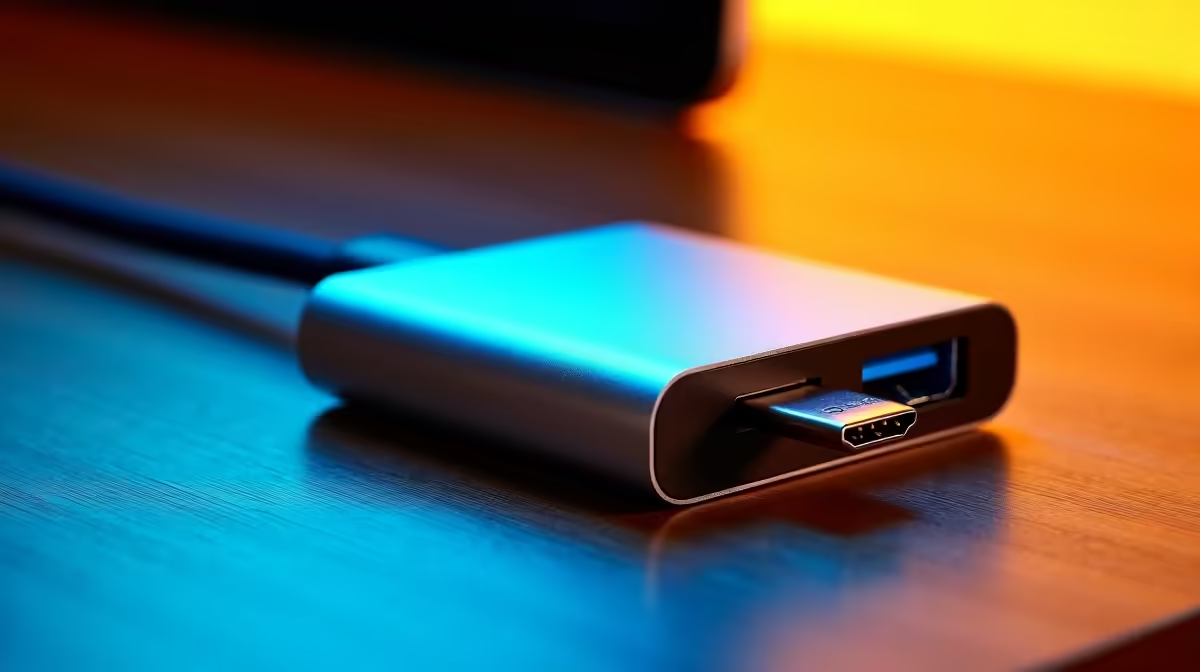
Connect a Thunderbolt 2 port to a modern 4K display using a passive Mini DisplayPort to DisplayPort cable for any monitor with a full-size DP input, or an mDP to HDMI adapter for HDMI-only displays. Both solutions are passive and cost-effective, requiring no drivers or active electronics for 4K at 60Hz.
Why Thunderbolt 2 Handles 4K 🔌
Thunderbolt 2 uses the Mini DisplayPort physical connector and routes DisplayPort 1.2 signals over the same pins. DisplayPort 1.2 provides 17.28 Gbps of usable bandwidth, sufficient for 4K UHD at 60Hz with 8-bit colour. This means a 2014 or 2015 MacBook Pro with Thunderbolt 2 can drive any modern 4K monitor that has a DisplayPort input using nothing more than a passive mDP-to-DP cable. The Thunderbolt-specific PCIe tunnelling is simply inactive when a video cable (as opposed to a Thunderbolt device) is connected. For South African users with older Apple hardware connecting to new 4K productivity monitors, this is the lowest-cost and most reliable solution available.
Common Connectivity Failures and Fixes 🛠️
The most frequent issue is no signal after connecting the cable. Fix one: confirm the monitor's input is set to DisplayPort (not HDMI or VGA). Fix two: ensure the cable is rated for DP 1.2 and not an older DP 1.0 cable, which limits bandwidth. Fix three: reseat both connector ends firmly, as the Mini DisplayPort connector requires more insertion force than it appears to. If the display shows at 4K 30Hz instead of 60Hz, the cable is likely a DP 1.1 cable. Replace it with a DP 1.2 certified cable and the 60Hz option appears in Display Settings. For HDMI-only 4K monitors, an mDP-to-HDMI adapter handles 4K at 30Hz natively; for 4K at 60Hz you need an active mDP-to-HDMI 2.0 adapter, which contains a small conversion chip. Passive adapters top out at 4K 30Hz over HDMI from a Thunderbolt 2 source.
Connecting to USB-C Monitors from Thunderbolt 2 🔧
Modern 4K monitors increasingly ship with USB-C as their primary input. Connecting a Thunderbolt 2 source to a USB-C monitor requires an mDP-to-USB-C adapter that carries DisplayPort Alt Mode. These adapters are available locally in the R150 to R300 range. Confirm the adapter explicitly states DisplayPort Alt Mode video output, as generic USB-C adapters carry data only and show no image. Once connected, set the monitor's input to the USB-C port and verify 4K 60Hz in Display Settings. Cable length over 2m from Thunderbolt 2 sources increases the risk of signal instability; keep the run under 2m for passive solutions.
Use Display Detect to Force Reconnect ⚡
On macOS, hold Option and click the Displays preference pane Detect Displays button to force the system to renegotiate the video signal. On Windows, press Windows key plus Ctrl plus Shift plus B to reset the graphics driver and trigger a fresh display handshake. Either command resolves stuck no-signal states without rebooting.
FAQ
Can Thunderbolt 2 support 4K at 120Hz or higher?
No. Thunderbolt 2 routes DisplayPort 1.2, which caps at 4K 60Hz. For 4K at 120Hz or above, a GPU with DisplayPort 1.4 or HDMI 2.1 output is required, not available on Thunderbolt 2 hardware.
Does using an mDP-to-DP cable affect Thunderbolt data performance?
No. Connecting a video cable to a Thunderbolt 2 port only activates the DisplayPort function. Thunderbolt PCIe bandwidth is not affected; it simply remains unused unless a Thunderbolt device is connected.
What is the best passive cable length for Thunderbolt 2 to 4K monitor runs?
Under 2m is reliable for passive copper cables at 4K 60Hz from a Thunderbolt 2 source. At 3m or above, signal loss risk increases; at that length use an active cable or a powered extender.
Connecting a legacy Mac or PC to a modern 4K monitor?
Evetech carries Mini DisplayPort to DisplayPort cables and adapters for Thunderbolt 2 connectivity. Browse the display accessories section for compatible options.