Quick Answer
A Thunderbolt 4 dock connects to your laptop via a single USB-C cable and provides 40Gbps bandwidth to support dual 4K displays, Gigabit Ethernet, multiple USB-A and USB-C peripherals, and 100W Power Delivery simultaneously. Each port type has a specific role and speed cap, and knowing what each does helps you choose the right dock and avoid port confusion.
The Thunderbolt 4 Upstream Port: The One Cable That Does Everything 🔧
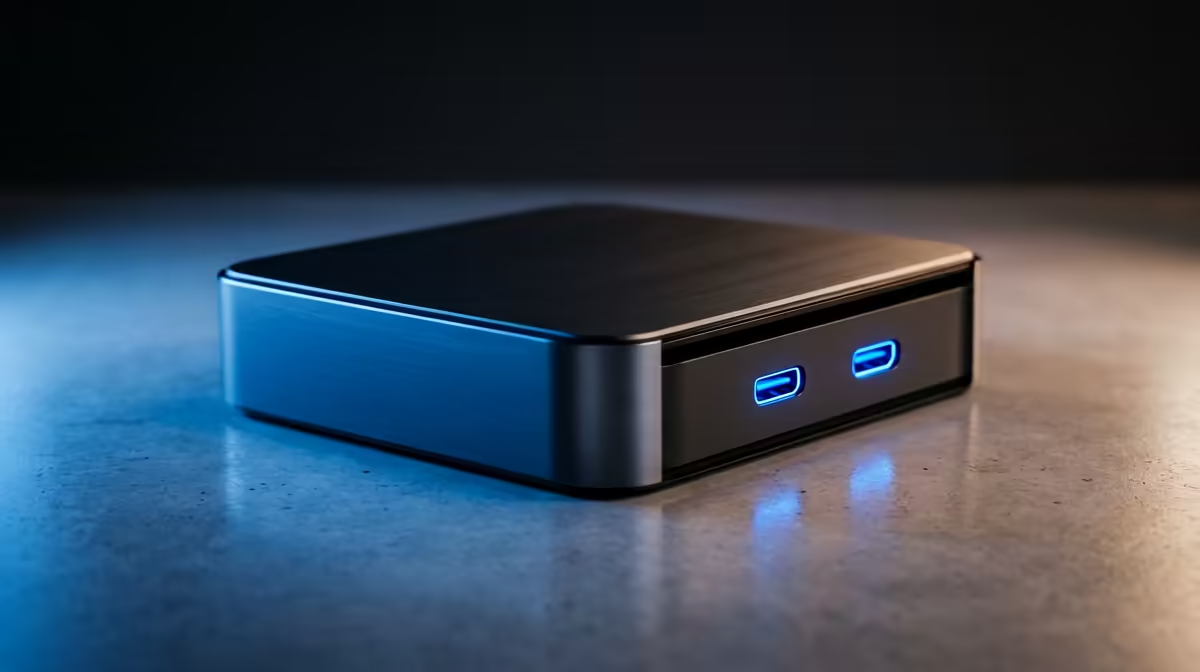
The upstream port, sometimes labelled "Host" or "PC", is the Thunderbolt 4 Type-C connector that plugs into your laptop. This single connection carries the entire 40Gbps bandwidth envelope: bidirectional data, video signals for up to two displays, and the Power Delivery charging signal. The cable that ships with quality TB4 docks is rated for 40Gbps and carries up to 100W simultaneously. Cheap generic USB-C cables are not adequate replacements as they cap at USB 3.2 speeds and may not carry PD correctly. Always use the included TB4 cable or a separately purchased certified 40Gbps cable. On the dock itself, the upstream port is separate from the downstream Thunderbolt ports and is not interchangeable in most models.
Downstream Thunderbolt and USB-C Ports: Speed Hierarchy Explained ⚡
Most TB4 docks include one or two downstream Thunderbolt 4 ports. These operate at up to 40Gbps each and support daisy-chaining of Thunderbolt-compatible devices like external NVMe enclosures (achieving 3,000MB/s to 3,500MB/s sequential read on a Samsung 990 Pro or WD Black SN850X in an enclosure) and Thunderbolt displays. USB4 Gen 2 devices plugged into these ports run at 20Gbps. Standard USB 3.2 Gen 2 devices (most flash drives, external SSDs) run at 10Gbps. USB-C data ports not labelled Thunderbolt are typically USB 3.2 Gen 2 at 10Gbps and do not support daisy-chaining or 40Gbps throughput, but handle webcams, USB-C hubs, and most accessories without issue.
Display, Ethernet, USB-A and Audio Ports Explained 🖥️
Display outputs on a TB4 dock are separate video-out connectors, typically HDMI 2.0 (4K 60Hz) and/or DisplayPort 1.4 (4K 120Hz or 1440p 144Hz). These carry the video stream derived from the upstream Thunderbolt bandwidth. Gigabit Ethernet uses a dedicated LAN controller on the dock and provides wired network connectivity without consuming USB bandwidth, which is why it performs consistently even when all USB ports are busy. USB-A 3.2 Gen 1 ports (5Gbps) handle most keyboards, mice, and standard peripherals. USB-A 3.2 Gen 2 ports (10Gbps) are included on premium docks for faster external storage. The 3.5mm combo jack routes audio directly from the laptop's audio path, useful when the laptop's own headphone port is positioned inconveniently.
Match the TB4 Cable to Your Desk Distance ⚡
Thunderbolt 4 passive cables reliably carry 40Gbps at up to 80cm. Some rated cables extend to 2m but active electronics are needed beyond 2m. If your dock sits in a drawer or underneath the desk more than 1m from the laptop, confirm the cable bundled with the dock is rated for that length, or buy a separately certified 40Gbps TB4 cable rather than assuming a longer generic cable will perform.
FAQ
Can I plug a regular USB-C device into a Thunderbolt 4 dock port?
Yes. TB4 ports are backwards-compatible with USB-C.
What is the difference between Thunderbolt 4 and USB4 docks?
Thunderbolt 4 guarantees 40Gbps, dual 4K display support, and 15W minimum host charging in a certified product. USB4 Gen 2 docks run at 20Gbps and may not support dual displays or Thunderbolt daisy-chaining.
How much do Thunderbolt 4 docks cost in South Africa?
Entry TB4 docks with single display output and 96W PD start around R2,500. Mid-range models with dual display support and 100W PD sit at R3,000 to R4,000.
Need a dock that handles everything from one cable?
Evetech stocks Thunderbolt 4 docking stations with various port configurations for home office and professional setups. Browse what is currently available at Evetech to find the right TB4 dock for your workflow.