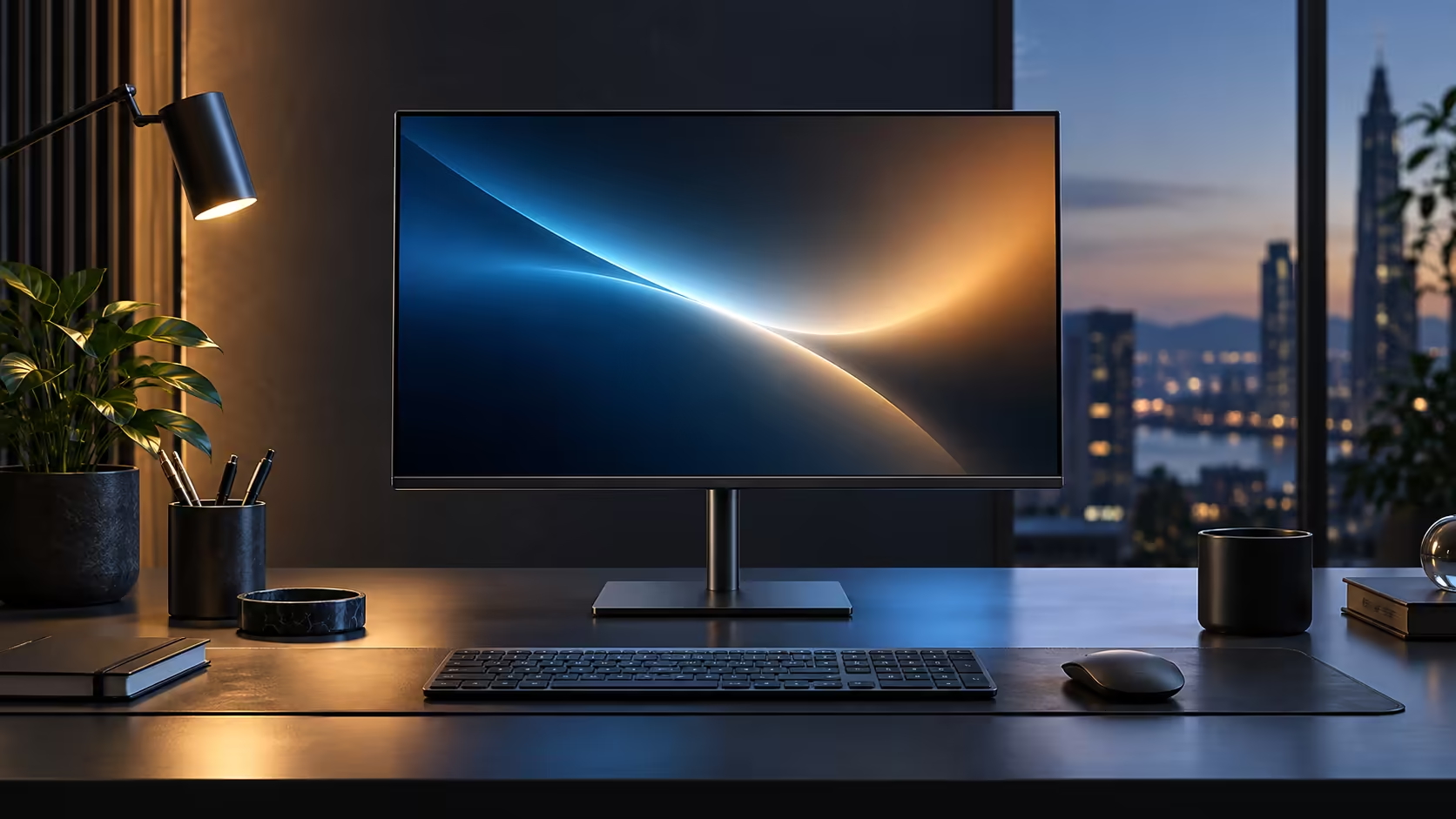
A USB-C hub monitor is easiest to understand as a dock wearing a screen, doing four separate jobs over the same single cable that used to carry only a picture. The Dell Pro 24 Plus P2425DE is a complete example of the category at R6,099, worth breaking down feature by feature.
Quick Answer
A hub monitor is a screen with a dock inside it, working across a single cable. That cable takes the picture up, moves USB and network traffic both ways, and sends up to 90W of charging back. Evetech has the Dell doing all four at R6,099.
🖥️ Video: the job every monitor already does
Starting with the familiar part makes the rest easier to place in context.
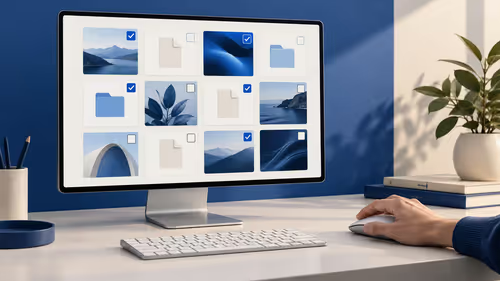
The monitor receives a video signal from the laptop's graphics output, in this case over USB-C using DisplayPort Alt Mode, which lets a single USB-C connector carry a full video signal alongside other data. This is the one function every monitor performs regardless of whether it also functions as a hub, and it is the baseline the other three functions are added on top of.
🔌 Data: USB ports that live on the monitor instead of the laptop
This is where "hub" starts to mean something beyond just a screen.
Downstream USB ports built into the monitor connect to the laptop over the same single USB-C cable carrying the video signal, letting a keyboard, mouse, external drive or webcam plug into the monitor rather than directly into the laptop. From the laptop's perspective, these devices behave exactly as if they were plugged in directly, just routed through one extra connection point.
🖧 Ethernet: a wired connection the laptop physically lacks
Most modern laptops shipped without this port entirely, which is exactly the gap a hub monitor fills back in.
The RJ45 socket on the monitor connects to a router or wall network point with a standard network cable, and Windows detects the connection as a normal wired network adaptor once the single USB-C lead to the laptop is active. This gives a laptop with no Ethernet socket of its own a genuine wired connection, which is more stable than Wi-Fi for video calls, particularly in a household with several people sharing the same wireless network through the day.
⚡ Power: charging that flows the opposite direction
This is the direction of data flow that surprises people the first time they think it through.
While video and USB data travel from the laptop to the monitor, power flows the other way: the monitor's own internal power supply sends up to 90W back through the same USB-C cable to charge the laptop. This is what makes the whole arrangement a true single-cable setup rather than a screen that still needs its own separate charger cable running to the laptop alongside it. Compare the full feature set across the office monitor range, check a standalone docking station if you want the same four functions in a portable box instead of built into the screen, and browse use hubs for extra USB expansion beyond what the monitor's own ports provide.
Frequently Asked Questions
Does a USB-C hub monitor need drivers installed to work?
Generally no. Windows detects video, USB data and Ethernet over a single USB-C connection using standard, built-in drivers on current versions of Windows.
Can I use the monitor's hub functions with a laptop that has no USB-C port?
No. All four functions rely on a single USB-C connection supporting DisplayPort Alt Mode and USB Power Delivery, which a laptop without USB-C cannot provide.
Does charging the laptop reduce the video or data quality over the same cable?
No. USB-C carries video, data and power as separate signals over the same physical connector without one degrading another.
Is a hub monitor slower at charging than a dedicated laptop charger?
Only if your laptop's original charger is rated above the monitor's Power Delivery ceiling. Within that limit, charging speed is identical.
What happens if I unplug the single USB-C cable while the laptop is charging?
Charging simply stops, exactly as unplugging any charger would, with no risk to the laptop or the monitor. Reconnecting the cable resumes all four functions together.
Does a hub monitor work with a phone or tablet as well as a laptop?
Some phones and tablets with USB-C ports supporting video output can connect the same way, though charging wattage and screen behaviour vary by device, so checking the specific model's own USB-C capabilities first avoids a mismatch.
Do all four functions need to be used together, or can I use just one or two?
Any subset works fine. You can use the monitor purely for video and ignore the USB, Ethernet and charging functions entirely, or use any combination that suits your desk, since each function operates independently over the same cable.
🧩 A quick summary of the four functions in one place
Holding all four in view together makes the category easier to explain to someone unfamiliar with it.
Video comes up from the laptop over DisplayPort Alt Mode. USB data for peripherals travels both ways through the monitor's downstream ports. A wired network connection reaches the laptop through the built-in RJ45 socket. Power flows back down the same cable to charge the laptop, up to whatever wattage the monitor's internal supply is rated for. All four run simultaneously over one physical connection, which is the entire definition of what makes a monitor a hub monitor rather than simply a screen.
🧭 Choosing between a hub monitor and building the same setup from parts
Understanding the four functions individually also makes it easier to judge whether a hub monitor is the right choice for your specific desk, rather than assembling the same capability from separate accessories.
If you already own a good monitor and simply want the docking functionality added, a standalone dock covering USB, Ethernet and power delivery achieves the same four-function result without replacing the screen. If you are setting up a desk from scratch, something like Dell's Pro 24 Plus P2425DE bundles all four functions into one purchase, one cable and one warranty, which is usually the simpler and often the cheaper route once a comparable monitor and dock are priced separately.
Ready to see all four jobs working together on your own desk?
Connect the single USB-C cable and check Settings for video, network and charging status.