Quick Answer
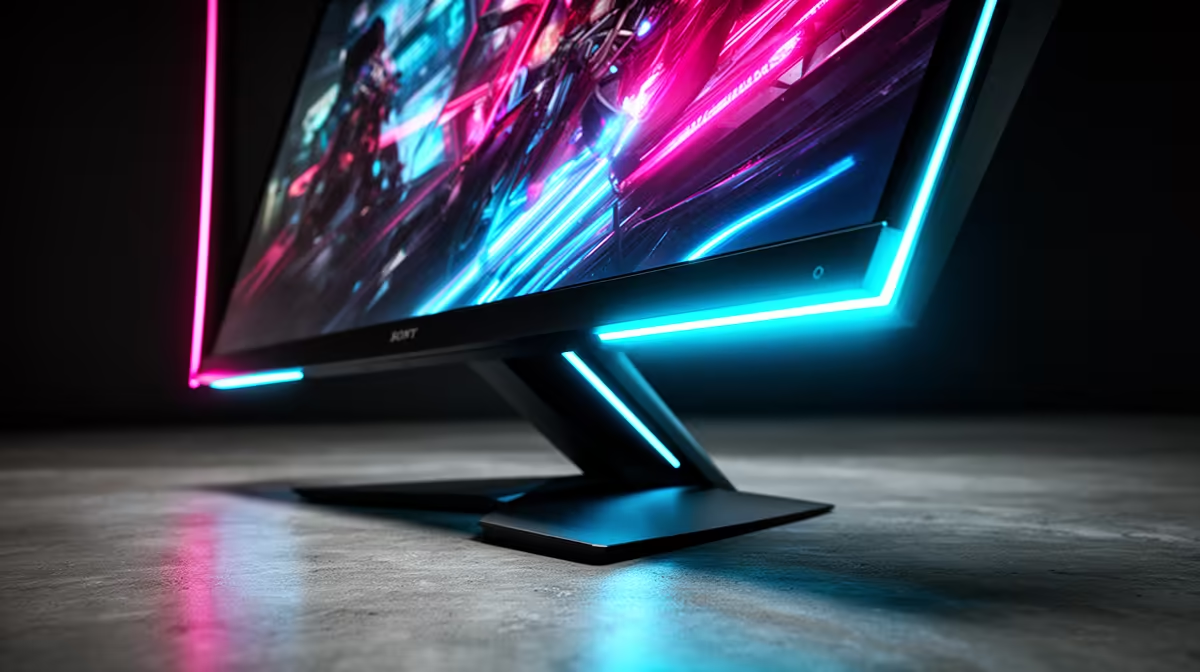
Screen tearing happens when the GPU delivers a new frame to the display mid-refresh, causing the monitor to draw part of one frame and part of the next in a single panel scan. Adaptive sync (FreeSync or G-Sync Compatible) fixes this by synchronising the monitor's refresh rate to the GPU's frame delivery rate, ensuring each refresh cycle contains exactly one complete frame.
The Mechanism Behind Screen Tearing 🔧
A monitor without adaptive sync refreshes at a fixed rate, such as 144 times per second on a 144Hz display. The GPU renders frames independently and delivers them as they complete, which is rarely at exactly 144fps. When the GPU delivers a new frame at the moment the display is mid-scan (reading pixels from top to bottom to refresh the panel), the monitor uses the new frame data for the remaining rows. The result is a visible horizontal line across the screen, above which is the previous frame and below which is the current frame.
Why Adaptive Sync Is More Effective Than V-Sync 🎮
The traditional solution to tearing was V-Sync, which holds the GPU from delivering a new frame until the display completes its current refresh cycle. V-Sync eliminates tearing but introduces a different problem: when the GPU cannot render a frame within one refresh interval, it waits for the next cycle, doubling the frame time and causing stuttering. At 60Hz this means frame times jumping from 16.7ms to 33.3ms, which feels unresponsive.
Setting Up Adaptive Sync Correctly on an SA Gaming PC 💡
Enable G-Sync Compatible in NVIDIA Control Panel under Set up G-Sync, or enable FreeSync in AMD Software under Display. On the monitor itself, enable the VRR or FreeSync option in the OSD; many monitors ship with this off by default. Then set an in-game frame rate cap at 2 to 3 fps below the monitor's maximum refresh rate to prevent the GPU from exceeding the VRR ceiling and re-triggering tearing. For a 144Hz monitor, cap at 141fps. For a 240Hz monitor, cap at 237fps. This keeps the GPU within the adaptive sync window at all times.
Cap Frames to Stay in the VRR Window ⚡
Many SA gamers enable adaptive sync but forget to cap in-game frame rates. Without a cap, the GPU regularly produces frames above the monitor's maximum VRR frequency, which deactivates adaptive sync briefly and causes intermittent tearing at the top of the screen. Use Riva Tuner Statistics Server or the in-game frame limiter to cap at 2 to 3 fps below your monitor's rated maximum.
FAQ
Does tearing still happen at very high frame rates above the monitor's refresh rate?
Yes. If the GPU delivers more frames per second than the monitor's maximum refresh rate, adaptive sync disengages because VRR only operates within the monitor's specified VRR range. Above that ceiling, the monitor returns to fixed-rate operation and tearing can reappear. This is why capping frame rates is necessary even with adaptive sync enabled.
Is tearing more visible at higher refresh rates?
Tearing is less visually jarring at higher refresh rates because the frames are changing faster and the tear line moves more rapidly, making it harder to perceive. At 240Hz, tearing occurs higher on the panel and resolves faster than at 60Hz, where tearing lines are prominent and stationary for longer. High refresh rates reduce the visual impact of tearing but do not eliminate it.
Does adaptive sync work with windowed games or only full-screen?
Adaptive sync originally required exclusive full-screen mode. NVIDIA introduced windowed G-Sync support in later driver versions, and many games now support borderless windowed mode with adaptive sync active. Check your GPU driver version and the specific game's support for windowed adaptive sync before assuming it is active outside of full-screen mode.
Want tear-free gaming on your next monitor?
Evetech stocks a full range of FreeSync and G-Sync Compatible gaming monitors at every refresh rate and resolution. Visit the Evetech monitor section to find your adaptive sync display.