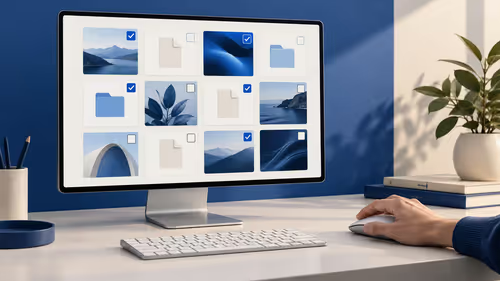
Quick Answer
For a 24-inch-class Full HD monitor, prioritise an IPS or similarly stable panel, at least 100Hz for smoother motion, the ports your computer needs, and VESA support if the desk may change later. At 23.8 inches, 1920x1080 offers practical desktop density. Once those basics are right, compare brightness, contrast, colour range, and stand adjustment against the light and space in your room.
Start with the work you do most
A monitor buyer can get lost in a long specification list. Begin instead with the work that fills most of the week. Documents, spreadsheets, web research, video calls, creative editing, casual games, and dark-room movies all reveal different strengths and weaknesses. Write down the top two uses before comparing models.
For office and mixed home use, text clarity, stable colour, sensible screen size, and a comfortable position are often more important than an extreme gaming headline. For frequent games, refresh rate and response behaviour become more noticeable. For image work, consistent colour and a useful colour preset may matter most. No single specification wins every category.
A 23.8-inch screen is commonly called a 24-inch-class display. Full HD at 1920x1080 gives a practical balance between readable interface elements and usable workspace at that size. It lets many people work without the scaling adjustments that a much higher resolution may require on a smaller panel.
Compare office monitors, the wider monitor range, and monitor best sellers with your actual desk and PC in mind.
Pick a panel that suits your viewing habits
Panel type affects the picture from different seating positions and the way colours and dark scenes appear. IPS is a common starting point for office work and general-purpose use because it is associated with stable colour and broad viewing angles. That helps when you move around in a chair, use a second screen, or occasionally show someone work beside you.
VA can be attractive when deeper-looking dark scenes are the priority. The choice is not a simple ranking. A particular monitor's coating, tuning, contrast, and response behaviour all matter too. Use the panel type to narrow the field, then compare the rest of the specification and your intended room.
The Lenovo L24-4e is documented as a 23.8-inch IPS monitor with 178/178 degree viewing angles. Its listed 99% sRGB coverage supports an sRGB-oriented desktop setup. Those are useful traits for a buyer seeking a general desk screen with a stable picture, rather than a product claim that makes every other panel unsuitable.
Treat refresh rate as an everyday comfort feature
Refresh rate is measured in hertz and describes how often the display updates in a second. A 100Hz monitor updates more frequently than a 60Hz screen, which can make scrolls, pointer movement, and moving windows look cleaner. This is easy to notice during ordinary work as well as games.
Look for at least 100Hz if smoother general motion is important to you, then make sure your computer and connection can use the setting. It does not increase resolution, improve an image source, or make a slow computer process tasks faster. It changes the display's update cadence.
The L24-4e lists a 100Hz refresh rate and HDMI 1.4 input. After connecting by HDMI, keep the native 1920x1080 resolution selected and choose 100Hz in the operating system's advanced display settings. A feature only helps when the connected system is configured to use it.
Check connections before you buy
Count the devices that need to reach the monitor now and in the near future. A desktop, laptop, dock, legacy computer, console, or switch can change what ports are useful. Check the actual output on the device, not only the cable currently lying in a drawer.
The Lenovo monitor is specified with one HDMI 1.4 port and one VGA input. HDMI is the usual direct digital choice for a current PC. VGA can still be valuable for older office hardware that needs to remain in service. If your computer uses another connector, research the correct adapter direction before buying rather than assuming every plug will convert passively.
Leave room in the cable route for the screen to tilt or move. Tight cables and overloaded adapters create avoidable setup problems, even with an otherwise well-chosen display.
Think about the desk as part of the purchase
A monitor has to fit the room as well as the specification sheet. Check desk depth, available width, window position, and the height of your chair. The top edge of a 23.8-inch screen should be near eye level or slightly below for most seated setups, with the panel roughly an arm's length away.
Stand adjustment can decide whether a screen feels good after a full day. The L24-4e includes a tilt stand, allowing the vertical angle to be adjusted. It also lists a 100mm VESA mount, which gives an option for a compatible arm or bracket when a compact desk needs more usable surface.
Look for an anti-glare coating if the desk has changing daylight or nearby lighting. The product details for this monitor include anti-glare treatment and a 250-nit brightness figure. Brightness needs are still dependent on the room, so use your normal lighting rather than a bright retail display as the final reference.
Compare the image qualities that matter
Contrast describes how distinct dark and bright areas can be. Colour gamut describes the range of colour the panel can cover. Neither figure should be read alone. A screen that looks excellent in a showroom may be set too bright or too vivid for your desk, while a well-set monitor can become easier to use during a long session.
The L24-4e has a stated 1300:1 contrast ratio and 99% sRGB coverage. Use those facts as part of its overall profile alongside size, resolution, refresh rate, panel type, ports, and mounting options. Avoid treating a single ratio or percentage as a substitute for the whole decision.
When possible, make a short final comparison table: screen size, resolution, panel type, refresh rate, inputs, stand or VESA options, and the one daily use that matters most. The model that meets those practical needs is more likely to remain a good purchase than one selected for one dramatic headline number.
Frequently Asked Questions
Is Full HD enough for a 23.8-inch monitor?
For many desks, 1920x1080 at 23.8 inches provides practical text size and workspace. The right choice still depends on your viewing distance, applications, and preference for interface scaling.
Why should I look for 100Hz?
A 100Hz screen can make scrolling and other everyday motion feel cleaner than 60Hz. It is useful for general work as well as games when the computer is set to use it.
Do I need VESA mounting?
Not always. VESA support is valuable when you may use a monitor arm, wall bracket, or a shallow desk setup later. It gives you more positioning options than a fixed stand alone.
What should I check besides the panel type?
Check resolution, refresh rate, inputs, brightness, contrast, colour range, stand adjustment, mounting support, and how the monitor fits your room and computer.
Compare the full desk experience, then buy the screen that supports your real work every day.