The 30Hz Frustration: Why Your 4K Display Feels Sluggish
There's nothing quite like the crisp detail of a 4K display. But for South African gamers and content creators, that stunning visual feast can quickly turn into a frustrating slideshow if your screen is stuck at a sluggish 30Hz. You bought a high-resolution monitor, expecting buttery-smooth visuals, only to be met with choppy motion. It's a common headache, and often, it's not your hardware failing, but a simple settings misstep or an overlooked cable.
The dream of smooth 4K 60Hz output on your PC, console, or even your work laptop is entirely achievable. However, many users find their systems inexplicably forcing 30Hz, leading to a noticeable lag and a less-than-ideal experience. Whether you’re trying to land that headshot in your favourite FPS or edit a high-resolution video, 30Hz simply won’t cut it. Let’s dive into why this happens and, more importantly, how to fix these settings and unlock your display's full potential.
Diagnosing the Culprit: Common Reasons for Forced 30Hz
Before we jump into solutions, understanding the root cause of your display forcing 30Hz is key. It could be a single issue or a combination of factors.
Cable Quality & Standards Matter 🔌
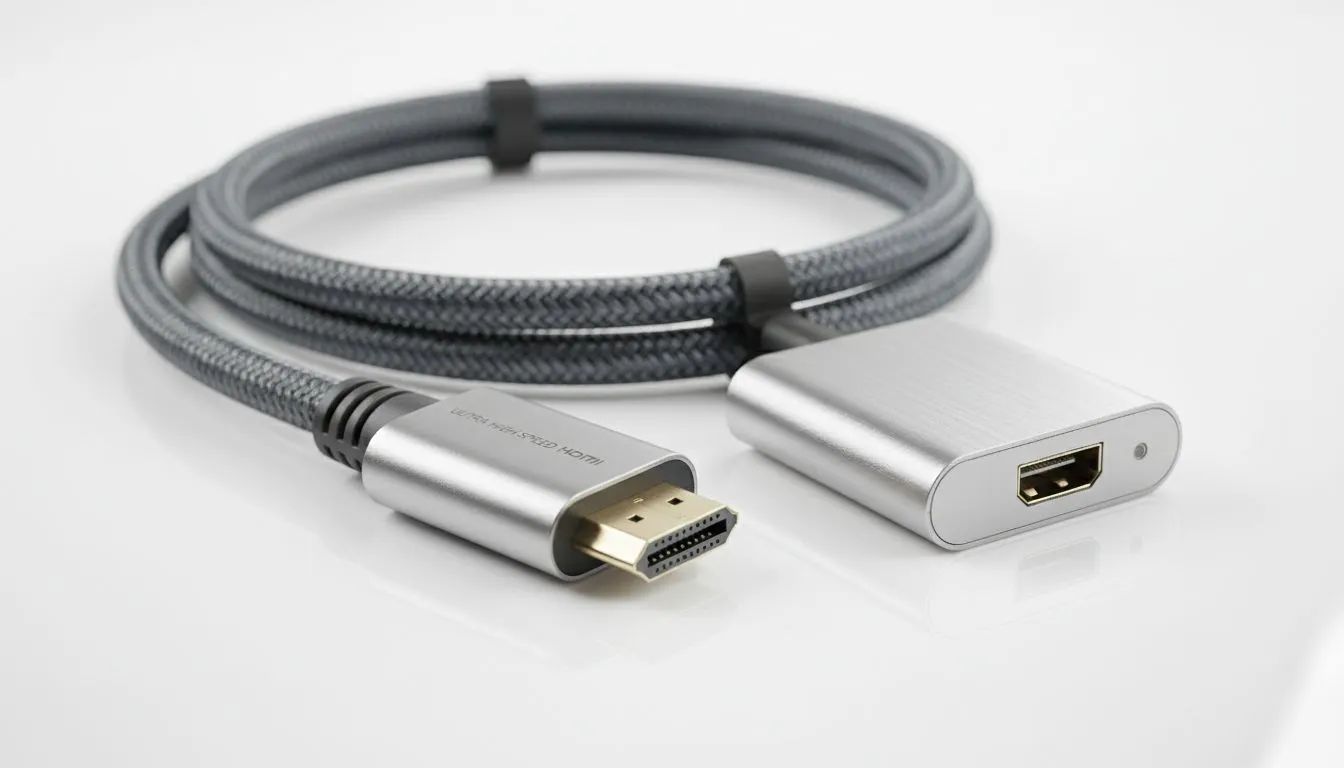
Often, the simplest fix is the most overlooked. Not all HDMI or DisplayPort cables are created equal. For full 4K 60Hz output, you need cables that support the necessary bandwidth.
- HDMI: You need an HDMI 2.0 (or newer) cable. Older HDMI 1.4 cables can only push 4K at a maximum of 30Hz.
- DisplayPort: DisplayPort 1.2 (or newer) is required for 4K at 60Hz.
If your cable is old, unbranded, or simply not rated for the correct standard, it's a prime suspect for why your settings force 30Hz.
Port Limitations & Hardware Bottlenecks
Even with the right cable, your display’s ports and your graphics card’s capabilities play a huge role.
- Monitor Ports: Double-check your monitor's specifications. While most modern 4K monitors feature HDMI 2.0 or DisplayPort 1.2/1.4, older or budget models might only have one or two such ports, with others being older standards.
- Graphics Card: Your PC’s graphics card (GPU) must support 4K 60Hz output. Most recent GPUs from NVIDIA (GTX 900 series and newer) and AMD (Radeon 200 series and newer) do, but integrated graphics on older CPUs might struggle or be limited to 30Hz.
Display Settings & Driver Gremlins 🔧
Sometimes, the hardware is fine, but the software isn't configured correctly. Incorrect display settings within your operating system or outdated graphics drivers are frequent culprits. Your system might default to 30Hz if it detects an unstable connection or simply hasn't been told to go higher.
Docking Stations & Adapters: A Hidden Hurdle
For laptop users, especially those with USB-C connections, docking stations and adapters are incredibly convenient. However, they can also introduce limitations. Many affordable docking station options or older models might not fully support 4K 60Hz output, throttling your display's refresh rate down to 30Hz, even if your laptop and monitor are capable. It's crucial to check the specifications of your docking station. If you're looking for an upgrade, you might want to explore a wide range of docking stations to find one that fits your needs.
Your Step-by-Step Guide to 4K 60Hz Glory
Ready to stop your settings forcing 30Hz? Follow these steps to diagnose and fix the issue.
Step 1: Check Your Cables – The Simplest Fix
Start here. It’s the easiest and often most effective solution.
- Inspect: Physically check your HDMI or DisplayPort cable. Look for any labels indicating "High Speed" (for HDMI 2.0) or "DisplayPort 1.2/1.4."
- Replace (if needed): If in doubt, swap your current cable for a certified HDMI 2.0+ or DisplayPort 1.2+ cable. These are readily available and a small investment for a massive performance boost.
Step 2: Verify Your Ports and Hardware
Ensure both your monitor and graphics card ports are up to spec.
- Monitor Manual: Consult your monitor's manual or product page online (e.g., on Evetech’s site) to confirm which ports support 4K 60Hz. Use those specific ports.
- Graphics Card Specs: Check your graphics card's output capabilities. If you’re unsure, a quick search for your GPU model will confirm its supported resolutions and refresh rates.
Step 3: Dive into Display Settings
This is where you tell your system what refresh rate to use.
Step 4: Update Graphics Drivers – Essential for Performance
Outdated or corrupt drivers can severely limit your display's capabilities.
- Identify GPU: Find out if you have an NVIDIA, AMD, or Intel integrated GPU.
- Download Latest: Visit the official NVIDIA, AMD, or Intel support website. Download and install the absolute latest drivers for your specific graphics card model.
- Clean Install: During installation, choose the "clean install" option if available. This removes old driver files that might be causing conflicts.
Driver Update Pro Tip ⚡
After updating your graphics drivers, always restart your PC. This ensures all new driver components load correctly and can often resolve lingering display issues. Remember to download drivers only from official manufacturer websites to avoid malware.
Step 5: Custom Resolutions (Advanced)
If 60Hz still isn't an option in your display settings, and you've confirmed your hardware and cables are compatible, you might try creating a custom resolution. This is an advanced step and should be done with caution.
- NVIDIA Control Panel: Under "Display" > "Change Resolution," click "Customise..."
- AMD Radeon Software: Under "Display" > "Custom Resolutions."
Experiment with setting 3840x2160 at 60Hz. If it works, great! If it causes display issues, immediately revert.
Step 6: The Docking Station Dilemma
If you're using a docking station and still stuck at 30Hz, it’s likely the culprit.
- Direct Connection Test: Temporarily bypass the docking station and connect your laptop directly to the monitor using a high-quality cable. If you get 4K 60Hz, your docking station is the bottleneck.
- Upgrade: Consider upgrading to a docking station specifically rated for 4K 60Hz output. Evetech offers a range of high-performance options, including premium docking station solutions that support the latest display standards. For those on a tighter budget, there are still excellent options, like Promate docking stations, known for their reliability and value.
Elevate Your Setup: Beyond Just 60Hz
Achieving stable 4K 60Hz output is a significant step towards a superior visual experience. Once you’ve fixed the settings that force 30Hz, your games will feel smoother, your content creation workflow will be more fluid, and even simple browsing will be more enjoyable. Don't settle for less than what your hardware is capable of. By following these steps, you can ensure your 4K display delivers the crisp, fluid visuals you paid for.
Ready to Upgrade Your Connectivity?
Don't let a bottlenecking accessory hold back your 4K experience. Whether you need a simple adapter or a full-featured hub, explore Evetech's massive range of docking stations and find the perfect solution to unlock your display's true potential.