Optimise Surround Sound for FPS Performance
South African FPS players and PC buyers: tired of footsteps sounding like ocean waves? Dialling the Best Audio Settings for FPS Games with Surround Sound Headsets can flip the script — turning vague noise into precise direction. This short guide gives practical, local-tested tips and headset pointers so you hear opponents first and react faster. 🎧🔧
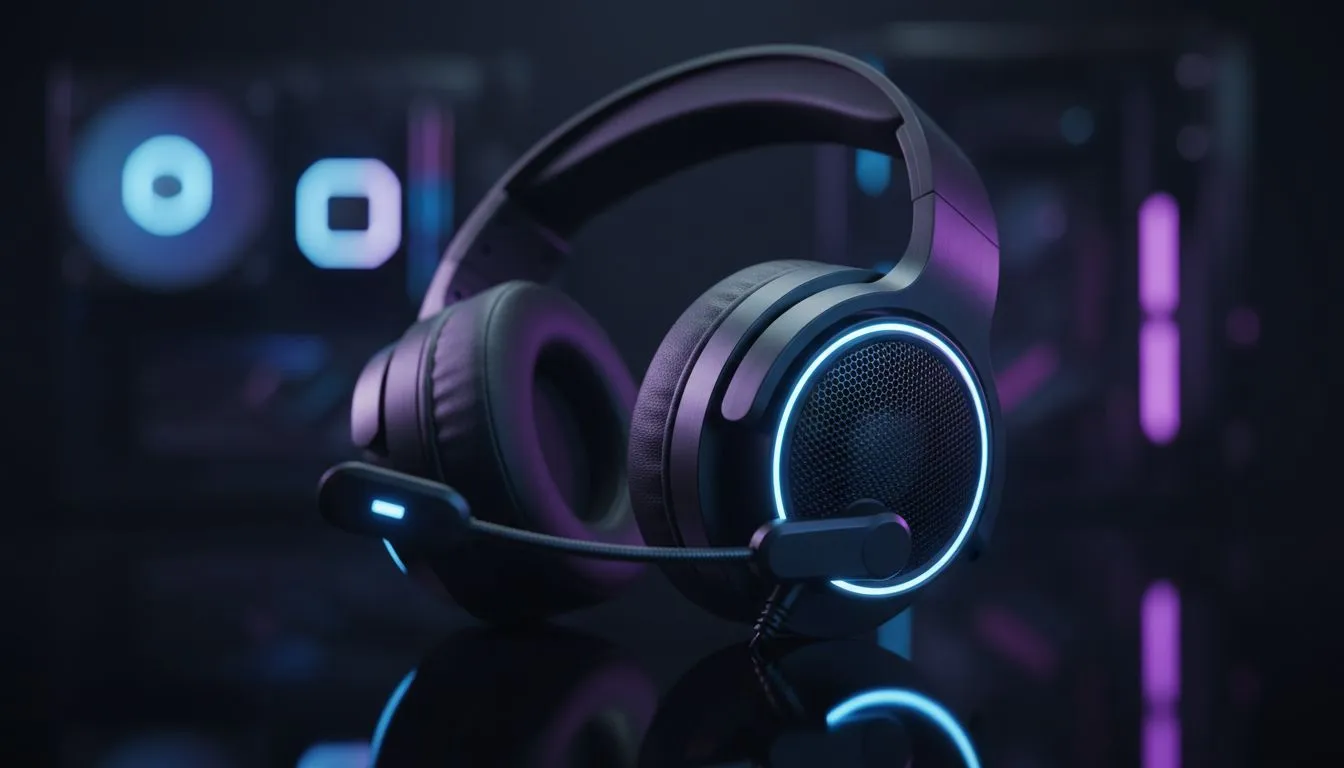
Headset choice and initial setup for surround FPS
Start with a headset that supports virtual surround or hardware spatial audio. If you’re looking for a solid all‑rounder that many local gamers pick, check the Razer Barracuda X Chroma listing at Evetech for compatibility and current deals. It’s a handy reference when you shop for wireless comfort and multi‑platform support.
Also browse Razer’s headphone and headset range to compare models and features before you commit — it helps make sure your chosen headset supports the surround features you want.
Best Audio Settings for FPS: Windows and driver basics
Keep Windows audio drivers up to date and set your device’s sample rate to the default for gaming apps. Use the Windows sound control panel to disable audio enhancements that auto‑alter EQ; they can smear positional cues. Try the free Windows Sonic for Headphones first — it’s an easy toggle and improves vertical localisation. If you prefer a commercial option, Dolby Atmos can sharpen directional clarity, but check compatibility with your headset.
EQ & in‑game tweaks for clearer footsteps
- Start flat on the EQ; then gently boost the 2–6 kHz band — that’s where footsteps and weapon clatter live.
- Reduce sub‑bass below ~80 Hz to avoid rumble masking midrange cues.
- Set in‑game audio to “headphones” or “stereo” with surround virtualization enabled if offered. Many titles over‑process game audio in speaker modes.
Positioning, microphone and latency tips
Keep your headset firmware updated and use wired when latency matters most. If you use USB or wireless dongles, pick the lowest latency profile available. A quick seat‑test: have a friend walk around you in game while you listen for left/right and front/back cues — tweak EQ and virtual surround until you can reliably pinpoint them.
Audio Pro Tip 🎧
Keep a short audio profile named "FPS" in your sound app. Toggle it when you queue ranked matches. Small EQ nudges in the 2–6 kHz range and cutting low end often delivers immediate positional gains without changing overall loudness.
Quick workflow and local shopping nudge
If you’re ready to upgrade your kit, Evetech’s headphone and headset components section is a good place to compare brands and specs in ZAR. For broader headset options across categories, the Razer headphones & headsets collection on Evetech makes it easy to filter by wired, wireless or surround features. Finally, if you want a proven single model to test these settings, see the Razer Barracuda X Chroma product page at Evetech for full specs and compatibility notes.
Wrap — practise, refine, repeat 🚀
Audio setup is iterative. Test settings in warmup matches, take notes, and refine your profile. Small changes can give a real edge in close FPS fights. Now go tweak, listen, and win.
Ready to Find Your Perfect Match?
The Mac vs Windows debate is complex, but for maximum power, choice, and value in South Africa, Windows is hard to beat. Explore our massive range of laptop specials and find the perfect machine to conquer your world.