You’ve just unboxed your glorious new 4K monitor. The colours are popping, the detail in-game is insane… but the text? It looks a bit… off. Almost blurry. Sound familiar? You’re not alone. Many South African gamers and creators face this issue. The good news is there’s a free, built-in Windows tool that can fix it in 60 seconds. We’re talking about performing a ClearType tuning on your 4K monitor, and we tested it on a 27" display to show you exactly how.
Why ClearType Tuning on a 4K Monitor is Essential
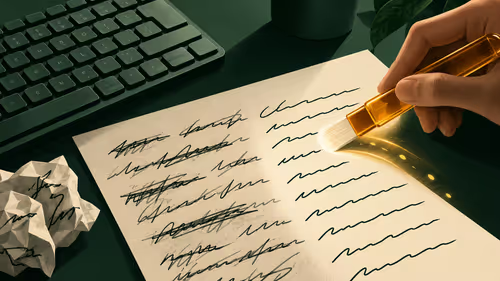
So, what is this ClearType magic? ✨ It’s a technology from Microsoft designed to make text on LCD screens sharper and easier to read. It works by using subpixel rendering, which basically means it intelligently uses the individual red, green, and blue components of each pixel to smooth out the edges of fonts.
On older, lower-resolution screens, this was a nice-to-have. But on today's stunning 4K and 5K monitors, where pixels are incredibly dense, getting the text right is crucial. Without proper tuning, text can look fuzzy or have weird colour fringing, leading to eye strain during long work sessions or marathon gaming nights. A quick ClearType tuning on your 4K display ensures Windows renders text that’s perfectly adapted to your specific screen and your eyes.
Our Simple Guide to Optimising Text Clarity
Ready to get that crisp text you paid for? We ran through this process on our 27" 4K test bench monitor, and it took less than a minute. It’s a simple wizard that shows you samples of text, and you just pick the one that looks best.
How to Run the ClearType Text Tuner
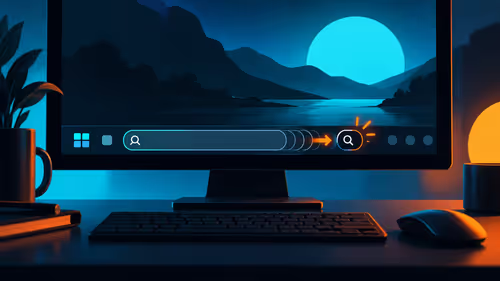
- Open the Tuner: Click your Start button and simply type "ClearType". The top result should be "Adjust ClearType text". Click it.
- Enable ClearType: The first screen has a checkbox to "Turn on ClearType". Make sure it's ticked and click Next.
- Choose Your Monitor: If you have multiple screens, it will ask you to select the ones you want to tune.
- Pick the Best Sample: This is the core of the process. Windows will show you five screens with different text samples. On each screen, just click the box that looks clearest and sharpest to you. There's no right or wrong answer… it’s all about what your eyes prefer.
- Finish: Once you've made your five choices, you're done! Click Finish.
You should immediately notice that text in your browser, documents, and system menus looks significantly better. This simple tweak works wonders on most PC monitors, but it’s especially effective for high-resolution displays.
Pro Tip: Nail Your Scaling масштабирование
ClearType works hand-in-hand with Windows Display Scaling. On a 27" 4K monitor, 100% scaling will make everything tiny. Most people find 150% or 175% to be the sweet spot. Right-click your desktop, go to 'Display settings', and experiment with the 'Scale' percentage until you find a comfortable size. This, combined with ClearType tuning, is the recipe for perfect clarity.
Beyond ClearType: Other Tweaks for a Crisper Image
While ClearType is the biggest factor for text, a few other things can improve overall sharpness on your screen.
- Monitor Sharpness Setting: Check your monitor's on-screen display (OSD) menu. There's usually a "Sharpness" setting. Be careful here… too high and you'll get ugly white outlines around objects. Usually, the default setting is fine, but a small adjustment can help.
- Use DisplayPort: For high resolutions and refresh rates, always use a quality DisplayPort cable. It provides more bandwidth than HDMI in many cases, ensuring the best possible signal reaches your screen.
- GPU Settings: In your NVIDIA, AMD, or Intel graphics control panel, ensure the resolution and refresh rate are set correctly to your monitor's native specs.
These tips apply to all screen types, from immersive curved monitors to compact portable monitors for your on-the-go setup. 🚀
Does Every Setup Need This?
Honestly, yes. It's a free and easy optimisation that can only improve your experience. Whether you’re using one of our top-tier gaming monitors for that competitive edge or a professional colour-accurate display for creative work, taking a minute to perform a ClearType tuning on your 4K monitor is always a good idea.
Of course, the foundation of a great visual experience is a great panel. No amount of software tuning can fix a low-quality screen. Pairing a quality display with the right monitor accessories and the right settings is key. If you feel your current screen just isn't cutting it anymore, it might be time to see the incredible value available in some of the best monitor deals in SA.
Ready to See the Difference?
Getting your text crystal clear is one thing, but it all starts with a quality panel. From lightning-fast gaming displays to ultra-sharp 4K screens, we've got the perfect monitor for your setup. Explore our massive range of PC monitors and find the perfect display to conquer your world.