Why Your WiFi is Sabotaging Your Killstreak
We’ve all been there. You’re holding a perfect angle in your favourite FPS, the lobby is tense, and suddenly—lag. Your ping spikes, the screen stutters, and you’re back at the respawn screen. In South Africa, where fibre is becoming the gold standard, your desktop connection shouldn't be the bottleneck. Learning how to set up dual band WiFi on your desktop is the quickest way to ditch the interference of your home’s smart devices and get back to competitive performance. ⚡
The Magic of Dual Band Connectivity
Most older adapters or basic motherboards default to the 2.4GHz frequency. While it travels through walls well, it’s crowded with everything from your microwave to your neighbour's router. By switching to the 5GHz band—the core of dual band technology—you’re stepping onto a faster, cleaner highway. To ensure you aren't fighting your hardware, it is worth checking out our full range of high-performance network adapters to see if an upgrade is necessary.
Pro Tip: Frequency Matters 🔧
Always prioritise the 5GHz band for gaming. It offers significantly lower latency and higher throughput, which is essential for real-time responsiveness in multiplayer titles.
Choosing the Right Hardware for Your Rig
Not all adapters are created equal. If you are building a high-end rig, you want stability that lasts through long weekend sessions. For those who trust market-leading reliability, TP-Link network solutions are a staple in many South African gaming setups. If you're looking for something that balances budget and performance, Cudy network adapters have been making waves for their ease of use and consistent signal strength. ✨
Configuring Your Desktop for Stability
Once you have the right hardware installed, head into your Windows Device Manager. Locate your network adapter, right-click for properties, and navigate to the 'Advanced' tab. Look for 'Wireless Mode' or 'Preferred Band' and force it to 5GHz. This ensures your PC doesn't flip-flop between bands when the signal fluctuates. Keeping your drivers updated is just as crucial as the hardware itself. A stable connection turns a frustrating lag-fest into a smooth, responsive experience that lets your actual skill shine through. 🚀
Ready to Upgrade Your Connection?
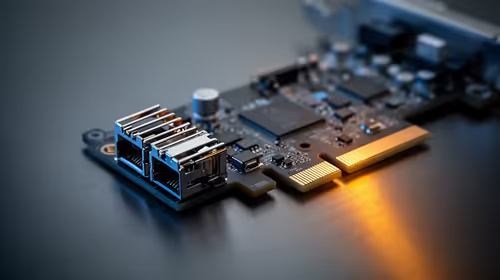
Don't let a weak signal hold back your gaming performance. Whether you need a simple USB adapter or a high-speed PCIe card, browse our complete collection of network adapters to find the perfect match for your desktop and start gaming without the lag.