Quick Answer
Auto KVM (Keyboard Video Mouse) on a gaming monitor automatically switches your keyboard and mouse to whichever connected device is currently in focus, without pressing any button. It eliminates the need for a separate KVM switch box when running a gaming PC and a work laptop from the same monitor, keyboard, and mouse.
How Auto KVM Works on a Monitor 🔧
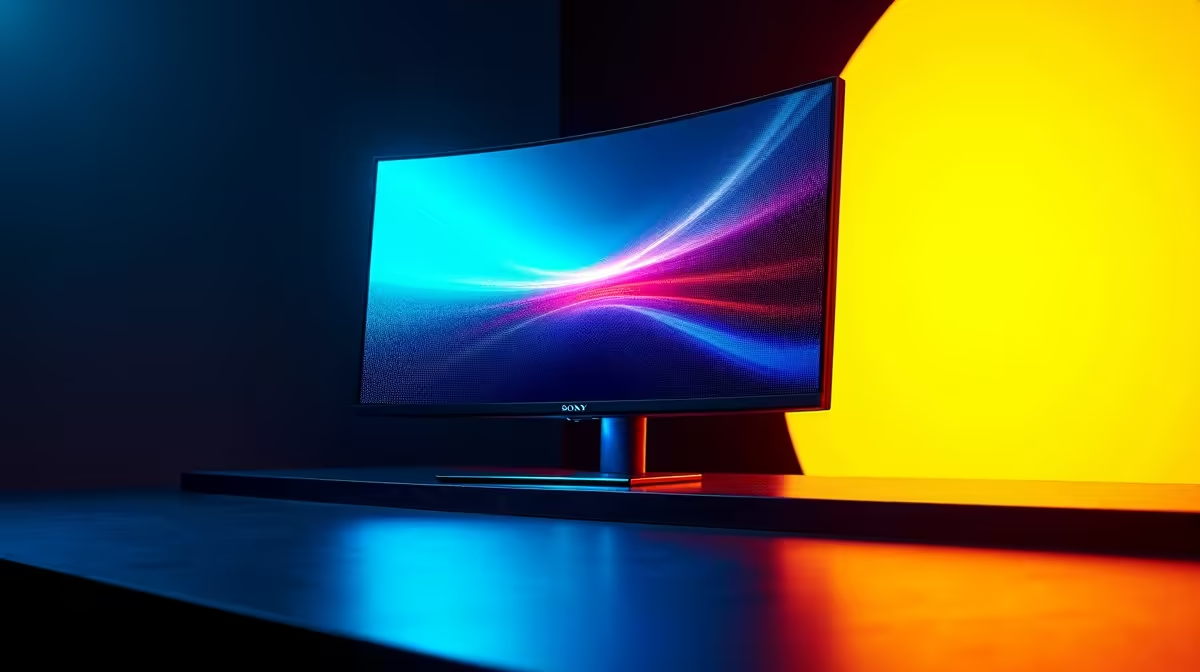
A monitor with Auto KVM includes a USB upstream port per device and detects which device currently has screen signal priority. When you click a window from your laptop in Picture-by-Picture (PbP) mode, the monitor routes the keyboard and mouse signals to the laptop rather than the PC, typically in under 200 ms. Switch focus back to the gaming PC window and input routes back instantly. The feature requires at least two active video inputs simultaneously (usually DisplayPort from the PC and HDMI from the laptop), a USB-B or USB-C upstream port per device, and compatible firmware. It replaces a dedicated KVM switch costing R500 to R2,000 for a quality hardware unit.
Real-World Use Cases in South African Work-From-Home Setups 💼
Many South African professionals who work remotely during business hours and game in the evenings run a dual-device desk: a work-issued laptop connected to the same monitor as their gaming desktop. Without Auto KVM, switching requires either two keyboard-and-mouse sets or a manual KVM switch. Auto KVM makes the transition invisible: click the laptop window to handle a Teams call, finish the call, click the game, and the keyboard follows without any hardware interaction. A monitor with Auto KVM at R8,000 to R18,000 delivers genuine workflow efficiency for this increasingly common setup.
Auto KVM vs Manual KVM vs Software KVM 🖥️
Manual KVM switch boxes cost R500 to R2,000 for a quality unit and require a physical button press. Software KVM solutions work over a network connection but add slight latency and require both devices to be powered and connected. Auto KVM built into a monitor is the most seamless solution because it is hardware-native and requires no additional software on either device. The limitation is that it works only with devices connected to that specific monitor; it does not extend across multiple screens.
Pair Auto KVM With PbP for True Dual-Device Workflow ⚡
Enable Picture-by-Picture mode alongside Auto KVM to display your gaming PC and work laptop simultaneously, split vertically. Auto KVM then routes your single keyboard and mouse to whichever half you click into, giving you a true dual-computer workflow without needing two monitors.
FAQ
Does Auto KVM work with any keyboard and mouse?
Yes, as long as the peripherals are connected via the monitor's USB hub downstream ports. Wireless peripherals using a USB dongle also work. Bluetooth peripherals that connect directly to each PC independently do not route through the monitor's KVM system.
Can Auto KVM be used with three or more devices?
Most monitor implementations support two devices. For three-device setups, a dedicated hardware KVM switch alongside the monitor is the more practical solution.
Is there a lag when Auto KVM switches input focus?
Switching delay is typically 100 to 300 ms, imperceptible for productivity work. For gaming, Auto KVM should only be active when intentionally switching to a work device; it should not interfere with active gaming sessions.
Juggling a gaming PC and a work laptop at the same desk?
Evetech stocks gaming monitors with Auto KVM and USB hub features, browse the range online or visit the Evetech store.