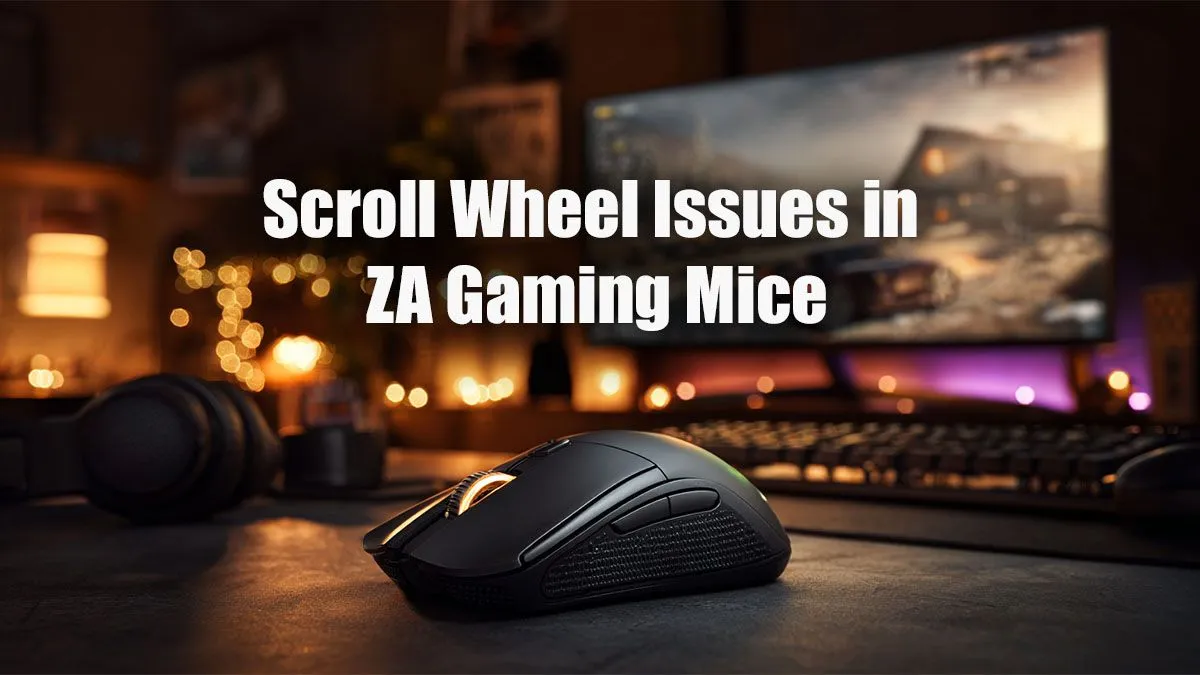
You're in the final circle, lining up the perfect shot. You flick your mouse wheel to swap weapons for the finisher... and it jumps, skipping past your rifle and leaving you exposed. Eish. A dodgy scroll wheel is more than an annoyance; it’s a round-loser.
But before you rage-buy a replacement, know that a gaming mouse scroll wheel fix in ZA is often simpler than you think. Let's explore the top solutions to get you back in the game.
First Steps: Easy Software Fixes for Your Scroll Wheel
Before you grab a screwdriver, let's rule out any software gremlins. Sometimes the problem isn't physical at all. This is the easiest place to start your gaming mouse scroll wheel fix and often solves the issue in minutes.
Check Your Drivers & Software
An outdated driver can cause all sorts of bizarre behaviour. The software that powers every modern gaming mouse is the brain of the operation, and keeping it updated is crucial.
- Manufacturer's Software: Open your mouse's control panel (like Razer Synapse, Logitech G-Hub, or SteelSeries GG) and check for both software and firmware updates.
- Windows Update: Ensure your Windows is up to date, as this can include important peripheral driver updates.
Pro Tip: Clean Re-install ⚡
If updating doesn't work, try a clean install. Uninstall the mouse software completely from "Apps & features", unplug the mouse, restart your PC, plug the mouse back in, and then download and install the latest software directly from the manufacturer's website. This can clear out corrupted configuration files.
Tweak Windows Mouse Settings
Sometimes, Windows settings can be the culprit.
- Go to Settings > Bluetooth & devices > Mouse.
- Click on Additional mouse settings.
- In the new window, go to the Wheel tab.
- Try adjusting the "The following number of lines at a time" value. Setting it to a different number (like 3 or 5) and hitting "Apply" can sometimes reset a glitchy scroll behaviour.
Rolling Up Your Sleeves: A DIY Scroll Wheel Cleaning Guide 🔧
If software tweaks didn't work, it's time to look at the most common cause of scroll wheel issues: dust and grime. Over time, tiny particles get inside the mouse and interfere with the scroll wheel's encoder—the little part that registers the movement. This issue affects both reliable wired mice and even the most advanced wireless gaming mice.
What you'll need:
- A can of compressed air
- A cotton swab (earbud)
- A little bit of isopropyl alcohol (optional)
The Process:
- Unplug your mouse! Never work on a connected peripheral.
- Hold the can of compressed air upright and use short, controlled bursts to blow air into the gaps around the scroll wheel. Blow from different angles to dislodge as much dust as possible.
- For stubborn gunk, lightly dampen a cotton swab with isopropyl alcohol (don't soak it) and carefully clean the sides of the scroll wheel itself.
- Let it dry completely for a few minutes before plugging it back in. For many, this simple clean-up is the perfect scroll wheel repair solution. ✨
When Your Gaming Mouse Scroll Wheel is Beyond a Simple Fix
You've tried the software solutions and given it a good clean, but the scroll wheel is still jumping or unresponsive. This could mean the internal encoder is worn out or broken. At this point, a repair becomes much more technical, often requiring soldering.
So, when is it time to call it and look for an upgrade?
- If the mouse is several years old and has seen thousands of hours of action.
- If the cleaning process made no difference whatsoever.
- If other buttons are also starting to fail.
Thankfully, getting a replacement doesn't have to break the bank. There are fantastic gaming mice under R1000 that offer incredible performance for the price. If you can stretch your budget, the sweet spot for features and build quality is often found in the range of mice under R2000.
And for those seeking the absolute pinnacle of precision and customisation, the world of premium mice above R2000 offers cutting-edge sensors and ergonomics. Before making a final choice, it's always smart to check out the current best gaming mouse deals in South Africa to see if a top-tier model is on special.
Ready for a Flawless Scroll?
Don't let a faulty mouse be the reason you lose your next match. Whether you need a budget hero or a pro-grade weapon, the perfect click is waiting. Explore our massive range of gaming peripherals and find the upgrade you deserve.