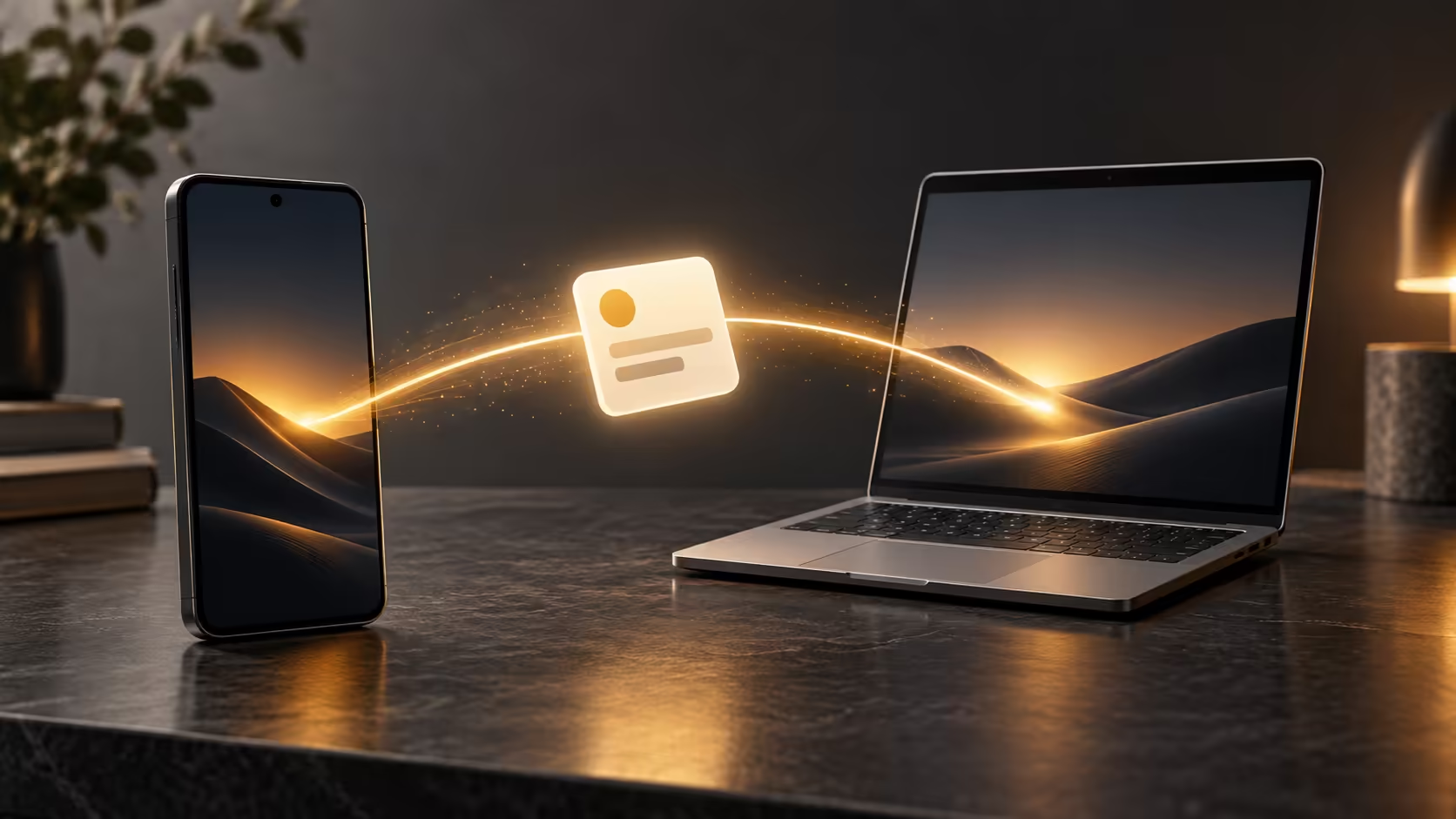
A task started on a phone often becomes easier when a larger screen and keyboard are available. Googlebook Continue On is designed for that moment. Its purpose is continuity of a supported task, which is different from merely showing the phone screen or copying a file. Understanding that distinction prevents the feature from being expected to do every cross-device job.
Quick Answer
Continue On is described as moving a task from an Android phone to Googlebook so work can resume there. Google specifies Android 17 or later and setup for the advertised phone integration. Confirm the particular app and handover before depending on it, because the launch description does not promise continuity for every third-party task.
📱 Recognise what is being handed over
A task contains more than a file. It may involve a location within an app, an open item or a stage in a workflow. A useful handover preserves enough of that context to avoid starting the activity again on the laptop.
That is why a demonstration should be judged from the receiving side. Does the intended item appear, and can the user continue the next step? The existence of a connection between devices is less informative than whether the specific work resumes correctly.
The launch description gives the purpose rather than a universal app matrix. Treat it as a feature to confirm for the chosen workflow, not a promise that every unfinished action on the phone follows automatically.
🔄 Separate continuation from casting and file access
Cast My Apps is described as opening phone applications on Googlebook through the phone-linked experience. Quick Access exposes phone files for use from the laptop. Continue On concerns resuming a task. These routes may look similar during a brief demonstration, but they answer different needs.
If the goal is to use a phone-only app, casting is the relevant concept. If the goal is to attach a screenshot, file access may be enough. If the goal is to continue an activity in a laptop environment, handover is the feature to investigate.
For a buying shortlist, match the problem to the route before comparing hardware. The AI laptop finder is useful for the broader laptop requirements, while phone continuity should be assessed against the exact app involved. A large screen is only part of the answer if the intended task can reach it.
✅ Confirm the destination before closing the source
A sensible first-use routine is to keep the phone task available until the laptop shows the expected content. Check the item, account and current state before making further changes. This reduces the chance of editing a different copy while assuming continuity worked.
Saved and unsaved work deserve separate attention. Do not assume an unsaved draft has moved simply because the destination application opened. Establish the actual result using a non-sensitive example before relying on the handover for important material.
The installed phone version matters too. A manufacturer announcing an Android update is not the same as the handset already satisfying the requirement. Complete setup and feature support must be confirmed on the devices being used.
Compare laptop alternatives around the work that benefits from a keyboard and larger screen. Continue On is valuable when it removes repeated effort in a supported routine. It should be evaluated as that particular convenience, with a clear fallback such as a saved file or ordinary account synchronisation when the desired handover is not established.
Frequently Asked Questions
What is Continue On intended to transfer?
Google presents it as continuing a task started on an Android phone on the Googlebook laptop.
Is Continue On the same as Cast My Apps?
No. Cast My Apps opens a streamed phone app, while Continue On is described as a task handover.
What phone version is specified?
Android 17 or later is required alongside setup for the advertised phone integration.
Does every third-party app support handover?
The launch page does not promise universal third-party task continuity.
Should an unsaved draft be assumed transferred?
No. Confirm the correct content appears on the receiving device before closing the source task.
Choose a laptop for the tasks that move with you
Compare Evetech laptop options around the work you want to continue comfortably after putting down the phone.