Ask what a KVM switch actually is and most explanations start with the acronym: keyboard, video, mouse. What they skip is the part that matters for a monitor with one built in, which is that the "video" half is already solved by the screen itself, leaving the hardware only one real job left to do.
Quick Answer
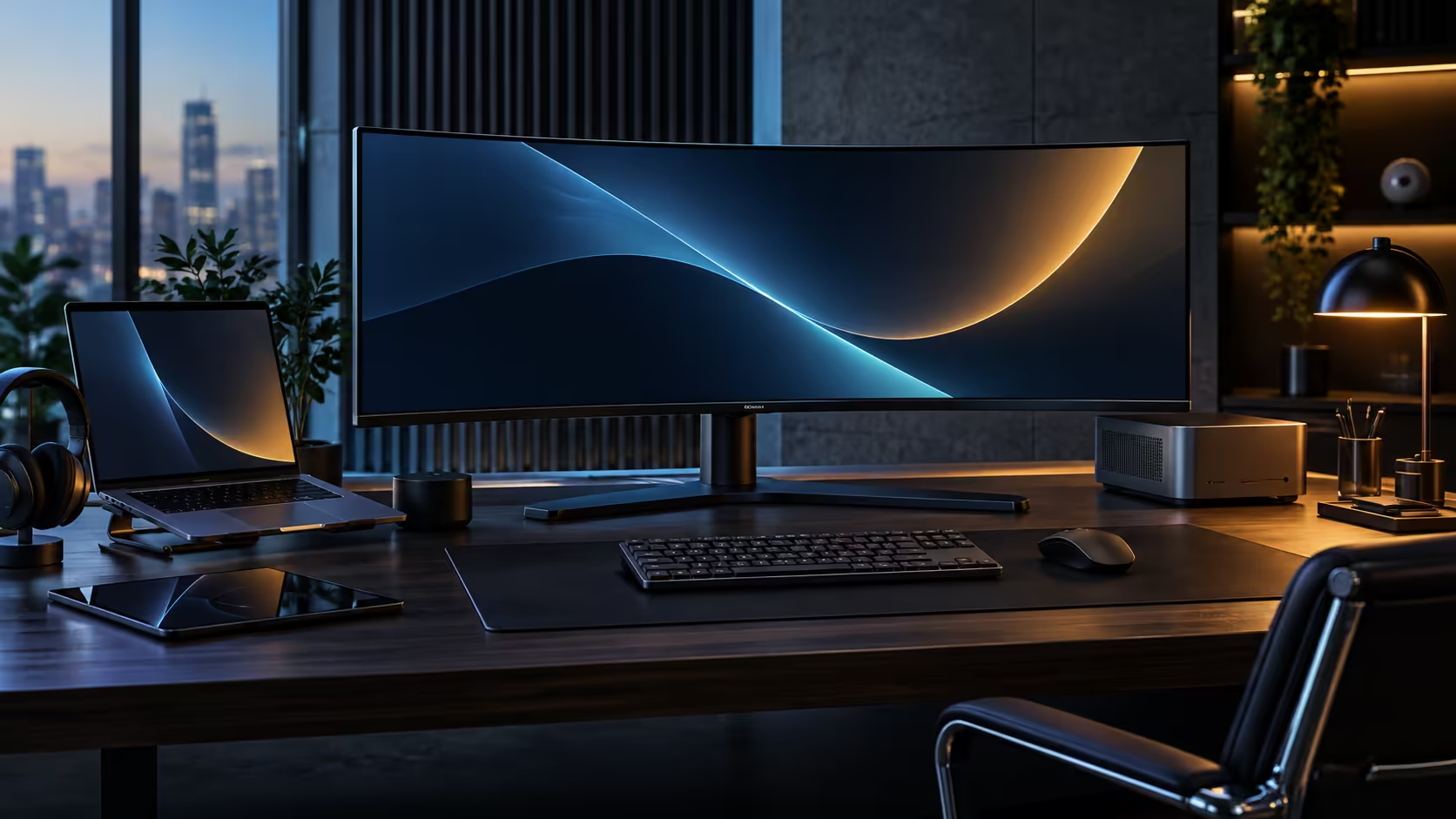
A built-in KVM switch lets the CU34E4CW own your keyboard and mouse and reassign them, in hardware, to whichever computer's picture is currently on screen. There is no separate box, no software, and no pairing step: plug both machines into the monitor with a video and a USB cable each, and the R7,999 panel handles the rest through its own internal circuitry.
🧩 What a KVM switch is actually doing once video is out of the equation
Traditional standalone KVM boxes exist because older setups needed one device to switch video, keyboard and mouse all at once between two or more computers sharing a single monitor. Build the switch into the monitor instead, and video switching is already handled by the screen's own input selector, the same button used to flip between a laptop and a desktop on any modern monitor. What is left for the KVM circuit to manage is purely the USB side: taking signals from one keyboard and one mouse and directing them down whichever of the two USB uplink paths matches the currently selected video input.
That narrower job is also why it is reliable. A full standalone KVM has to correctly pass video signals of varying resolutions and refresh rates without introducing lag or artefacts, which is a genuinely harder engineering problem than switching a USB signal. A monitor-based KVM only has to get the simpler half right.
⌨️ How the physical wiring decides what works
The wiring, not a setting buried in a menu, is what actually determines whether the feature functions correctly.
Your keyboard and mouse connect to two of the monitor's USB-A ports, acting as the shared input devices. Each computer separately connects to the monitor with its own video cable and its own USB upstream cable, the latter carrying no data of its own but instead completing the circuit that lets the monitor route your keyboard and mouse to that machine when its input is selected. Skip the USB cable from either computer and that machine will display perfectly on screen while remaining entirely deaf to your keyboard and mouse, which is the single most common source of confusion people run into on first setup.
🎛️ Reading the on-screen menu correctly
Most confusion after the wiring is sorted comes down to one setting hiding in an unexpected part of the monitor's menu system.
Look specifically for a USB Selection, KVM, or occasionally labelled USB-C option inside the monitor's Setup or Extra menu, and confirm it is set to follow the video input automatically rather than being pinned to one source. Some panels offer a manual mode here too, letting you keep the keyboard and mouse locked to one computer regardless of which picture is showing, which is useful if you want to type a message on machine two while watching a build progress on machine one's screen.
For the wired peripherals a two-computer desk needs to make this setup reliable, the gaming mouse range and the office keyboard range both skip the wireless dongles that would otherwise compete for space on the office monitor range panel's limited USB ports.
Frequently Asked Questions
Is a monitor's built-in KVM the same technology as a standalone KVM switch box?
Functionally similar but narrower in scope. A standalone box also switches the video signal itself; a monitor-based KVM only switches the USB keyboard and mouse connection, since the screen's own input selector already handles video.
Can I lock the keyboard and mouse to one computer regardless of which video input is active?
On many panels, yes, through a manual USB routing mode in the same menu as the automatic KVM setting, which is useful for typing on one machine while watching output from the other.
Does the USB cable running to each computer carry anything besides KVM signals?
Generally no, on a KVM-only setup. If the same physical port also supports full USB-C docking with data and charging, it can carry more, but the KVM function itself only needs the keyboard and mouse signal path.
Will a KVM switch introduce any lag to my mouse or keyboard?
No meaningful lag under normal use. The switching delay is in how quickly the monitor reassigns the connection, generally a second or two, not in how the peripherals themselves respond once connected.
Do I need to buy special USB cables for a monitor's KVM function?
No. A standard USB cable suited to the port type on each computer is all that is needed; no KVM-specific cable exists for this kind of setup.
Ready to let your monitor do the switching instead of a separate box?
Wire each computer with its own video and USB cable, then set the panel's USB routing to follow the active input.