When your ROG Ally is not being detected by a PC, dock, or USB hub, the fix is almost always a combination of driver state and connection method - and South African users have a few local considerations that make some solutions more relevant here than in other markets. Most detection issues resolve within 15 minutes of systematic troubleshooting.
Quick Answer
How to fix ROG Ally not detected in SA: Start by power cycling the ROG Ally completely, then use a USB-C cable that supports data transfer (not just charging). Update ROG Ally firmware and Windows via MyASUS, and ensure the XG Mobile interface driver is installed if you are connecting peripherals through it. Most detection failures come from driver state or cable issues.
🔧 Step-by-Step Detection Fixes
Work through these in order - earlier steps catch the majority of cases.
Step 1: Force a proper power cycle
Hold the power button for 12 seconds to force a complete shutdown - not a sleep state. Wait 30 seconds, then power on. Many ROG Ally detection issues are caused by the device waking from a suspended state where USB controllers have not reinitialized.
Step 2: Test a different USB-C cable
Not all USB-C cables support data transfer - many only carry power. The ROG Ally requires a cable with USB 3.2 Gen 2 or USB4 data support for full device detection. Cables that shipped with phone chargers or power banks often lack this and will fail silently.
Step 3: Connect directly, not through a hub
Multi-port USB hubs add a layer of complexity that can interfere with detection. Connect the ROG Ally directly to a USB-C port on your PC to isolate whether the hub is the issue.
Step 4: Update firmware and drivers via MyASUS
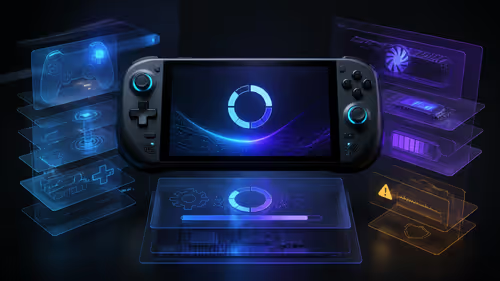
Open MyASUS on the ROG Ally, run System Diagnosis, and check for firmware and driver updates. ASUS releases regular firmware updates that address USB and detection-related bugs - being one or two versions behind is common and often the root cause.
Step 5: Reinstall ROG Ally USB drivers on the host PC
On the Windows PC you are connecting to, open Device Manager and look for any unknown devices or error flags. Uninstall the ROG Ally device entry if it shows an error, then reconnect the cable. Windows will attempt driver reinstallation automatically.
📊 Common Detection Scenarios and Their Fixes
| Scenario |
Most Likely Cause |
Fix |
| PC does not see ROG Ally at all |
Cable data limitation |
Replace with full-spec USB-C cable |
| ROG Ally detected but not charging |
Power delivery mismatch on hub |
Use certified 65W+ USB-C PD charger |
| XG Mobile not initialising |
XG Mobile driver not installed |
Install via MyASUS or ASUS support site |
| Detection works once then stops |
USB controller sleep state |
Disable USB selective suspend in Power Options |
| PC sees generic device, not ROG Ally |
Driver corruption |
Device Manager reinstall on host PC |
💡 SA-Specific Tips
South African ROG Ally users have a few local considerations worth noting:
- ASUS local support: ASUS has authorised service centres in major SA cities including Johannesburg and Cape Town. If your ROG Ally has a persistent detection failure under warranty, a hardware fault in the USB-C port itself is possible - this is a known issue on some early units and is covered under warranty
- Firmware download without Wi-Fi: If your ROG Ally is on a data plan (MTN, Vodacom, Telkom), download firmware updates on a Wi-Fi connection - update packages can exceed 500MB and will consume significant mobile data
- Power quality: For connection stability, plug your host PC into a good quality UPS or surge-protected power strip; unstable power can cause USB connection drops during handshake
- Dock compatibility: Not all USB-C docks sold locally are certified for handheld gaming devices. ASUS-certified docks with native ROG Ally support are the most reliable option for permanent desk setups
❓ Frequently Asked Questions
Why does my ROG Ally keep disconnecting when connected to a PC?
Intermittent disconnections are usually caused by USB selective suspend - Windows puts the USB controller to sleep to save power, interrupting the connection. Disable this in Power Options > Change plan settings > Change advanced power settings > USB settings > USB selective suspend setting > Disabled.
Can I use any USB-C hub with the ROG Ally?
Not reliably. The ROG Ally's USB-C port handles high power draw alongside data. Underpowered or generic hubs can cause detection failures, charging interruptions, or both. Use a hub rated for at least 100W PD pass-through with USB 3.2 data support.
Does the ROG Ally work with external monitors in SA?
Yes, via USB-C to DisplayPort or HDMI adapter, or through a compatible dock. The ROG Ally supports video output over USB-C - confirm your adapter or dock explicitly supports DisplayPort Alt Mode over USB-C for video to work alongside data.
Evetech stocks Handheld Gaming Consoles and Graphics Card Deals — shop online with fast delivery across South Africa.