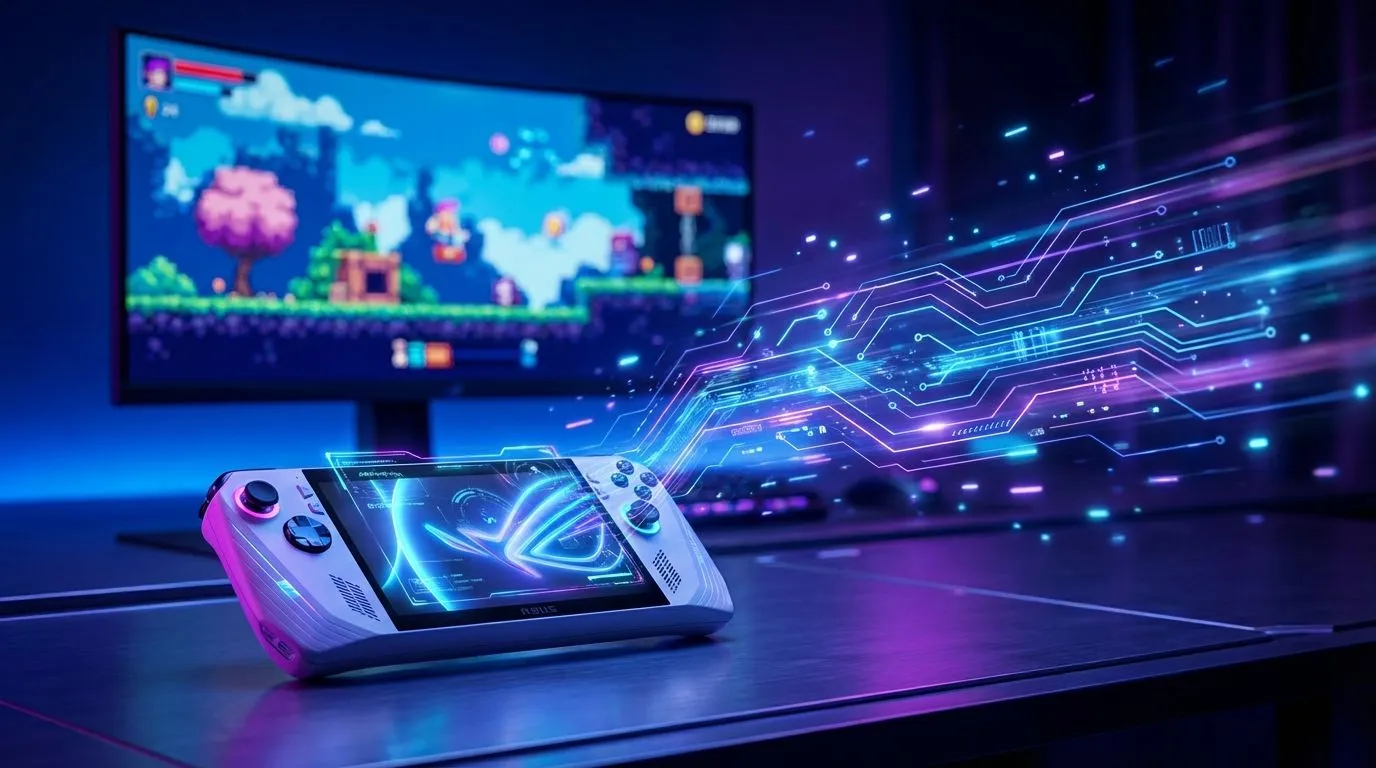
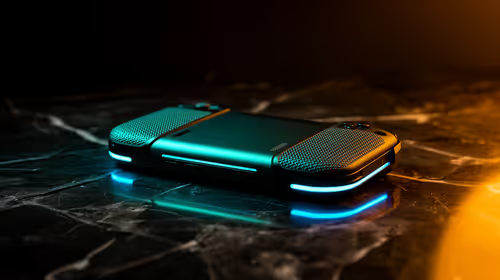
Your ROG Ally X is a powerhouse for gaming on the move, but what about when you’re back at home base? Don’t let that brilliant 7-inch screen be your only portal to epic worlds. Imagine your favourite games like Helldivers 2 or Elden Ring blasting across your big-screen TV in glorious high definition. Getting your ROG Ally X TV streaming setup sorted is simpler than you think, turning your handheld into a proper couch console experience. 🚀
Why Bother Streaming from Your ROG Ally X?
It’s a fair question. The Ally’s screen is fantastic, but sometimes you just want that big-picture immersion. Streaming to a TV or monitor unlocks a few key advantages:
- Proper Couch Co-op: Hook up a few controllers and you’ve got a party-ready gaming machine.
- Cinematic Experience: Sprawling open-world games and visually rich RPGs feel so much more epic on a 55-inch display.
- Desktop Mode Power: Connect a keyboard and mouse, and your Ally X transforms into a fully-fledged Windows PC for browsing or getting some work done.
It effectively gives you two devices in one… a portable beast and a docked home console.
The Best Method: Docking for Flawless ROG Ally X TV Streaming
While wireless streaming is an option, it often comes with lag and compression issues. For a crisp, responsive picture, nothing beats a wired connection via a USB-C dock or hub. This is the most reliable way to handle ROG Ally X TV streaming, ensuring your gameplay is smooth and artifact-free. ⚡
A good dock will not only have an HDMI or DisplayPort output but also Power Delivery (PD) to charge your Ally X while you play. Many also include extra USB ports for controllers, keyboards, or external storage, making them a central part of your setup. This versatility is a hallmark of the best handheld gaming consoles on the market today.
Check Your Cables! 🔧
the best results, use an HDMI 2.1 or DisplayPort 1.4 cable connected to a compatible port on your TV or monitor. This ensures you can access higher resolutions and refresh rates like 4K at 120Hz, letting your powerful [ASUS ROG Ally X](https: www.evetech.co.za PC-Components handheld-gaming-consoles-357?brands=ASUS) truly stretch its legs.
A Quick Guide to Connecting Your Ally X
Ready to get started? It takes just a minute.
- Connect the Dock: Plug your USB-C dock into the top port of your ROG Ally X.
- Plug in Power: Connect your Ally’s official charger to the dock’s USB-C PD input port. This is crucial to keep your device charged during long sessions.
- Connect to Display: Run an HDMI or DisplayPort cable from the dock to your TV or monitor.
- Switch Input: Use your TV remote to switch to the correct HDMI input. Your Ally X’s screen should now appear on the TV. Windows will automatically configure it as a second display. Easy as that!
How Does the Ally X Stack Up?
The handheld gaming space in South Africa is heating up. While the Ally X is a top contender, it’s worth seeing what else is out there. Competitors like Lenovo's Legion Go offer unique features like detachable controllers and a larger screen. Meanwhile, the new MSI Claw is the first to rock an Intel Core Ultra processor, promising a different take on performance and efficiency.
Each device offers a slightly different flavour of portable PC gaming, but they all share one awesome trait: the ability to dock and play on the big screen. ✨