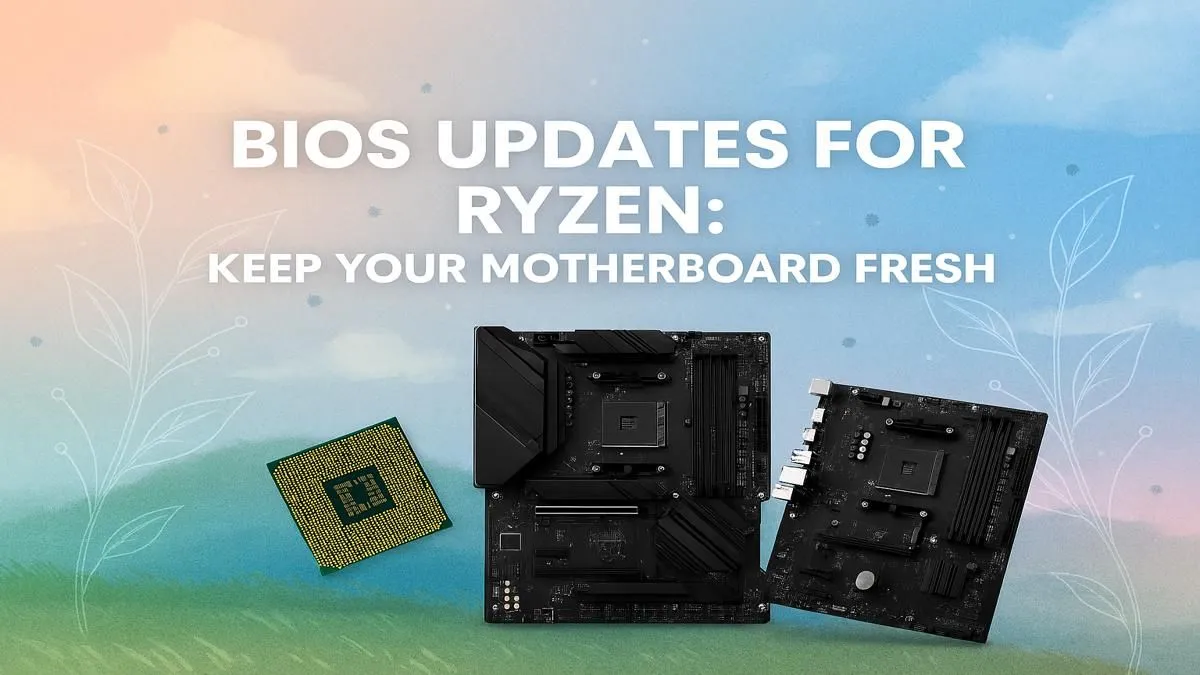
Got a powerful AMD Ryzen CPU? That's lekker! But are you leaving performance on the table? An outdated motherboard BIOS can bottleneck your rig, causing instability or even preventing you from upgrading. A quick Ryzen BIOS update is often all it takes to unlock your PC’s true potential, ensuring maximum frames and flawless stability. This guide will walk you through the process, step-by-step, making it safe and simple. Let's get your machine optimised! 🚀
Why a Ryzen BIOS Update is Worth Your Time
You might be thinking, "If it ain't broke, don't fix it." But when it comes to PC hardware, that's not always the best approach. A motherboard's BIOS (Basic Input/Output System) is the foundational software that controls everything. Performing a BIOS update isn't just for troubleshooting; it’s a crucial part of regular maintenance that delivers real benefits.
Unlocking New Hardware Support
The biggest reason for an update is to enable support for newer CPUs on an older motherboard. AMD is fantastic for supporting multiple CPU generations on a single chipset, and a simple flash can save you a small fortune. It’s the key to making the right AMD motherboard last even longer by dropping in a newer, faster processor down the line.
Boosting Performance and Stability
Motherboard manufacturers constantly refine their code. These AGESA updates (AMD's core software for its CPUs) can significantly improve memory compatibility. This means your high-speed DDR4 or DDR5 RAM is more likely to run at its advertised XMP or EXPO speeds without crashing. This is how many gamers are still getting incredible value from reliable platforms like these B550 motherboards, years after their release.
The Safe, Step-by-Step Ryzen BIOS Update Guide
Ready to get started? The process is straightforward if you follow these steps carefully. Before you begin, a word of warning: a power cut during the update can be disastrous. If you're worried about load shedding, it's best to wait for a stable period or use a UPS if you have one.
Step 1: Identify Your Exact Motherboard Model
This is the most critical step. Flashing the wrong BIOS file can brick your board. You can find your motherboard’s exact model name and revision number printed directly on the PCB, usually near the CPU socket or RAM slots. Alternatively, you can use a free tool like CPU-Z and check the 'Mainboard' tab.
Step 2: Download the Correct BIOS File
Head over to your motherboard manufacturer’s official website (e.g., ASUS, MSI, Gigabyte, ASRock) and find the support page for your specific model. Download the latest non-beta BIOS file. It will usually be a ZIP file containing the BIOS file itself and sometimes a renaming utility.
USB Stick Pro Tip 🔧
Use a smaller, older USB 2.0 flash drive (8GB or 16GB is perfect) formatted to FAT32. These are often more reliable for BIOS flashing than newer, larger USB 3.0 drives. Make sure it's empty besides the BIOS file itself to avoid any confusion or errors during the update process.
Step 3: Prepare Your USB Flash Drive
Once downloaded, extract the ZIP file. Copy the BIOS file (it might have an extension like .CAP or .F32) to your freshly formatted FAT32 USB stick. Some manufacturers require you to rename the file to something specific (e.g., MSI.ROM). Check the instructions on the download page or in the included text file carefully.
Step 4: Flash from Within the BIOS
Insert the USB drive into a USB port on the back of your motherboard. Restart your computer and repeatedly press the Delete or F2 key during boot-up to enter the BIOS/UEFI.
Inside the BIOS, look for a tool called 'M-Flash' (MSI), 'Q-Flash' (Gigabyte), or 'EZ Flash' (ASUS). Navigate to this tool, select your USB drive, choose the BIOS file you prepared, and confirm that you want to start the update. Now, the most important part... don't touch anything! Let the process complete. Your PC will restart automatically. ⚡
What to Do After the Update
Congratulations! You've successfully completed your Ryzen BIOS update. Your PC will boot up with default settings. The first thing you should do is go back into the BIOS and re-enable your RAM's XMP or EXPO profile to get your memory back to its full speed. You may also need to readjust your fan curves and boot order.
While a BIOS update breathes new life into older hardware, sometimes an upgrade is the only way forward. If you're looking for features like PCIe 5.0 and more robust power delivery for the latest CPUs, considering the next generation of hardware, like the new AMD B850 motherboards or the flagship X870 enthusiast boards, is the logical next step for a true performance enthusiast. ✨
Ready for Your Next Upgrade?
A successful BIOS update is a great skill, but the foundation of any powerhouse PC is a quality motherboard. Whether you're upgrading or starting a fresh build, we have the perfect board for your budget and performance needs. Explore our massive range of AMD motherboards and find the perfect foundation for your rig.